| Publishers | EA Games |
| Developers | EA Los Angeles |
| Release date | 2006 |
| Genre | Strategy |
| Game rating |
Game Description
The Lord of the Rings: The Battle for Middle-earth II is a real-time strategy video game developed and published by Electronic Arts. It is based on the fantasy novels The Lord of the Rings and The Hobbit by J. R. R. Tolkien and its live-action film trilogy adaptation. It is the sequel to Electronic Arts’ 2004 title The Lord of the Rings: The Battle for Middle-earth.
Download The Battle for Middle-earth II
We might have the game available for more than one platform. The Battle for Middle-earth II is currently available on these platforms:
Windows (2006)
BFME 2 + Rise of the Witch King.rar (3.75 GB)
How to play on Windows
- Click on the download button. It should redirect you to your download. Make sure you download the file properly and that your internet does not disconnect while downloading.
- While waiting for your download, make sure that you have a software called Daemon Tools installed on your computer.
- Extract the “BFME 2 + Rise of the Witch King” folder to your desktop.
- Drag the folder to your C:// disc on your computer.
- Open the “BFME 2 + Rise of the Witch King” folder and then open the “Game Files” folder.
Instructions for The Battle for Middle Earth 2
- Open the folder called BFME2 and then the folder called BFME2 Installer. Inside the BFME Installer folder, you want to double click on the file called AutoRun.exe and the installer for The Battle for Middle Earth 2 should launch. Go through the game setup – at some point they will ask you to insert a CD-key. Use any one of these and finish the installation:
- HNB3-GRYM-GLUS-HKTU-Y9V8
- XLWW-55XX-5MB8-Q6QJ-5JAP
- 42FP-FQES-GW72-MT37-MCGQ
- QJXX-3TVM-EE2V-NUYU-SWDW
- 3QWW-QZQ7-USET-Z8NQ-WUYB
- HZKB-QJTS-W5E3-83PJ-K9AA
- ATK3-5TTF-9HJH-3TRW-2F8F
- M9NN-6NWW-5VRB-5KLN-EVV3
- If you run the game now, they will ask you to insert a CD so it will not work. What you have to do, is open up the software called Daemon Tools and then select add a new drive. You want the virtual drive to be “SCSI” and then select “Add drive”. If this part is a bit complicated, watch the video below and you can see how I did it for clearer instructions. You then want to drag the “MI-BFME2.mds” file (it will be 9KB) into the empty drive on Daemon tools. Note: If Daemon Tools doesn’t work, then use WinCDEmu.
- The next step, is that you want to go back into the folder called “Game Files”. In here, you want to open the “Options.ini” file (double click it). You will see a line of code which says “Resolution = 1920 1080”. You want to change these numbers to the resolution of your computer, and then save the document.
- Next, you want to click on your start menu and then search for %appdata% and you want to click on the %appdata% folder. This is usually C:\Users\(your username)\AppData\Roaming. Inside this folder, you want to find the folder called “My Battle for Middle-earth ™ II Files”. You want to open that folder, and then you want to copy, and then paste, the “Options.ini” file from step 3 into the “My Battle for Middle-earth ™ II Files” folder.
- You can now run the game from the desktop shortcut, and the insert a CD message should go away.
- Enjoy the game!
Instructions for The Battle for Middle-earth 2: The Rise of the Witch-king (you need to download the base game first)
- You will need to have The Battle for Middle-earth 2 base game installed before you can install this, so do the previous steps first!
- Open the folder called Rise of the Witch King and then the folder called RoTWK Installer. Inside the
- RoTWK Installer folder, you want to double click on the file called AutoRun.exe and the installer for The Rise of the Witch-king should launch. Go through the game setup – at some point they will ask you to insert a CD-key. Use any one of these:
- HE55-26J3-XSSL-A58B-BZ96
- YQFX-M2HH-LM62-NJ9T-KMZG
- TJLC-V87P-E5CY-ELRS-VLYP
- DJ7F-LB8A-NZDE-BJXN-8X8M
- 3WH9-CR7P-4UPH-PPQE-DT39
- GG22-XGJA-GQ96-YJJS-NKVG
- HR55-MLNM-WFJN-UNWR-4X6T
- JW9R-97QL-NRFW-QAFL-UDEX
- If you run the game now, they will ask you to insert a CD so it will not work. What you have to do, is open up the software called Daemon Tools and then select add a new drive. You want the virtual drive to be “SCSI” and then select “Add drive”. You then want to drag the “RotWk_Maxi-TheSmokingMan.mds” file (it will be 5KB) into the empty drive on Daemon tools.
- Next, you want to click on your start menu and then search for %appdata% and you want to click on the %appdata% folder. This is usually C:\Users\(your username)\AppData\Roaming. Inside this folder, you want to find the folder called “My The Lord of the Rings, The Rise of the Witch-king Files”. You want to open that folder, and then you want to copy, and then paste, the “Options.ini” file from before into the “My The Lord of the Rings, The Rise of the Witch-king Files” folder.
- You can now run the game from the desktop shortcut.
- Enjoy the game!
Additional files, patches and fixes
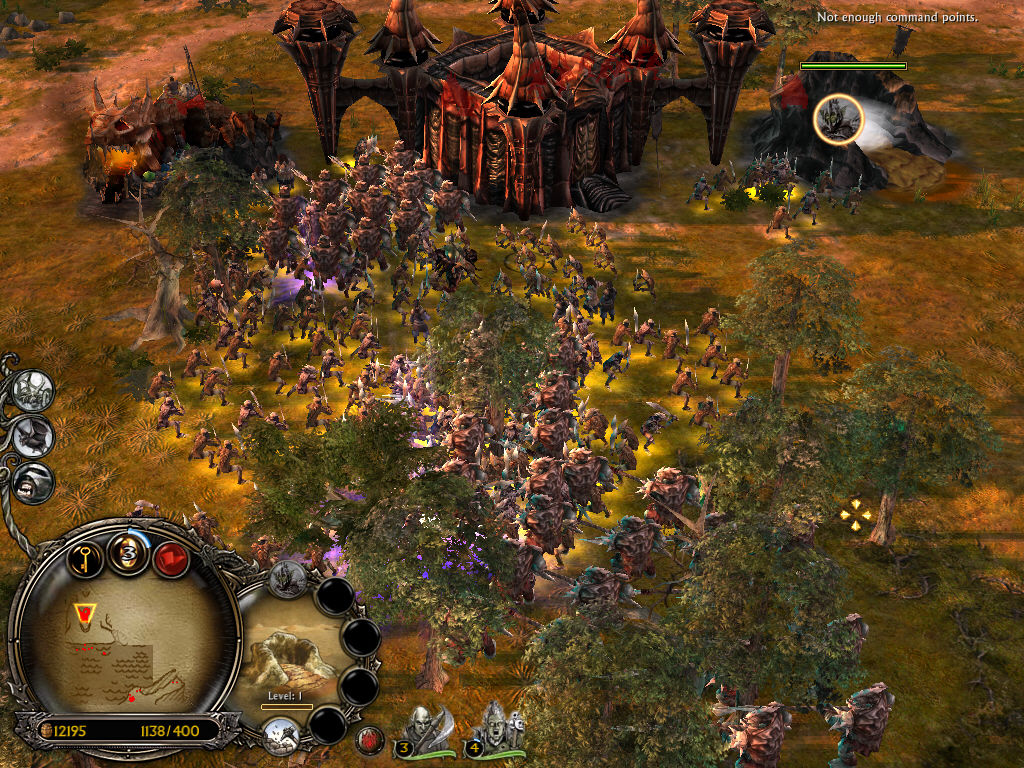
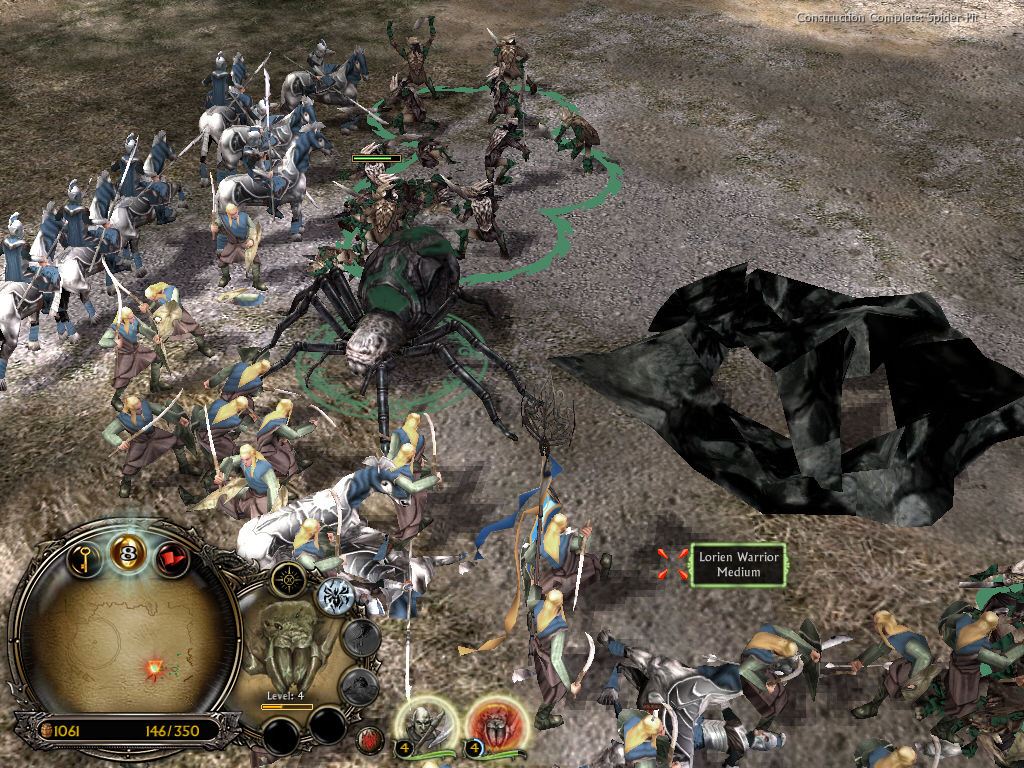
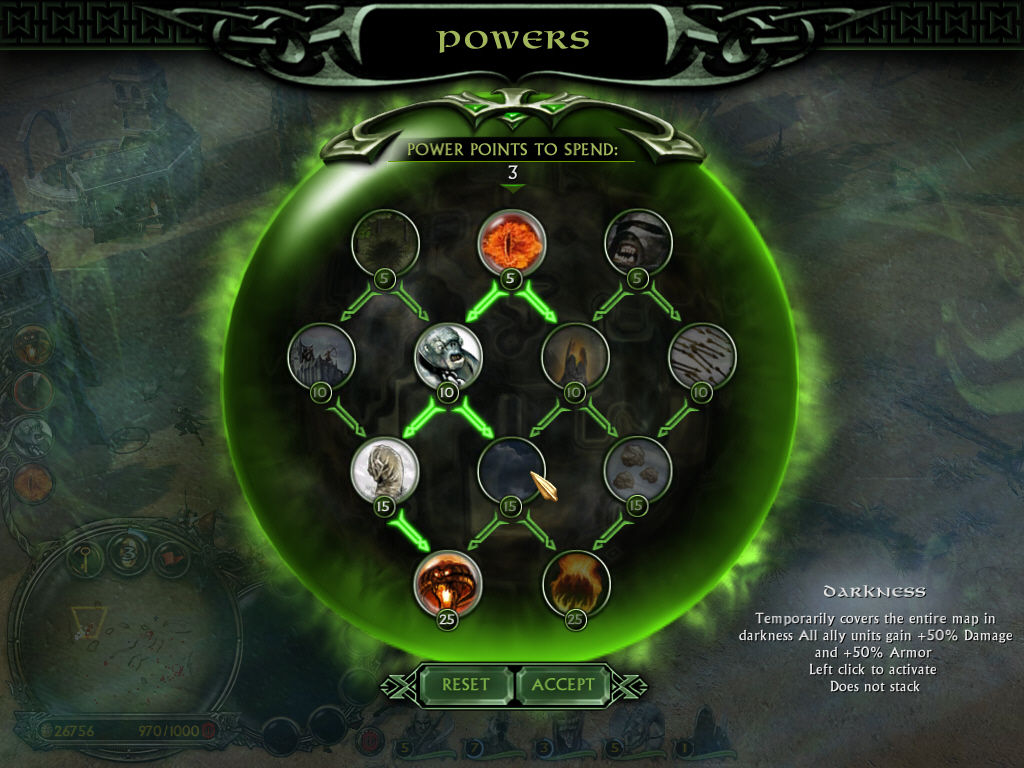
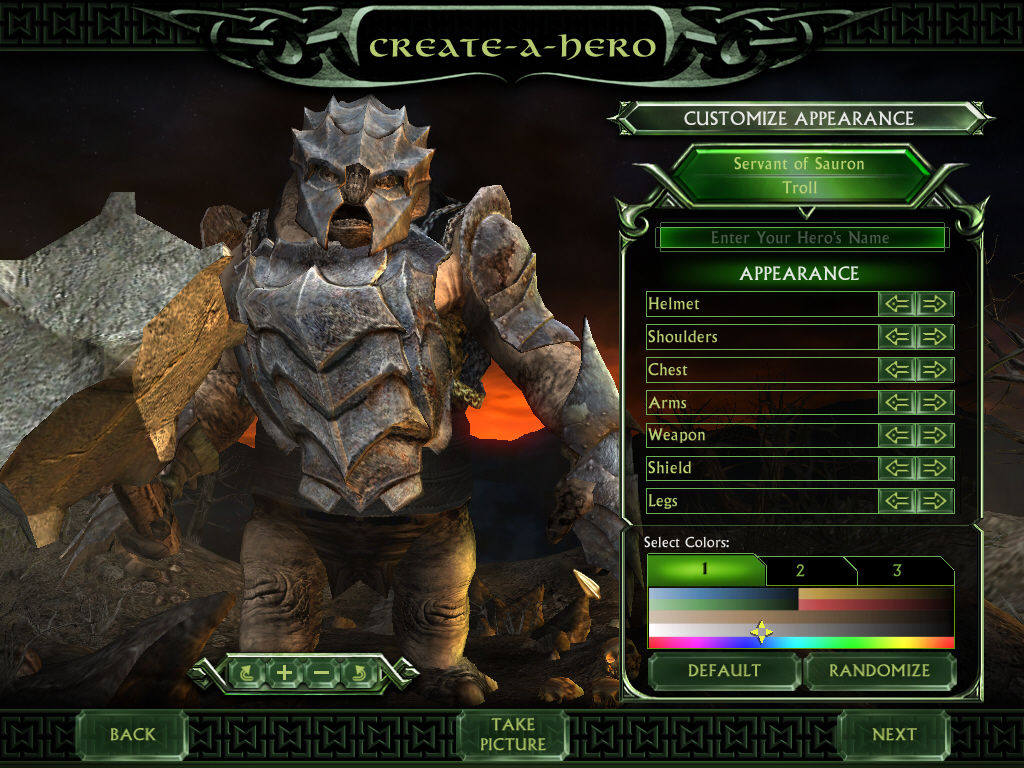
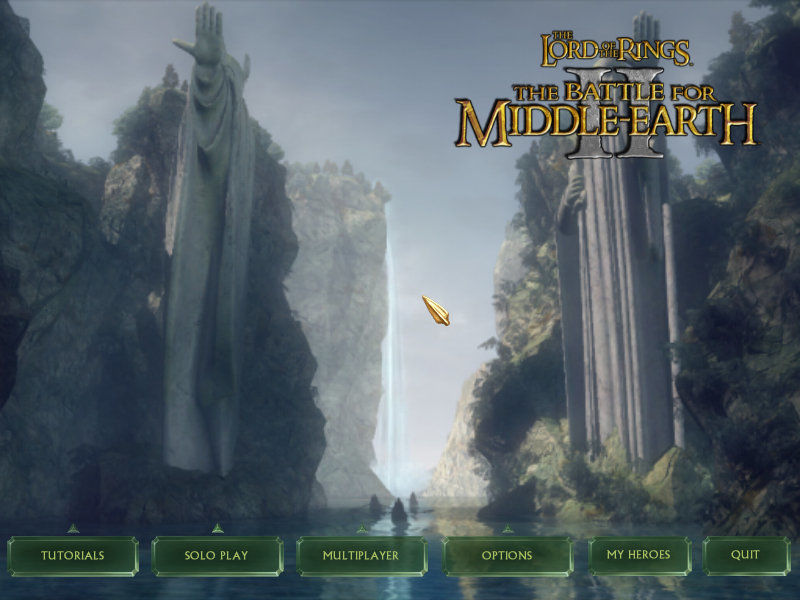
The Battle for Middle-earth II Screenshots
Windows
So are you saying bc of the windows updates the previous version I installed isn’t going to work and now i have to use wincdemu to re install?
https://www.the3rdage.net/item-840?addview this is the fix to the zooming problem. Cause of the widescreen the game is really zoomed in, this fixes it.
https://www.youtube.com/watch?v=Axi999xW4cc&list=WL&index=42&t=0s this works for windows 10.
Does this work for Windows 7?
You have to add a file in C —> Users—-> Appdata—-> Roaming —-> My battle for middle… .
Then it works perfectly on Windows 7 or 10
can it use poweriso? or use mounting?my step was to make the file to an iso file and mount,is it will work?
use wincdemu for “Please insert the correct DVD-ROM, select OK and restart application” error because of win 10 updates.
I’ve noticed an issue where the DAEMON software isn’t showing the virtual drive options when you go to “add drive” It just shows the “DVD Region” option and not anything to do with “virtual drives” as shown in the video where we need to set it to SCSI
Yeah I installed all 3 games and played in April. Now when I go to play BFM2 or Witch King i get the “Please insert the correct DVD-ROM, select OK and restart application”. So I am not sure what has changed but Anything I try isn’t working.
I had the same problem. Could someone help?
When I installed the game and play 5 minutes into the game I am being defeated anyone faced this problem? can someone please help?
I get a game.dat error code saying it can not find fil D3d9x or something along those lines
AM ALSO HAVING THE SAME PROBLEM, WHAT TO DO?
The game is zoomed in, I can almost only see the fortress when I play, I checked some online videos on how to fix but it is not working (https://www.youtube.com/watch?v=lns64gfGR5s). Did someone else have this problem? Can you please help? Thanks in advance
Can you still run the game even tho you dont have a
physical cdrom because my pc does not have one..
Got few tips that helped me run the game;
1) Trying to run the game as admin gave me the “Cannot locate the CD-ROM” message
2) If you cant find “My Battle for Middle-earth ™ II Files” folder, open the game and the file should be there now
3) If your game doesnt open make sure you put the options file in correct folder (both main game and expansion)
okay… i have new problem that cant find here, after putting codes in, and start installing it. i get error at 15% both on daemon tool, and wincdemu. PS: dunno if important, but theres no image on the game installer, just plain white.
Hello, I had the exact same problem but the solution is simple. Use WinCDEmu insted of DTLite. It works great!