| Publishers | EA Games |
| Developers | EA Los Angeles |
| Release date | 2006 |
| Genre | Strategy |
| Game rating |
Game Description
The Lord of the Rings: The Battle for Middle-earth II is a real-time strategy video game developed and published by Electronic Arts. It is based on the fantasy novels The Lord of the Rings and The Hobbit by J. R. R. Tolkien and its live-action film trilogy adaptation. It is the sequel to Electronic Arts’ 2004 title The Lord of the Rings: The Battle for Middle-earth.
Download The Battle for Middle-earth II
We might have the game available for more than one platform. The Battle for Middle-earth II is currently available on these platforms:
Windows (2006)
BFME 2 + Rise of the Witch King.rar (3.75 GB)
How to play on Windows
- Click on the download button. It should redirect you to your download. Make sure you download the file properly and that your internet does not disconnect while downloading.
- While waiting for your download, make sure that you have a software called Daemon Tools installed on your computer.
- Extract the “BFME 2 + Rise of the Witch King” folder to your desktop.
- Drag the folder to your C:// disc on your computer.
- Open the “BFME 2 + Rise of the Witch King” folder and then open the “Game Files” folder.
Instructions for The Battle for Middle Earth 2
- Open the folder called BFME2 and then the folder called BFME2 Installer. Inside the BFME Installer folder, you want to double click on the file called AutoRun.exe and the installer for The Battle for Middle Earth 2 should launch. Go through the game setup – at some point they will ask you to insert a CD-key. Use any one of these and finish the installation:
- HNB3-GRYM-GLUS-HKTU-Y9V8
- XLWW-55XX-5MB8-Q6QJ-5JAP
- 42FP-FQES-GW72-MT37-MCGQ
- QJXX-3TVM-EE2V-NUYU-SWDW
- 3QWW-QZQ7-USET-Z8NQ-WUYB
- HZKB-QJTS-W5E3-83PJ-K9AA
- ATK3-5TTF-9HJH-3TRW-2F8F
- M9NN-6NWW-5VRB-5KLN-EVV3
- If you run the game now, they will ask you to insert a CD so it will not work. What you have to do, is open up the software called Daemon Tools and then select add a new drive. You want the virtual drive to be “SCSI” and then select “Add drive”. If this part is a bit complicated, watch the video below and you can see how I did it for clearer instructions. You then want to drag the “MI-BFME2.mds” file (it will be 9KB) into the empty drive on Daemon tools. Note: If Daemon Tools doesn’t work, then use WinCDEmu.
- The next step, is that you want to go back into the folder called “Game Files”. In here, you want to open the “Options.ini” file (double click it). You will see a line of code which says “Resolution = 1920 1080”. You want to change these numbers to the resolution of your computer, and then save the document.
- Next, you want to click on your start menu and then search for %appdata% and you want to click on the %appdata% folder. This is usually C:\Users\(your username)\AppData\Roaming. Inside this folder, you want to find the folder called “My Battle for Middle-earth ™ II Files”. You want to open that folder, and then you want to copy, and then paste, the “Options.ini” file from step 3 into the “My Battle for Middle-earth ™ II Files” folder.
- You can now run the game from the desktop shortcut, and the insert a CD message should go away.
- Enjoy the game!
Instructions for The Battle for Middle-earth 2: The Rise of the Witch-king (you need to download the base game first)
- You will need to have The Battle for Middle-earth 2 base game installed before you can install this, so do the previous steps first!
- Open the folder called Rise of the Witch King and then the folder called RoTWK Installer. Inside the
- RoTWK Installer folder, you want to double click on the file called AutoRun.exe and the installer for The Rise of the Witch-king should launch. Go through the game setup – at some point they will ask you to insert a CD-key. Use any one of these:
- HE55-26J3-XSSL-A58B-BZ96
- YQFX-M2HH-LM62-NJ9T-KMZG
- TJLC-V87P-E5CY-ELRS-VLYP
- DJ7F-LB8A-NZDE-BJXN-8X8M
- 3WH9-CR7P-4UPH-PPQE-DT39
- GG22-XGJA-GQ96-YJJS-NKVG
- HR55-MLNM-WFJN-UNWR-4X6T
- JW9R-97QL-NRFW-QAFL-UDEX
- If you run the game now, they will ask you to insert a CD so it will not work. What you have to do, is open up the software called Daemon Tools and then select add a new drive. You want the virtual drive to be “SCSI” and then select “Add drive”. You then want to drag the “RotWk_Maxi-TheSmokingMan.mds” file (it will be 5KB) into the empty drive on Daemon tools.
- Next, you want to click on your start menu and then search for %appdata% and you want to click on the %appdata% folder. This is usually C:\Users\(your username)\AppData\Roaming. Inside this folder, you want to find the folder called “My The Lord of the Rings, The Rise of the Witch-king Files”. You want to open that folder, and then you want to copy, and then paste, the “Options.ini” file from before into the “My The Lord of the Rings, The Rise of the Witch-king Files” folder.
- You can now run the game from the desktop shortcut.
- Enjoy the game!
Additional files, patches and fixes
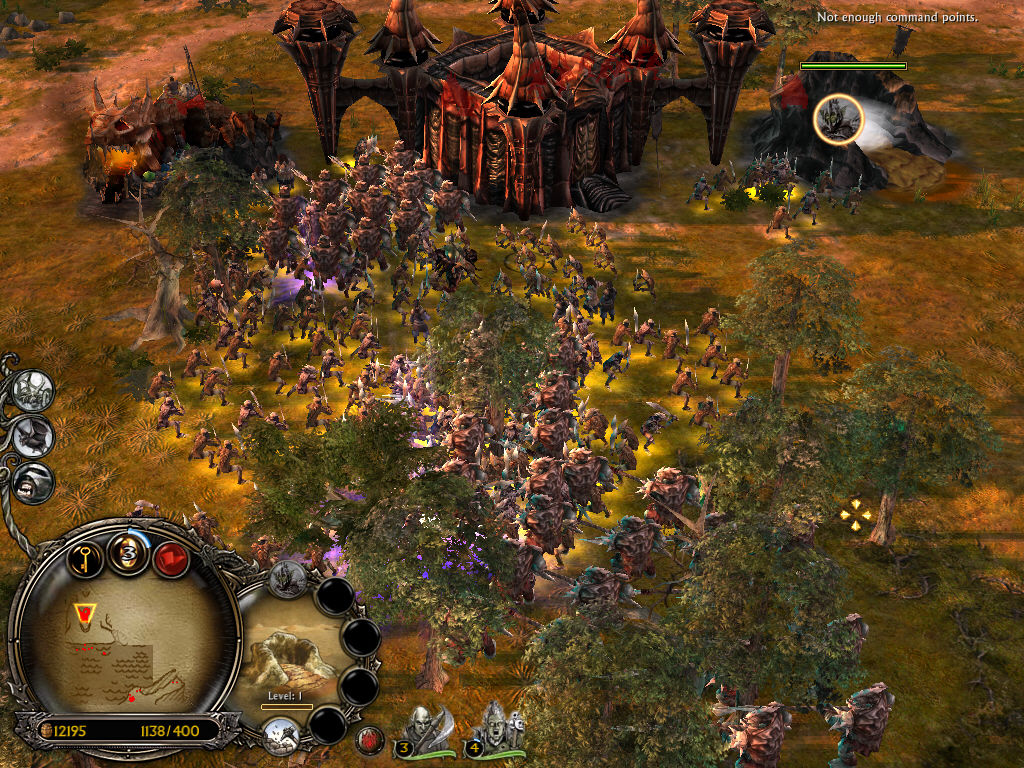
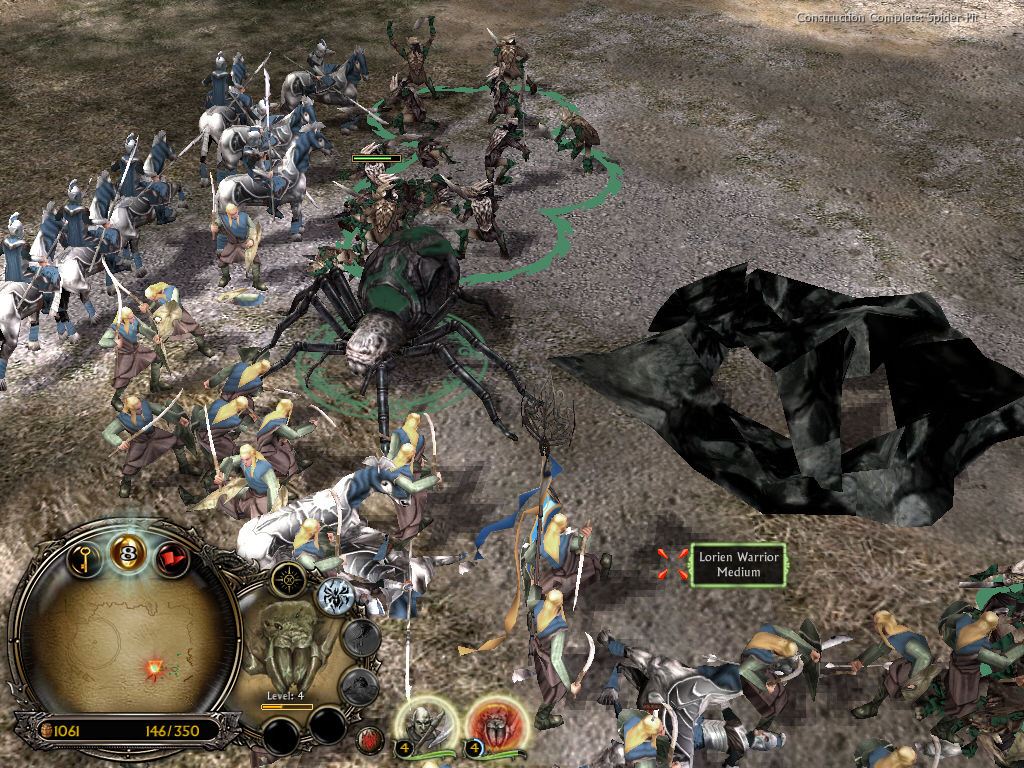
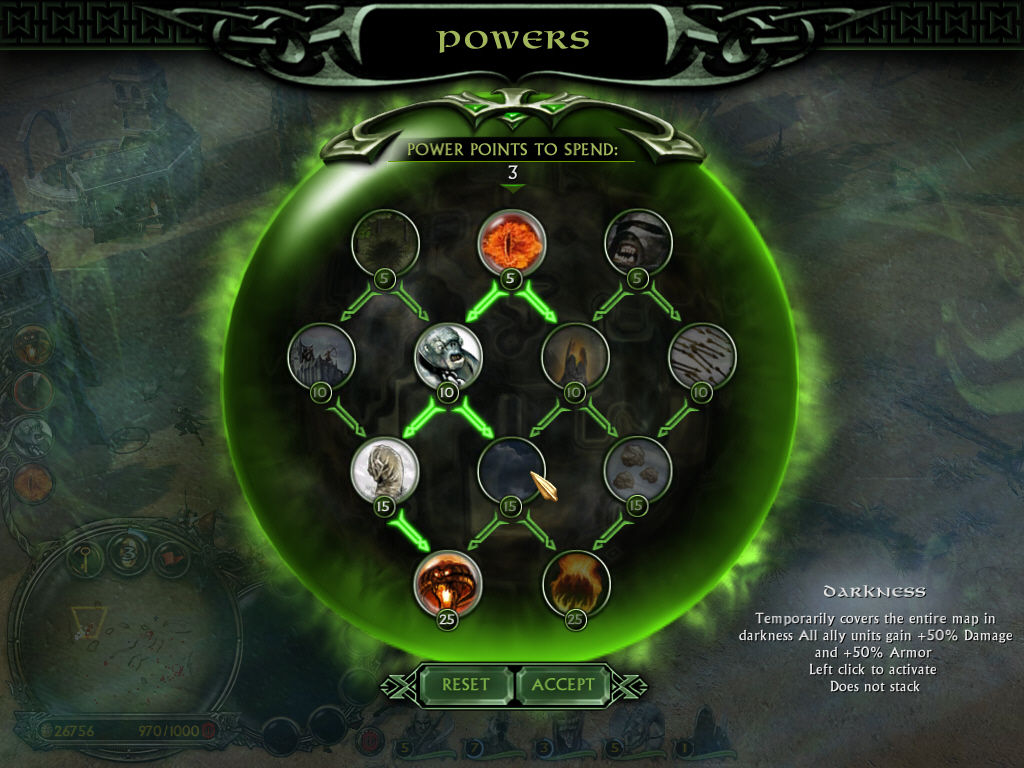
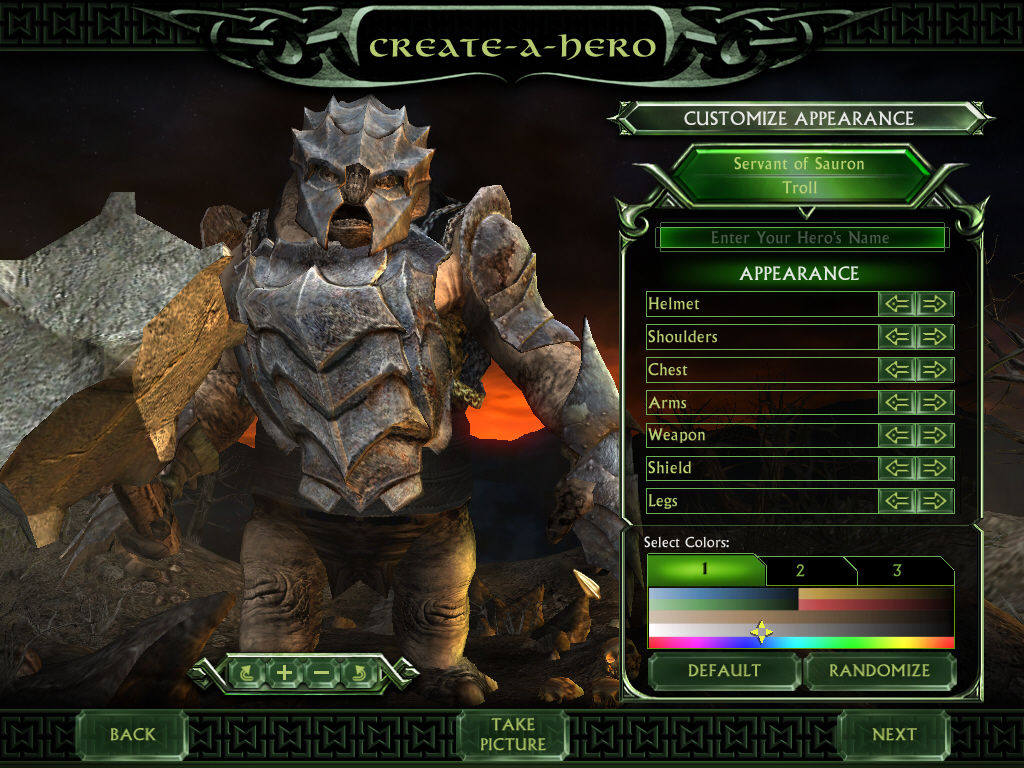
The Battle for Middle-earth II Screenshots
Windows
I followed all the instructions but there isn’t a file in my Roaming for RotWK.
Here is a summary of what has already been mentioned all over the comment section and video for those encountering problems.
1.) If you can’t install the game because it’s asking you to insert the key; and you have already mounted the image on Daemon — You must make sure you extract the file paths as such: C:BFME 2 + Rise of the Witch King. It must be this exact file path to work.
2.) After the install you run the game and it still prompts you for a CD. Not sure why but Daemon tools was giving me issues. Save yourself time and go download WinCDEmu as mentioned below. Mount the image files and you’ll be able to play the game.
Just a few helpful tips:
– Really important to follow the steps mentioned in the video by dragging the ‘options’ file into %appdata% folder otherwise you will not be able to launch the game.
~ When creating your virtual HD on Daemon tools you must use SCSI.
~ When mounting on WinCDEmu you must select CDROM.
~ Comments below showed people didn’t know where to select SCSI when using the updated version of Daemon tools. I couldn’t find the option either, so I downloaded the Daemon tools version listed in the video and it was there just as he shows it.
Good luck everybody — follow the steps, and it will work.
hey I do not have a CDROM in my laptop. Does that mean I can not download it? Also, I tried DAEMON Tools lite. But when i add drive there is no D: drive and it doesnt pop up at the bottom of the screen. I also continued to try and open the installed game, but my laptop said i needed to download an app in order to open the installation. Any tips would be greatly appreciated.
I downloaded the file but it doesnt come up as a folder when i go into downloads so i cant open it… Do you know whats wrong?
i downloaded the files but i only got bfme2 files without the expansion and without the demon tools files. so i auto ran it and installed the game but when i launch it it says insert CD. i didnt do anything with demon files since there is no scsi drive
Daemon Tools is a completely separate download.
So when I try to set up the drive all it says is https://uploads.disquscdn.com/images/2141984ec93a651971a600be12481dd563403ba7aa8645bf9ef185bb28e45ae8.png so I dont know how to select scsi any help would be great ty.
same here…
please insert correct dvd rom and restart application keeps popping up. CAN SOMEONE RESPOND TO THIS PROBLEM!!!! I have seen in it in the comments but no solutions, please help
did you get a reply on this or did you somehow fix it? cuz im facing the same damn issue
Not working. It asks me to put a cd in the c: unit as soon as I click “install”. It seems that your “fix” to that is to lower the protection of the pc, modifying some files that any update could probably reverse any time or have some unexpected consequences in future.
I don’t know, I’ll look to some other way to play this. There must be some way…
Maarten you need to go here, this is a fix for anyone on windows 10 that had the problem with no SCSI option or the plz insert disk. follow the steps here and any probs just ask me. https://daemon-help.com/installation/windows_1903/
please i need some help, it ask me for the cd when i try to install the game, i do all the procedure but its not work
Did you download/install this https://files.disc-soft.com/filer/shared/1558622682/287/ and then reboot? and installed daemon tools light?
yes i do it and i put the scsi but when i do the auto run asck me for the cd
I haven’t got any movie cinematics in the campaign, any ideas?
I am having the same problem, have you found a solution?
HELP i did the installation till the moment you said now you can just double click on bfme to start it up but then it says it doesnt have the right cd disk and i dont know how to fix it. Also in the deamon tools when adding the disks i couldnt choose between isdc and the other ones it just said cd
the witch king disc is corrupt what do i do?
How to install with windows 10?
this is annoying i got further by freestyle installing it then i follow the video step by step and it says enter cd
i couldnt even install the game after i hit i agree to terms it said insert cd/dvd any help
Thank you so much, you sir are a saint send from valar! https://media1.giphy.com/media/1tGN00iMCj3Mc/giphy.gif
Solved please insert CD/DVD problem! As explained install files need to be exactly in the right location. Daemon tools doesn’t allow SCSI without a licence, but I made this work with Alcohol 52% software which had the required SCSI to make the image loading work. You need to enable it in the settings and reboot to make it take effect!
Hi man i was wondering if you know a solution to this problem.
I downloaded the file but it doesnt come up as a folder when i go into downloads so i cant open it… Do you know whats wrong?