| Publishers | EA Games |
| Developers | EA Los Angeles |
| Release date | 2006 |
| Genre | Strategy |
| Game rating |
Game Description
The Lord of the Rings: The Battle for Middle-earth II is a real-time strategy video game developed and published by Electronic Arts. It is based on the fantasy novels The Lord of the Rings and The Hobbit by J. R. R. Tolkien and its live-action film trilogy adaptation. It is the sequel to Electronic Arts’ 2004 title The Lord of the Rings: The Battle for Middle-earth.
Download The Battle for Middle-earth II
We might have the game available for more than one platform. The Battle for Middle-earth II is currently available on these platforms:
Windows (2006)
BFME 2 + Rise of the Witch King.rar (3.75 GB)
How to play on Windows
- Click on the download button. It should redirect you to your download. Make sure you download the file properly and that your internet does not disconnect while downloading.
- While waiting for your download, make sure that you have a software called Daemon Tools installed on your computer.
- Extract the “BFME 2 + Rise of the Witch King” folder to your desktop.
- Drag the folder to your C:// disc on your computer.
- Open the “BFME 2 + Rise of the Witch King” folder and then open the “Game Files” folder.
Instructions for The Battle for Middle Earth 2
- Open the folder called BFME2 and then the folder called BFME2 Installer. Inside the BFME Installer folder, you want to double click on the file called AutoRun.exe and the installer for The Battle for Middle Earth 2 should launch. Go through the game setup – at some point they will ask you to insert a CD-key. Use any one of these and finish the installation:
- HNB3-GRYM-GLUS-HKTU-Y9V8
- XLWW-55XX-5MB8-Q6QJ-5JAP
- 42FP-FQES-GW72-MT37-MCGQ
- QJXX-3TVM-EE2V-NUYU-SWDW
- 3QWW-QZQ7-USET-Z8NQ-WUYB
- HZKB-QJTS-W5E3-83PJ-K9AA
- ATK3-5TTF-9HJH-3TRW-2F8F
- M9NN-6NWW-5VRB-5KLN-EVV3
- If you run the game now, they will ask you to insert a CD so it will not work. What you have to do, is open up the software called Daemon Tools and then select add a new drive. You want the virtual drive to be “SCSI” and then select “Add drive”. If this part is a bit complicated, watch the video below and you can see how I did it for clearer instructions. You then want to drag the “MI-BFME2.mds” file (it will be 9KB) into the empty drive on Daemon tools. Note: If Daemon Tools doesn’t work, then use WinCDEmu.
- The next step, is that you want to go back into the folder called “Game Files”. In here, you want to open the “Options.ini” file (double click it). You will see a line of code which says “Resolution = 1920 1080”. You want to change these numbers to the resolution of your computer, and then save the document.
- Next, you want to click on your start menu and then search for %appdata% and you want to click on the %appdata% folder. This is usually C:\Users\(your username)\AppData\Roaming. Inside this folder, you want to find the folder called “My Battle for Middle-earth ™ II Files”. You want to open that folder, and then you want to copy, and then paste, the “Options.ini” file from step 3 into the “My Battle for Middle-earth ™ II Files” folder.
- You can now run the game from the desktop shortcut, and the insert a CD message should go away.
- Enjoy the game!
Instructions for The Battle for Middle-earth 2: The Rise of the Witch-king (you need to download the base game first)
- You will need to have The Battle for Middle-earth 2 base game installed before you can install this, so do the previous steps first!
- Open the folder called Rise of the Witch King and then the folder called RoTWK Installer. Inside the
- RoTWK Installer folder, you want to double click on the file called AutoRun.exe and the installer for The Rise of the Witch-king should launch. Go through the game setup – at some point they will ask you to insert a CD-key. Use any one of these:
- HE55-26J3-XSSL-A58B-BZ96
- YQFX-M2HH-LM62-NJ9T-KMZG
- TJLC-V87P-E5CY-ELRS-VLYP
- DJ7F-LB8A-NZDE-BJXN-8X8M
- 3WH9-CR7P-4UPH-PPQE-DT39
- GG22-XGJA-GQ96-YJJS-NKVG
- HR55-MLNM-WFJN-UNWR-4X6T
- JW9R-97QL-NRFW-QAFL-UDEX
- If you run the game now, they will ask you to insert a CD so it will not work. What you have to do, is open up the software called Daemon Tools and then select add a new drive. You want the virtual drive to be “SCSI” and then select “Add drive”. You then want to drag the “RotWk_Maxi-TheSmokingMan.mds” file (it will be 5KB) into the empty drive on Daemon tools.
- Next, you want to click on your start menu and then search for %appdata% and you want to click on the %appdata% folder. This is usually C:\Users\(your username)\AppData\Roaming. Inside this folder, you want to find the folder called “My The Lord of the Rings, The Rise of the Witch-king Files”. You want to open that folder, and then you want to copy, and then paste, the “Options.ini” file from before into the “My The Lord of the Rings, The Rise of the Witch-king Files” folder.
- You can now run the game from the desktop shortcut.
- Enjoy the game!
Additional files, patches and fixes
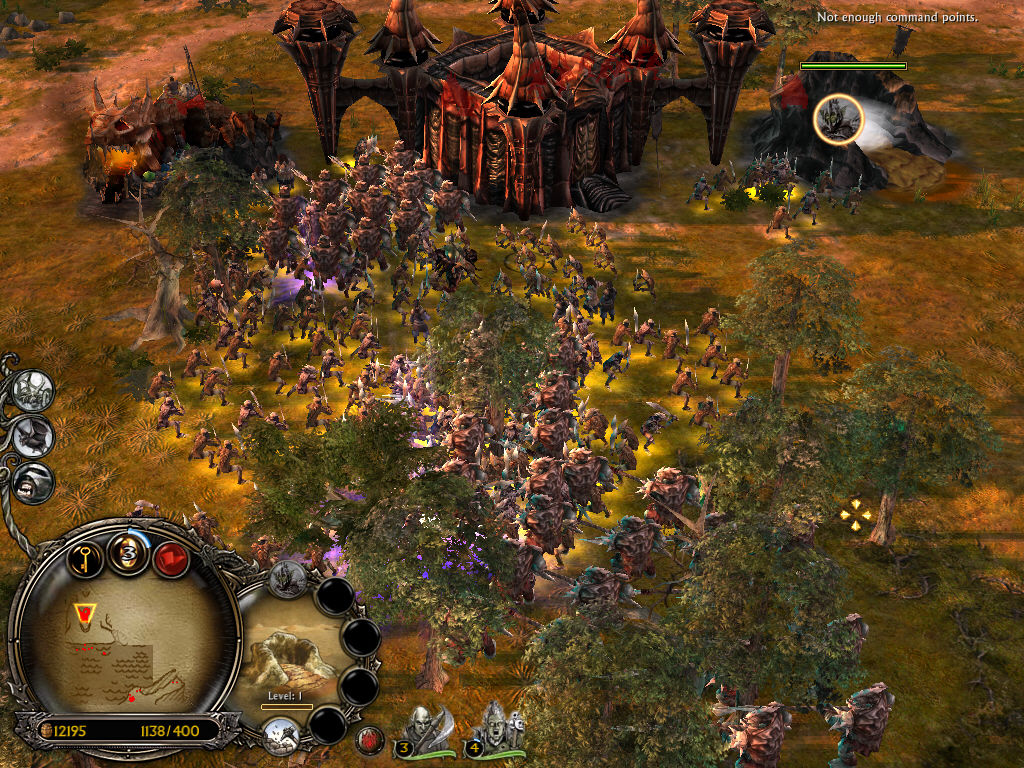
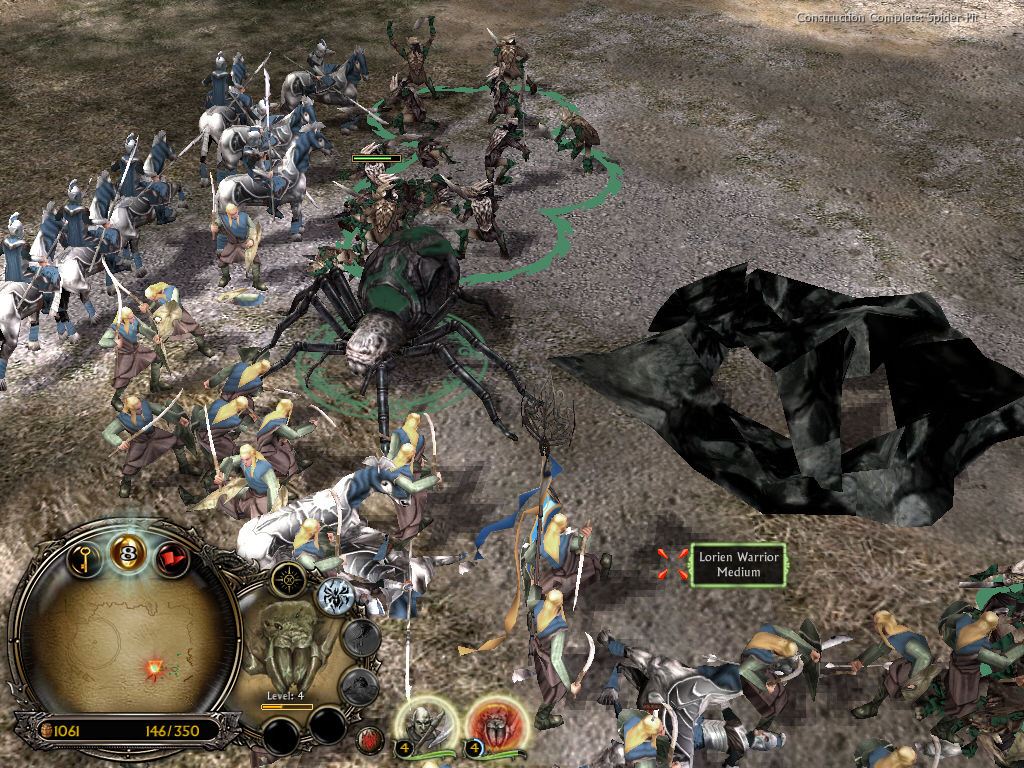
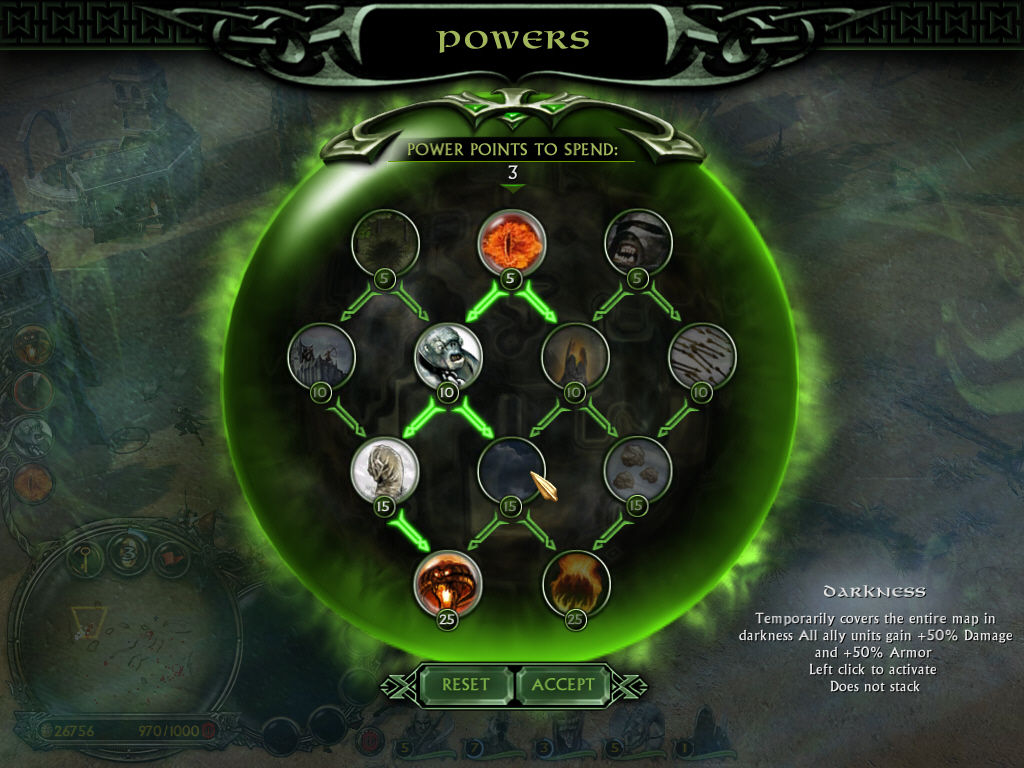
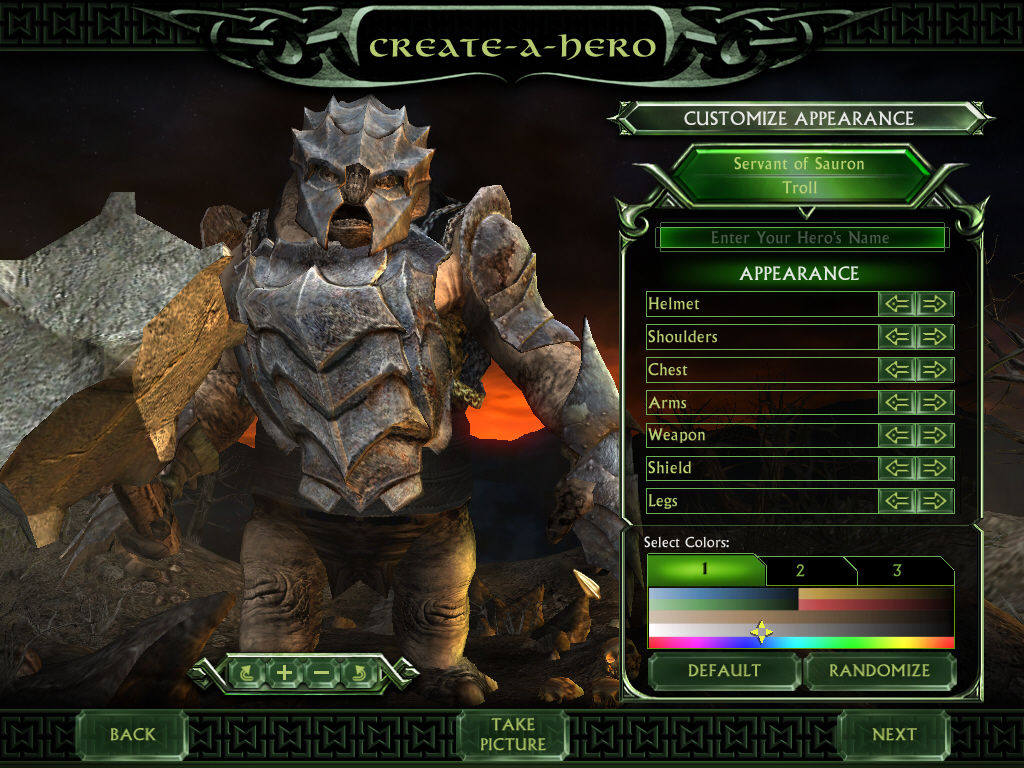
The Battle for Middle-earth II Screenshots
Windows
hey! ive managed to install the BFME with the expansion, however starting the application brings an error screen asking for the cd. any work arounds?
pic related. https://uploads.disquscdn.com/images/2d770f99c55d08b2b46d9c607b0afb4d62ce6f07406f7aa2f7209ff95e77b8ea.png
Followed ALL the steps. “Please insert the correct DVD-ROM, select OK and restart application”.
Hey I have a question, I have done all the steps as instructed yet I can’t run the game without the CD it says: Please insert the correct CD-Rom, select OK and restart application.
Could I please get some help
https://uploads.disquscdn.com/images/3901d90d44a27ddf5b89e61a3bd828fc12022373c3e33c5629de17d933c711fd.png
So my C Drive is a small SSD that holds ONLY my OS with only about 3 GB of spare space. Is there any way to install without dragging to my C drive? every time I try to install it asks to insert CD into drive Z (which is the letter of the hard drive it is stored in)
So there’s no way to run the game without the CD?
https://uploads.disquscdn.com/images/3ea7892e3eb107463b780ddfaaa57afd2512a819df9673892924b3c61660cee5.png
Okay so I’ve followed all the steps it worked on the first time but I had ran out of disk space in my laptop thus I placed the game files in an external HDD, it wasn’t working properly (im using windows 10) so I decided it might’ve been an error because it’s not in the laptop thus I redid the steps of mounting the games into daemon tools and installing the game. I finally got to the stage of writing in the CD key and all of them are “invalid”. What do I need to do?
have you received an answer?
i have followed all original steps, game screen loads but then doesnt launch,imediatly fall down and doenst work ,
any help?
Did you ever find a fix for this? I have the same problem.
I have the same problem too
Hey i dont have a disk space does it works anywase?
Hey i dont have a pc disk space in my pc does it works anywase or not?
It doesn’t work. Says there’s not enough resources to make the drive.
I don’t know what to do.
I had an issue where the install would not start, due to me needing to insert the disk on C:.
Found out that the installer has the paths hard coded. So the only way to run the installer is if its located exactly here. “C:BFME 2 + Rise of the Witch KingGame FilesRise of the Witch King”
i have followed all original steps, game screen loads but then doesnt launch, any help?
when i download the game i get an RAR file instead of an folder and i cant open it. how do i fix that?
https://uploads.disquscdn.com/images/5b88e5b15614ca4adaeaad3cc7b2a102a430bbd9d35e6b1ba23ecacaa5018e70.png
This! ^^^^^^^^^^. Any work around?
Only way to run the installer is if its located exactly here. “C:BFME 2 + Rise of the Witch KingGame FilesRise of the Witch King”
Double check that your folder is
C:BFME 2 + Rise of the Witch KingGame Files
not
C:BFME 2 + Rise of the Witch KingBFME 2 + Rise of the Witch KingGame Files