| Publishers | EA Games |
| Developers | EA Los Angeles |
| Release date | 2006 |
| Genre | Strategy |
| Game rating |
Game Description
The Lord of the Rings: The Battle for Middle-earth II is a real-time strategy video game developed and published by Electronic Arts. It is based on the fantasy novels The Lord of the Rings and The Hobbit by J. R. R. Tolkien and its live-action film trilogy adaptation. It is the sequel to Electronic Arts’ 2004 title The Lord of the Rings: The Battle for Middle-earth.
Download The Battle for Middle-earth II
We might have the game available for more than one platform. The Battle for Middle-earth II is currently available on these platforms:
Windows (2006)
BFME 2 + Rise of the Witch King.rar (3.75 GB)
How to play on Windows
- Click on the download button. It should redirect you to your download. Make sure you download the file properly and that your internet does not disconnect while downloading.
- While waiting for your download, make sure that you have a software called Daemon Tools installed on your computer.
- Extract the “BFME 2 + Rise of the Witch King” folder to your desktop.
- Drag the folder to your C:// disc on your computer.
- Open the “BFME 2 + Rise of the Witch King” folder and then open the “Game Files” folder.
Instructions for The Battle for Middle Earth 2
- Open the folder called BFME2 and then the folder called BFME2 Installer. Inside the BFME Installer folder, you want to double click on the file called AutoRun.exe and the installer for The Battle for Middle Earth 2 should launch. Go through the game setup – at some point they will ask you to insert a CD-key. Use any one of these and finish the installation:
- HNB3-GRYM-GLUS-HKTU-Y9V8
- XLWW-55XX-5MB8-Q6QJ-5JAP
- 42FP-FQES-GW72-MT37-MCGQ
- QJXX-3TVM-EE2V-NUYU-SWDW
- 3QWW-QZQ7-USET-Z8NQ-WUYB
- HZKB-QJTS-W5E3-83PJ-K9AA
- ATK3-5TTF-9HJH-3TRW-2F8F
- M9NN-6NWW-5VRB-5KLN-EVV3
- If you run the game now, they will ask you to insert a CD so it will not work. What you have to do, is open up the software called Daemon Tools and then select add a new drive. You want the virtual drive to be “SCSI” and then select “Add drive”. If this part is a bit complicated, watch the video below and you can see how I did it for clearer instructions. You then want to drag the “MI-BFME2.mds” file (it will be 9KB) into the empty drive on Daemon tools. Note: If Daemon Tools doesn’t work, then use WinCDEmu.
- The next step, is that you want to go back into the folder called “Game Files”. In here, you want to open the “Options.ini” file (double click it). You will see a line of code which says “Resolution = 1920 1080”. You want to change these numbers to the resolution of your computer, and then save the document.
- Next, you want to click on your start menu and then search for %appdata% and you want to click on the %appdata% folder. This is usually C:\Users\(your username)\AppData\Roaming. Inside this folder, you want to find the folder called “My Battle for Middle-earth ™ II Files”. You want to open that folder, and then you want to copy, and then paste, the “Options.ini” file from step 3 into the “My Battle for Middle-earth ™ II Files” folder.
- You can now run the game from the desktop shortcut, and the insert a CD message should go away.
- Enjoy the game!
Instructions for The Battle for Middle-earth 2: The Rise of the Witch-king (you need to download the base game first)
- You will need to have The Battle for Middle-earth 2 base game installed before you can install this, so do the previous steps first!
- Open the folder called Rise of the Witch King and then the folder called RoTWK Installer. Inside the
- RoTWK Installer folder, you want to double click on the file called AutoRun.exe and the installer for The Rise of the Witch-king should launch. Go through the game setup – at some point they will ask you to insert a CD-key. Use any one of these:
- HE55-26J3-XSSL-A58B-BZ96
- YQFX-M2HH-LM62-NJ9T-KMZG
- TJLC-V87P-E5CY-ELRS-VLYP
- DJ7F-LB8A-NZDE-BJXN-8X8M
- 3WH9-CR7P-4UPH-PPQE-DT39
- GG22-XGJA-GQ96-YJJS-NKVG
- HR55-MLNM-WFJN-UNWR-4X6T
- JW9R-97QL-NRFW-QAFL-UDEX
- If you run the game now, they will ask you to insert a CD so it will not work. What you have to do, is open up the software called Daemon Tools and then select add a new drive. You want the virtual drive to be “SCSI” and then select “Add drive”. You then want to drag the “RotWk_Maxi-TheSmokingMan.mds” file (it will be 5KB) into the empty drive on Daemon tools.
- Next, you want to click on your start menu and then search for %appdata% and you want to click on the %appdata% folder. This is usually C:\Users\(your username)\AppData\Roaming. Inside this folder, you want to find the folder called “My The Lord of the Rings, The Rise of the Witch-king Files”. You want to open that folder, and then you want to copy, and then paste, the “Options.ini” file from before into the “My The Lord of the Rings, The Rise of the Witch-king Files” folder.
- You can now run the game from the desktop shortcut.
- Enjoy the game!
Additional files, patches and fixes
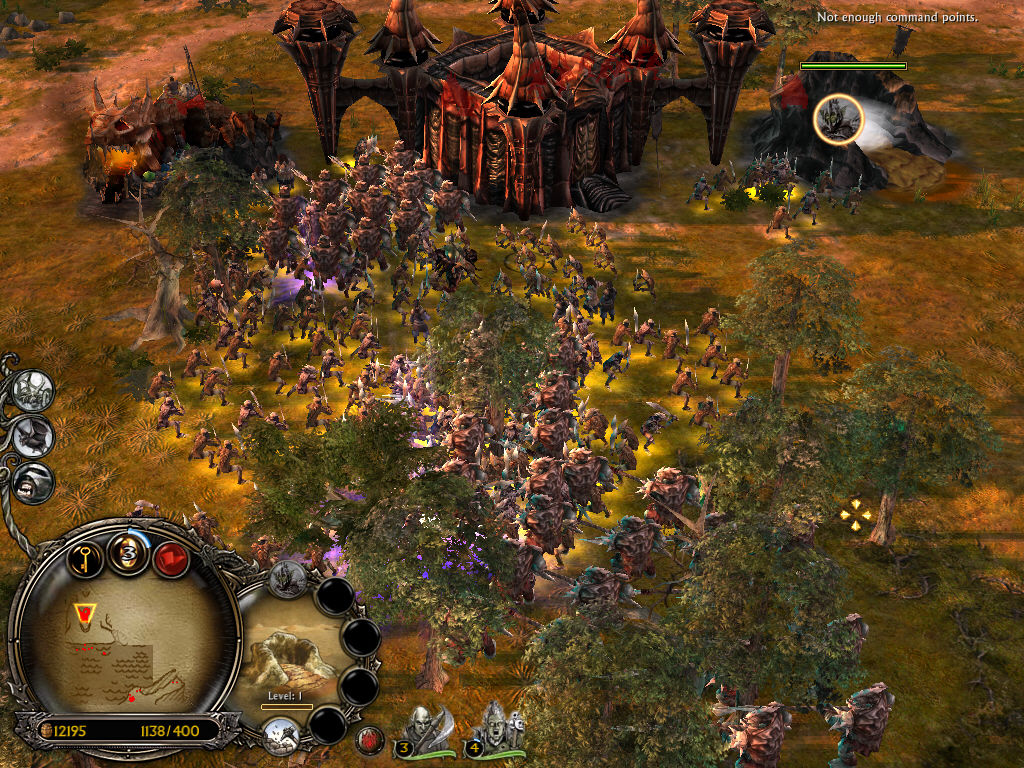
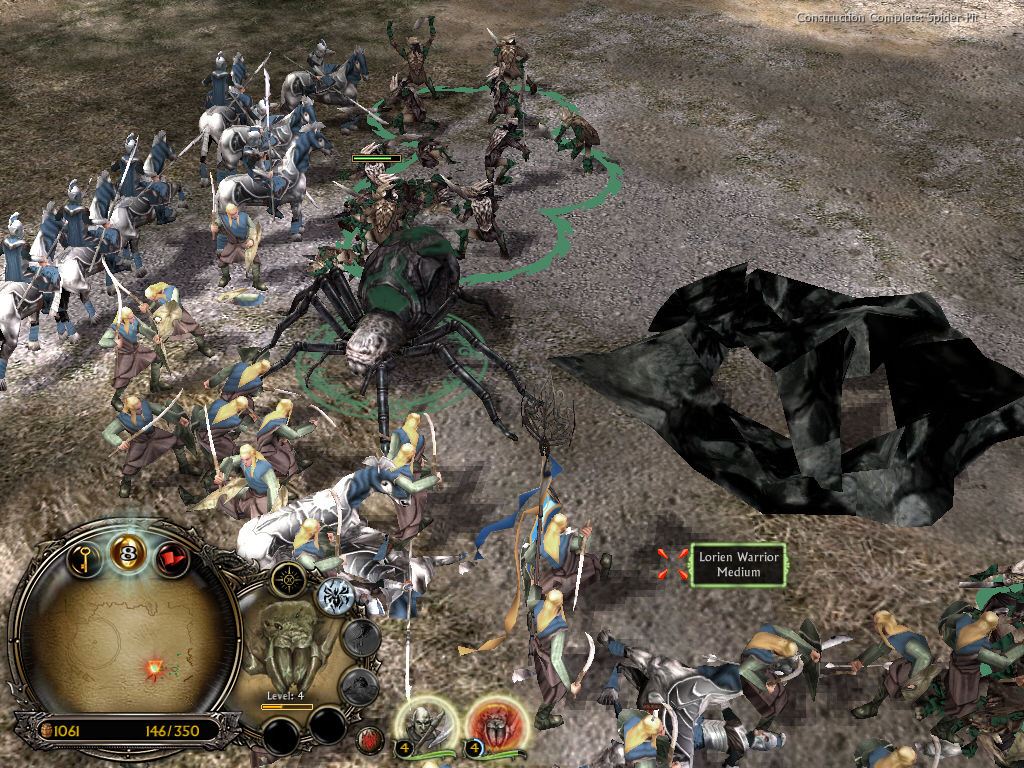
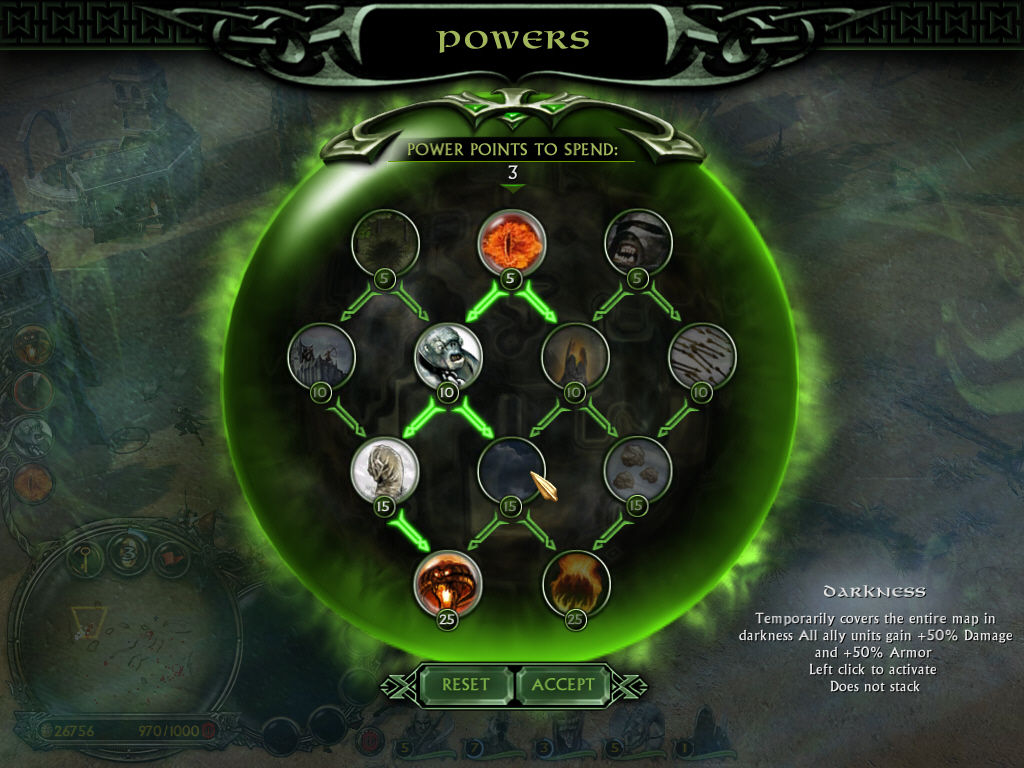
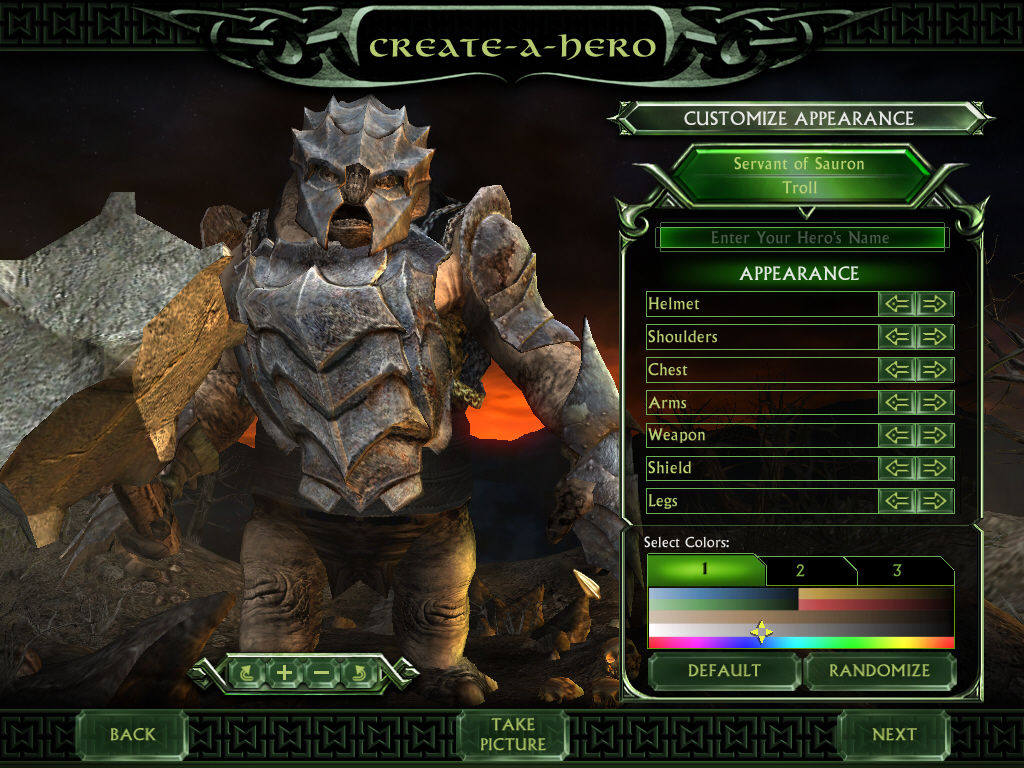
The Battle for Middle-earth II Screenshots
Windows
I have a Mac, and I was hoping to download BFME 2 on windows 7 that I have partitioned. Would this tutorial work for windows 7? Or do I need windows 10? My Mac is older and it doesn’t look like windows 10 is supported on my model of Mac. I guess also, is it possible to download this on a Mac os?
Quick update:
1. I’m aware that Windows 10 released updates which can give you errors when mounting the file as SCSI. You have 2 options here. First, you can mount the files as an “IDE” drive. Or you can use the software WinCDEmu as an alternative to mount the drives.
2. If you get a D3DX9_27.DLL was not found error, follow the steps in this video https://www.youtube.com/watch?v=aWs_FlvoUpI
I an not getting the story cinematics for this or ROTWK, any solution?
I’ve followed the instructions but as soon as I click autorun.exe, I get the setup window but instead of a screen to enter the code all I get is ‘insert disc to C:?? I have no idea what I’ve done wrong
same here
I have faced all of the problems mentioned here once. My advice is follow the installation video precisely!!!!! The only problem you will be facing, if you do not have paid version of daemon tools you may not have the provisions to add SCSI drives. So better install winCDEmu and install both images as cd-roms. Good luck!! Please do follow the instructions especially do not forget to copy the installation files to C drive!!
I bet you hide comments in moderation afraid of people calling out on these broken files. I cannot even get to the install screen without “Please Insert CD 1 into Drive G” so I cannot enter product key.
How do i enable cutscenes?
hello , how to set up to be able play online please?
you have to have gameranger not sure if this will work for it but you can try
Hey could you please recommend Virtual Clone Drive instead of Daemon Tools as their program isnt very useful anymore unless paid for and they even put viruses.
https://www.reddit.com/r/software/comments/3zveee/stay_away_from_daemon_tools/
I don’t think there’s other ones apart from Daemon Tools that allow to mount SCSI to be honest, but you can download an older version of Daemon tools and I’m pretty sure some versions are clean. here is a direct download link to an older version https://archive.org/download/DaemonToolsLite5.0.1/Daemon%20Tools%20Lite%205.0.1.zip which you can use with this download
Hi, downloaded, and installed just fine for BFME2 but when I started the program, after 1 second it exited to the desktop and says BFME2 has stopped working :(((
its startup crash typical for newer win… try some of these yt guides like
https://www.youtube.com/watch?v=SWQlQuHb69w
Kalarima 5++
So I finally got the correct windows updates removed, SCSI drives on Daemon tools installed and mounted, game installed and no CD error but now the game tries to open, I get the “Battle for Middle Earth Special Edition” screen as it tries to load and then it just closes
Hi, did you put the Options.ini file inside the AppData folder? When it crashes at the loading screen it usually is a problem with this step
So that did the trick to get the game running! but I get auto defeat at 3:30
If anybody has figured out the auto delete glitch for this download please help!
Hey! Did you ever find a fix for this? I’m having the same issue, cuts out at 3 minutes 25 seconds every time
Hi Guys,
I have the same problem as the guy above here. I looked very close at the part with the Options folder and the game still closes when i try to open it.
I wish I had a solution but this game is very incompatible with Windows 10 and recent updates have made it worse
I currently use windows 8.1 , any suggestions ? 😛
There is no reason for MS to break things other than pushing their phone department.https://www.theverge.com/2016/5/25/11766540/microsoft-nokia-acquisition-costs ever since they fired their PC people and use Nokia phone idiots in charge. The article above this one on the search results is a paid shill to make it look good not mentioning the wasted 8 billion.
This is just the beginning of why Win 10 updates fail.
After install when I try to launch the game I get an error box-
“game.dat- System Error: The code execution cannot proceed because D3Dx9_27.DLL was not found. Reinstalling the program may fix this problem”
Anybody else encounter this?
Im a 100 percent sure i did everything right i even double checked everything and it still dosnt work
did you get an error for it
I Got the please insert cd message when I try launching the game (mind you that the message also showed up when I was suppose to open and close the game at the start of the video guide) the only other thing that did not happen as it did in the guide was the my battle for middle earth file did not show up automatically so I made it myself
I have zero clue why it did not work
Hey are you sure you mounted the files correctly? you getting that message suggests that you’ve not mounted the files as SCSI on daemon tools, of maybe you didn’t drag the downloaded folder into your C:// directory?
sub im not sure if you saw respondses but ive solved the first problem but a new one has apeared now the game opens and loads… and then closes
does it give you an error when it closes
Hey. why i get error when i want to create scsi drive
i get a error msg say you have insufficient sources to create target connection
Hi, this error is related to a recent Windows update. You have to delete recent Windows updates in order for this error to go away (check this post https://linustechtips.com/main/topic/994855-insufficient-resources-to-create-target-connection-when-trying-to-create-a-scsi-drive-daemon-tools-windows-10/)
Can we play online in this?
I am sure there are still some ways to play online but I don’t know much about which servers are still active. I would search around forums to find out. Or if anyone knows more and can reply here would be very appreciated
Hey man everytime i try to start the game it says to insert the correct CD-RoM, what do i do?
Can you make sure you’ve mounted the MI-BFME2.mds file into daemon tools, and have added Options.ini into the AppData folder
problem… IT says me to put correct DVD-room .. any help?
hey did you mount the MI-BFME2.mds file into daemon tools and also add the Options.ini into the AppData folder? If they give you that error it most likely means you did not do these steps correctly
Please sir. At 03:30 I constantly get auto defeat, I dont know why is this happening, after I adjusted my resolution and everything went alright at first
hey do you mean you lose the game at 3 minutes 30 of every game? Is this in skirmish?
I have this exact same issue! Did you ever find a fix?