| Publishers | EA Games |
| Developers | EA Los Angeles |
| Release date | 2006 |
| Genre | Strategy |
| Game rating |
Game Description
The Lord of the Rings: The Battle for Middle-earth II is a real-time strategy video game developed and published by Electronic Arts. It is based on the fantasy novels The Lord of the Rings and The Hobbit by J. R. R. Tolkien and its live-action film trilogy adaptation. It is the sequel to Electronic Arts’ 2004 title The Lord of the Rings: The Battle for Middle-earth.
Download The Battle for Middle-earth II
We might have the game available for more than one platform. The Battle for Middle-earth II is currently available on these platforms:
Windows (2006)
BFME 2 + Rise of the Witch King.rar (3.75 GB)
How to play on Windows
- Click on the download button. It should redirect you to your download. Make sure you download the file properly and that your internet does not disconnect while downloading.
- While waiting for your download, make sure that you have a software called Daemon Tools installed on your computer.
- Extract the “BFME 2 + Rise of the Witch King” folder to your desktop.
- Drag the folder to your C:// disc on your computer.
- Open the “BFME 2 + Rise of the Witch King” folder and then open the “Game Files” folder.
Instructions for The Battle for Middle Earth 2
- Open the folder called BFME2 and then the folder called BFME2 Installer. Inside the BFME Installer folder, you want to double click on the file called AutoRun.exe and the installer for The Battle for Middle Earth 2 should launch. Go through the game setup – at some point they will ask you to insert a CD-key. Use any one of these and finish the installation:
- HNB3-GRYM-GLUS-HKTU-Y9V8
- XLWW-55XX-5MB8-Q6QJ-5JAP
- 42FP-FQES-GW72-MT37-MCGQ
- QJXX-3TVM-EE2V-NUYU-SWDW
- 3QWW-QZQ7-USET-Z8NQ-WUYB
- HZKB-QJTS-W5E3-83PJ-K9AA
- ATK3-5TTF-9HJH-3TRW-2F8F
- M9NN-6NWW-5VRB-5KLN-EVV3
- If you run the game now, they will ask you to insert a CD so it will not work. What you have to do, is open up the software called Daemon Tools and then select add a new drive. You want the virtual drive to be “SCSI” and then select “Add drive”. If this part is a bit complicated, watch the video below and you can see how I did it for clearer instructions. You then want to drag the “MI-BFME2.mds” file (it will be 9KB) into the empty drive on Daemon tools. Note: If Daemon Tools doesn’t work, then use WinCDEmu.
- The next step, is that you want to go back into the folder called “Game Files”. In here, you want to open the “Options.ini” file (double click it). You will see a line of code which says “Resolution = 1920 1080”. You want to change these numbers to the resolution of your computer, and then save the document.
- Next, you want to click on your start menu and then search for %appdata% and you want to click on the %appdata% folder. This is usually C:\Users\(your username)\AppData\Roaming. Inside this folder, you want to find the folder called “My Battle for Middle-earth ™ II Files”. You want to open that folder, and then you want to copy, and then paste, the “Options.ini” file from step 3 into the “My Battle for Middle-earth ™ II Files” folder.
- You can now run the game from the desktop shortcut, and the insert a CD message should go away.
- Enjoy the game!
Instructions for The Battle for Middle-earth 2: The Rise of the Witch-king (you need to download the base game first)
- You will need to have The Battle for Middle-earth 2 base game installed before you can install this, so do the previous steps first!
- Open the folder called Rise of the Witch King and then the folder called RoTWK Installer. Inside the
- RoTWK Installer folder, you want to double click on the file called AutoRun.exe and the installer for The Rise of the Witch-king should launch. Go through the game setup – at some point they will ask you to insert a CD-key. Use any one of these:
- HE55-26J3-XSSL-A58B-BZ96
- YQFX-M2HH-LM62-NJ9T-KMZG
- TJLC-V87P-E5CY-ELRS-VLYP
- DJ7F-LB8A-NZDE-BJXN-8X8M
- 3WH9-CR7P-4UPH-PPQE-DT39
- GG22-XGJA-GQ96-YJJS-NKVG
- HR55-MLNM-WFJN-UNWR-4X6T
- JW9R-97QL-NRFW-QAFL-UDEX
- If you run the game now, they will ask you to insert a CD so it will not work. What you have to do, is open up the software called Daemon Tools and then select add a new drive. You want the virtual drive to be “SCSI” and then select “Add drive”. You then want to drag the “RotWk_Maxi-TheSmokingMan.mds” file (it will be 5KB) into the empty drive on Daemon tools.
- Next, you want to click on your start menu and then search for %appdata% and you want to click on the %appdata% folder. This is usually C:\Users\(your username)\AppData\Roaming. Inside this folder, you want to find the folder called “My The Lord of the Rings, The Rise of the Witch-king Files”. You want to open that folder, and then you want to copy, and then paste, the “Options.ini” file from before into the “My The Lord of the Rings, The Rise of the Witch-king Files” folder.
- You can now run the game from the desktop shortcut.
- Enjoy the game!
Additional files, patches and fixes
The Battle for Middle-earth II Screenshots
Windows
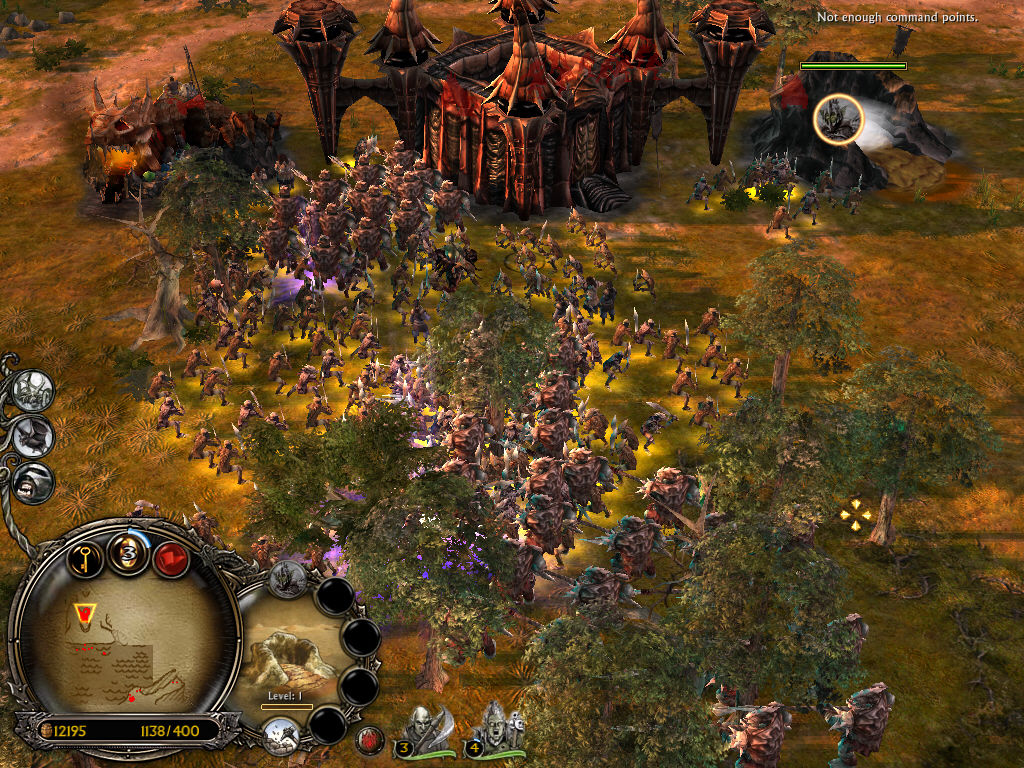
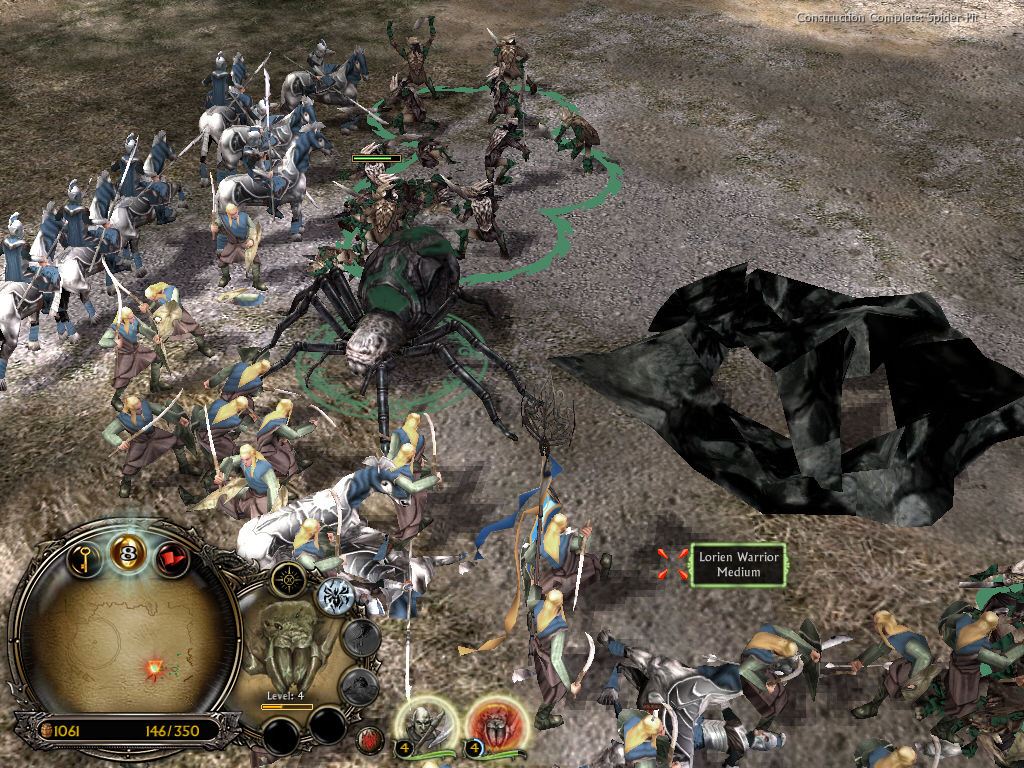
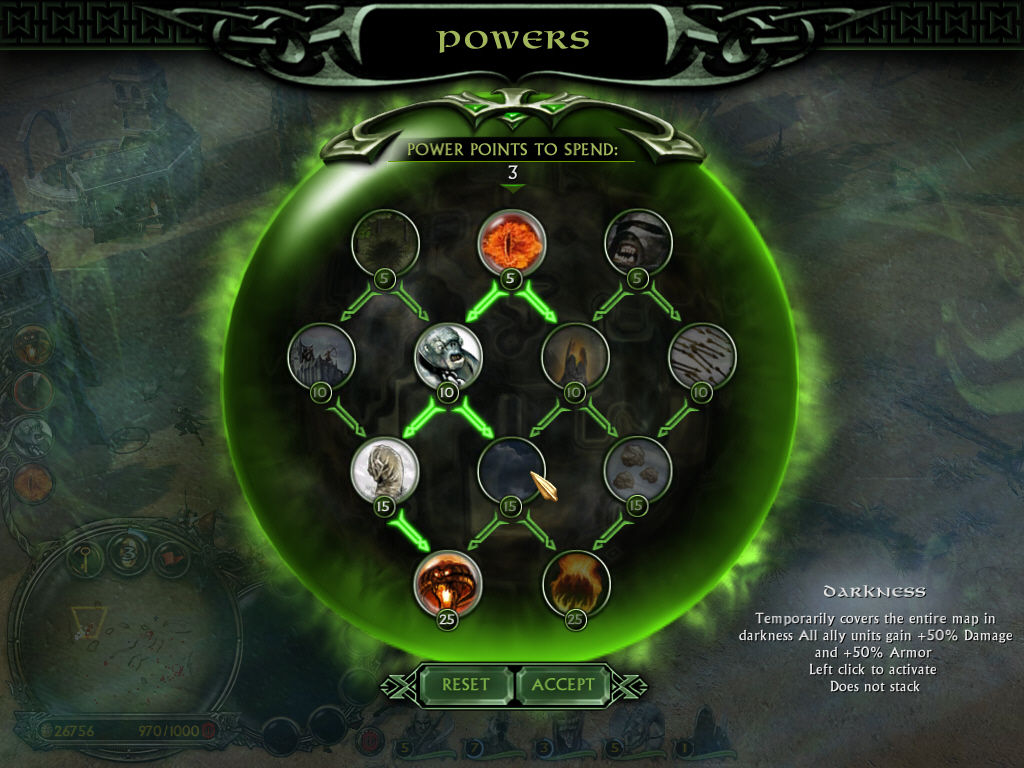
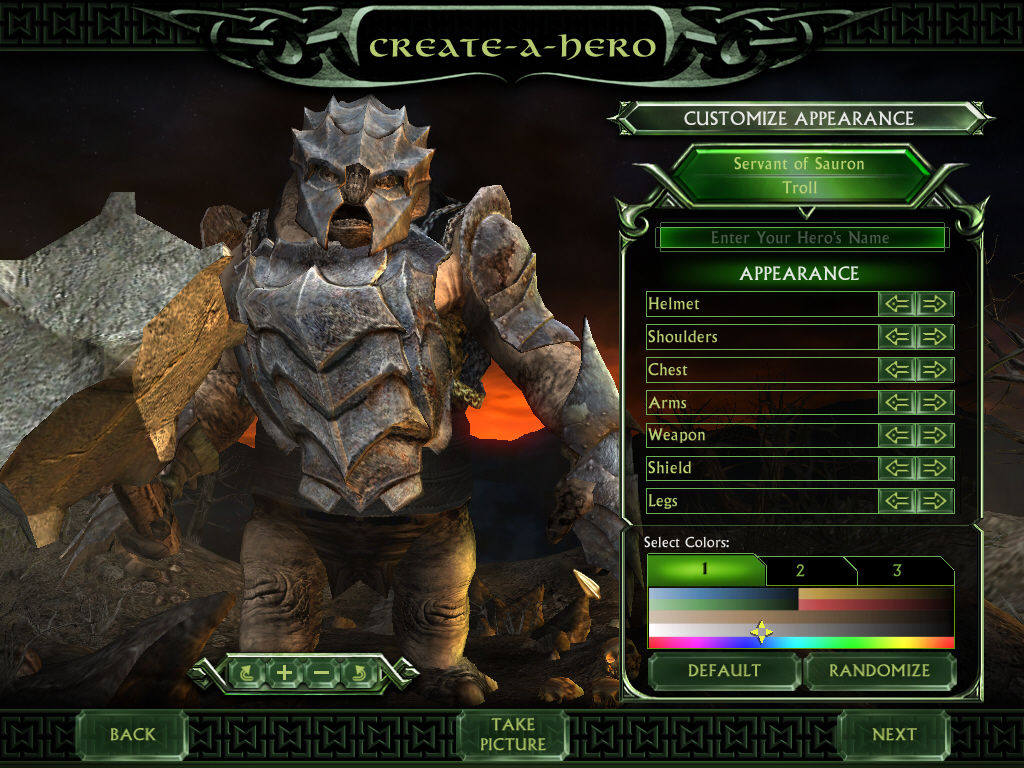
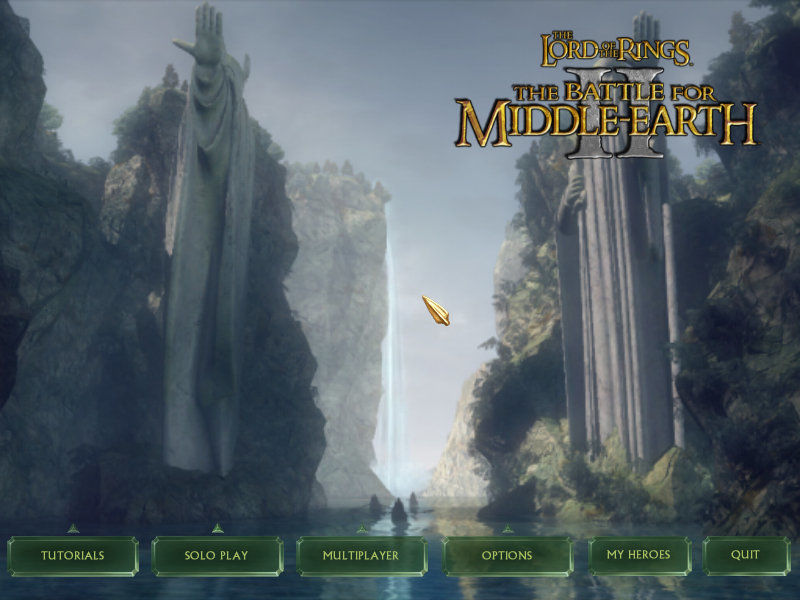
HALLO if someone have problem (please insert CD to C://) contact me on DISCORD GUNNmaniačka#6189
While waiting for your download, make sure that you have a software called Daemon Tools installed on your computer.
Extract the “BFME 2 + Rise of the Witch King” folder to your desktop.
Drag the folder to your C:// disc on your computer.
Open the “BFME 2 + Rise of the Witch King” folder and then open the “Game Files” folder.
can you please add me on discord therealfellaknee#6607
Hello
When i open appdate at the 5th step the game file doesnt there,but i have battle for midle earth 1,should i copy that options file?
I type in %appdata% and the game isnt there? I have followed every step to the letter to otherwise 🙂
poszukuje gry Aztec Empire / Aztec Wars / The Aztec iso Imperium Azteków ktoś może dodać plik iso wraz z poprawkami do gry
https://uploads.disquscdn.com/images/09b61d71f539964c3509d80c9d336c240e23de57a46415d0dd0b7487967a7aec.jpg
Looking for Aztec Empire / Aztec Wars / The Aztec / Imperium Azteków Someone can add an ISO file with patches update
tak tylko pytam czy ktoś mógłby dodać tą gre
miłego dnia
have nice day
It won’t even let me start the download when I click on the link it brings me to the Mega website, it says Ive reached a transfer limit or something a long the lines, its the first time im downloading it on this computer. 🙁
if you have “insert CD” error, just put an entire file DIRECTLY to drive “C”!
This is how the path should looks like:
“C:BFME 2 + Rise of the Witch King”
thats what i did, still asks me to insert CD when installing, cant even install the game …
chciałbym zainstalować w polskim języku jak to zrobić
I would like to install in polish how to do it
mogę przesłać spolszczenie
tak po proszę przesłać o spolszczenie do gry
yes, please send , Polish language for the game
Byłoby miło
jak zainstalować w polskim języku , albo jak grę spolszczyć żeby była w polskim języku pomocy
Greetings
I have done as was told by the guide and it all went well until tried to launch rotwk then this “init error” came: “base game files not found application will exit” I basicly did exactly the same as i did when i installed bfme 2 and it works fine. can someone help me??
thanks
i want to play in the network with my brother but when i press the join button, it says that [Your serial is already in use] what can i do about it.
https://www.youtube.com/watch?v=b5ycfMOUssw
Use this tutorial. It worked wonders and you dont need to use dameon tools or anything like that.
Bro thank you, i am going to try it now!
So immediately after the license agreement i get a prompt that asks me to put the first disk into drive C. I have tried mounting both of the provided image files (MDF and MDS) in every format provided by dameon tools. Is there a way to get past this screen without actually having a tangible copy of the game?
Es funktioniert. Die beschreibung war aber nicht ganz richtig, beziehungsweise nicht ausfürhlich genug. Dennoch Danke.
t works. The description was not entirely correct, or not detailed enough. Still thank you.
Es funktioniert. Die beschreibung war aber nicht ganz richtig, beziehungsweise nicht ausfürhlich genug. Dennoch Danke.
It works. The description was not entirely correct, or not detailed enough. Still thank you.