| Publishers | EA Games |
| Developers | EA Los Angeles |
| Release date | 2006 |
| Genre | Strategy |
| Game rating |
Game Description
The Lord of the Rings: The Battle for Middle-earth II is a real-time strategy video game developed and published by Electronic Arts. It is based on the fantasy novels The Lord of the Rings and The Hobbit by J. R. R. Tolkien and its live-action film trilogy adaptation. It is the sequel to Electronic Arts’ 2004 title The Lord of the Rings: The Battle for Middle-earth.
Download The Battle for Middle-earth II
We might have the game available for more than one platform. The Battle for Middle-earth II is currently available on these platforms:
Windows (2006)
BFME 2 + Rise of the Witch King.rar (3.75 GB)
How to play on Windows
- Click on the download button. It should redirect you to your download. Make sure you download the file properly and that your internet does not disconnect while downloading.
- While waiting for your download, make sure that you have a software called Daemon Tools installed on your computer.
- Extract the “BFME 2 + Rise of the Witch King” folder to your desktop.
- Drag the folder to your C:// disc on your computer.
- Open the “BFME 2 + Rise of the Witch King” folder and then open the “Game Files” folder.
Instructions for The Battle for Middle Earth 2
- Open the folder called BFME2 and then the folder called BFME2 Installer. Inside the BFME Installer folder, you want to double click on the file called AutoRun.exe and the installer for The Battle for Middle Earth 2 should launch. Go through the game setup – at some point they will ask you to insert a CD-key. Use any one of these and finish the installation:
- HNB3-GRYM-GLUS-HKTU-Y9V8
- XLWW-55XX-5MB8-Q6QJ-5JAP
- 42FP-FQES-GW72-MT37-MCGQ
- QJXX-3TVM-EE2V-NUYU-SWDW
- 3QWW-QZQ7-USET-Z8NQ-WUYB
- HZKB-QJTS-W5E3-83PJ-K9AA
- ATK3-5TTF-9HJH-3TRW-2F8F
- M9NN-6NWW-5VRB-5KLN-EVV3
- If you run the game now, they will ask you to insert a CD so it will not work. What you have to do, is open up the software called Daemon Tools and then select add a new drive. You want the virtual drive to be “SCSI” and then select “Add drive”. If this part is a bit complicated, watch the video below and you can see how I did it for clearer instructions. You then want to drag the “MI-BFME2.mds” file (it will be 9KB) into the empty drive on Daemon tools. Note: If Daemon Tools doesn’t work, then use WinCDEmu.
- The next step, is that you want to go back into the folder called “Game Files”. In here, you want to open the “Options.ini” file (double click it). You will see a line of code which says “Resolution = 1920 1080”. You want to change these numbers to the resolution of your computer, and then save the document.
- Next, you want to click on your start menu and then search for %appdata% and you want to click on the %appdata% folder. This is usually C:\Users\(your username)\AppData\Roaming. Inside this folder, you want to find the folder called “My Battle for Middle-earth ™ II Files”. You want to open that folder, and then you want to copy, and then paste, the “Options.ini” file from step 3 into the “My Battle for Middle-earth ™ II Files” folder.
- You can now run the game from the desktop shortcut, and the insert a CD message should go away.
- Enjoy the game!
Instructions for The Battle for Middle-earth 2: The Rise of the Witch-king (you need to download the base game first)
- You will need to have The Battle for Middle-earth 2 base game installed before you can install this, so do the previous steps first!
- Open the folder called Rise of the Witch King and then the folder called RoTWK Installer. Inside the
- RoTWK Installer folder, you want to double click on the file called AutoRun.exe and the installer for The Rise of the Witch-king should launch. Go through the game setup – at some point they will ask you to insert a CD-key. Use any one of these:
- HE55-26J3-XSSL-A58B-BZ96
- YQFX-M2HH-LM62-NJ9T-KMZG
- TJLC-V87P-E5CY-ELRS-VLYP
- DJ7F-LB8A-NZDE-BJXN-8X8M
- 3WH9-CR7P-4UPH-PPQE-DT39
- GG22-XGJA-GQ96-YJJS-NKVG
- HR55-MLNM-WFJN-UNWR-4X6T
- JW9R-97QL-NRFW-QAFL-UDEX
- If you run the game now, they will ask you to insert a CD so it will not work. What you have to do, is open up the software called Daemon Tools and then select add a new drive. You want the virtual drive to be “SCSI” and then select “Add drive”. You then want to drag the “RotWk_Maxi-TheSmokingMan.mds” file (it will be 5KB) into the empty drive on Daemon tools.
- Next, you want to click on your start menu and then search for %appdata% and you want to click on the %appdata% folder. This is usually C:\Users\(your username)\AppData\Roaming. Inside this folder, you want to find the folder called “My The Lord of the Rings, The Rise of the Witch-king Files”. You want to open that folder, and then you want to copy, and then paste, the “Options.ini” file from before into the “My The Lord of the Rings, The Rise of the Witch-king Files” folder.
- You can now run the game from the desktop shortcut.
- Enjoy the game!
Additional files, patches and fixes
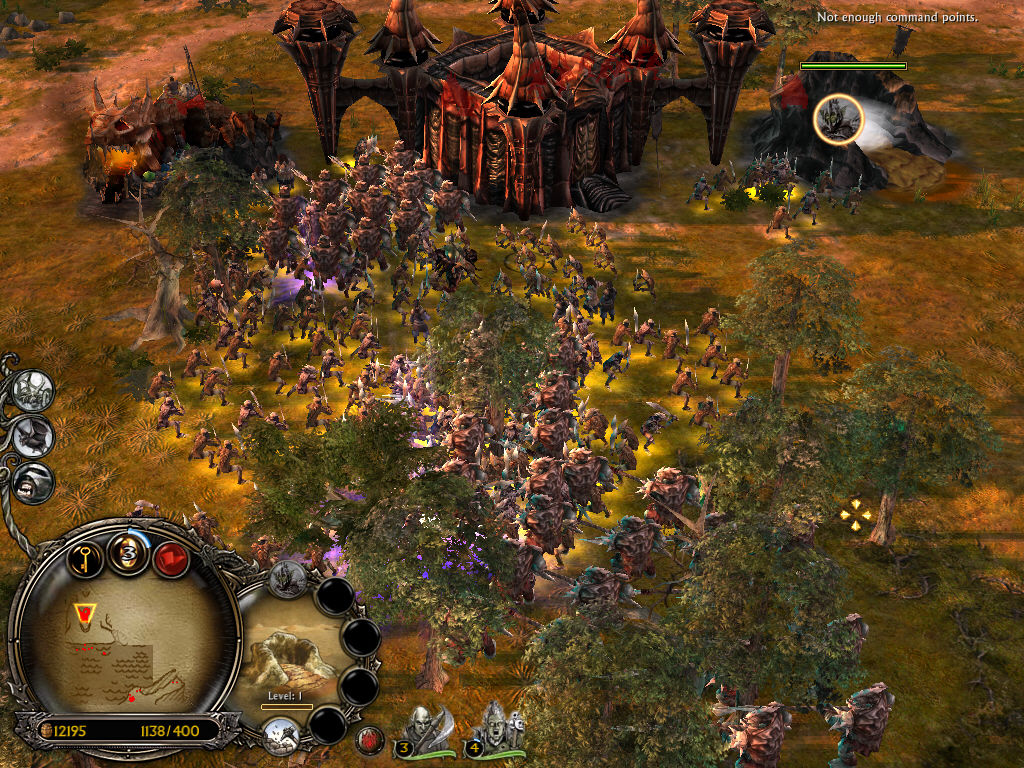
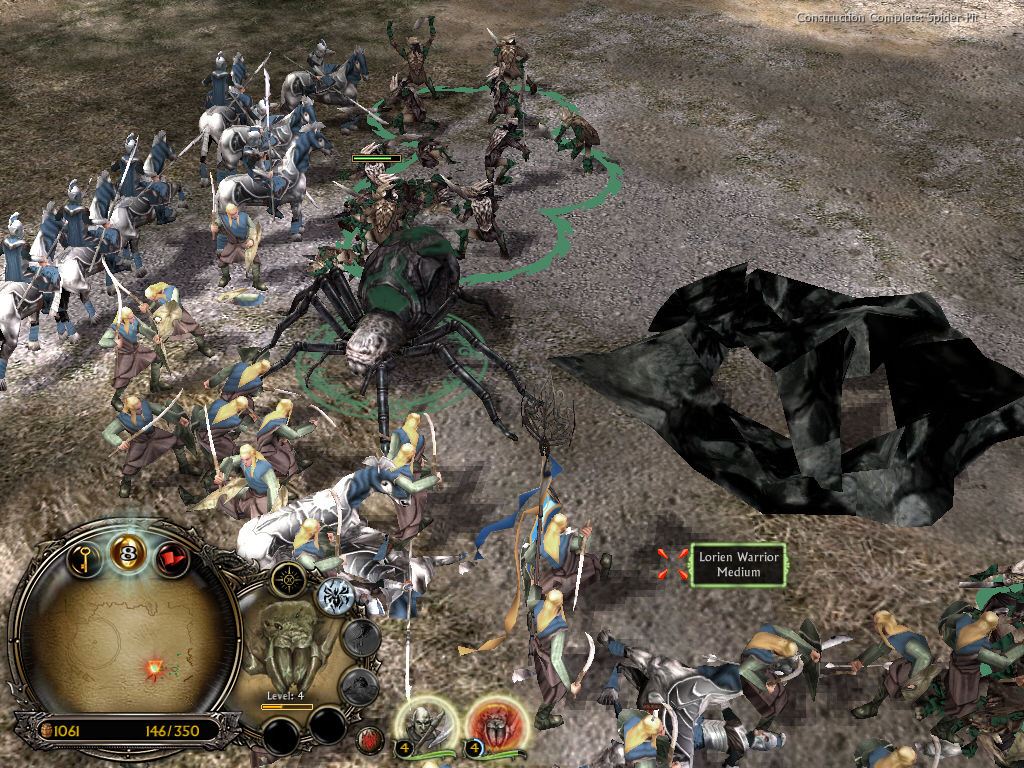
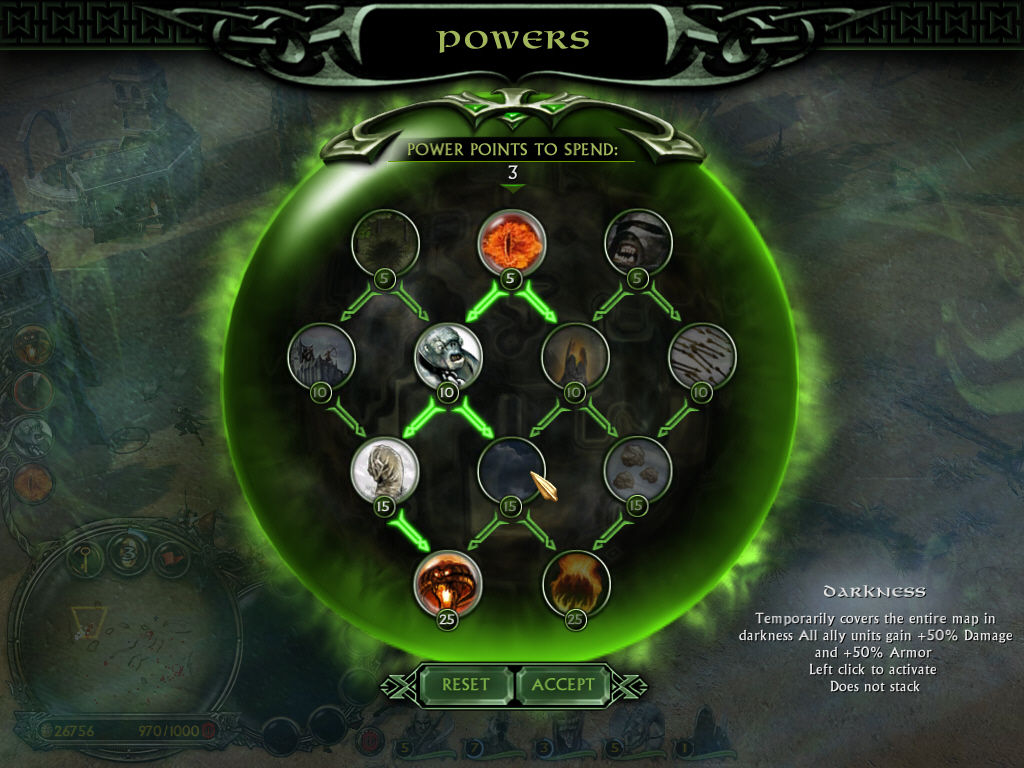
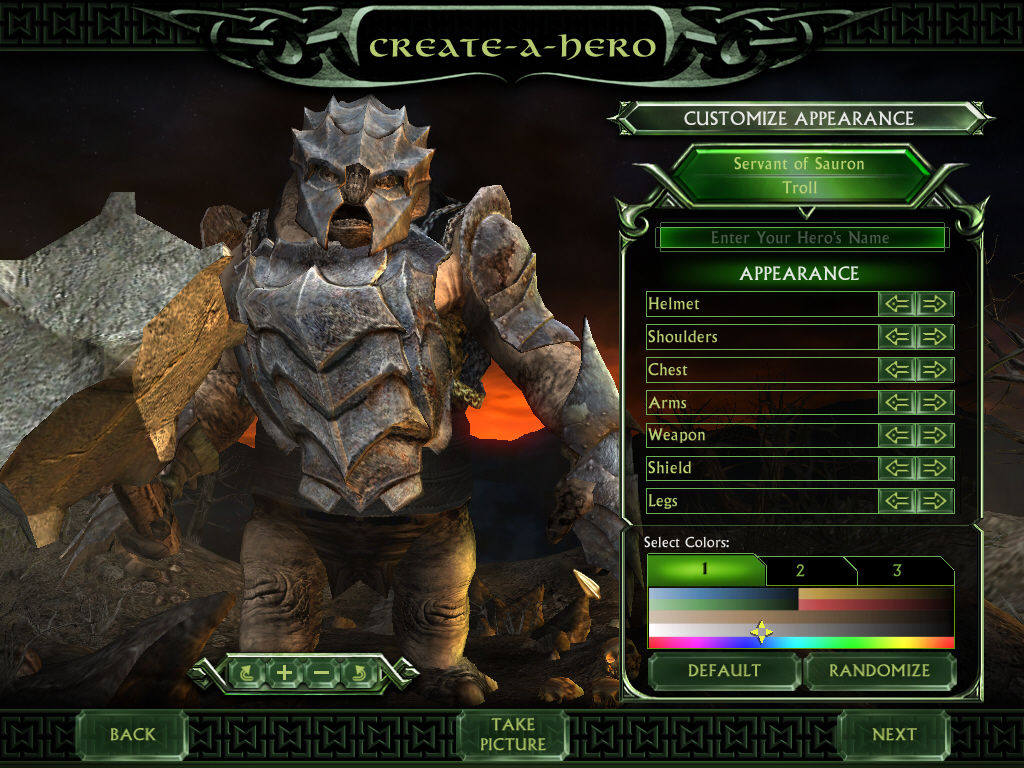
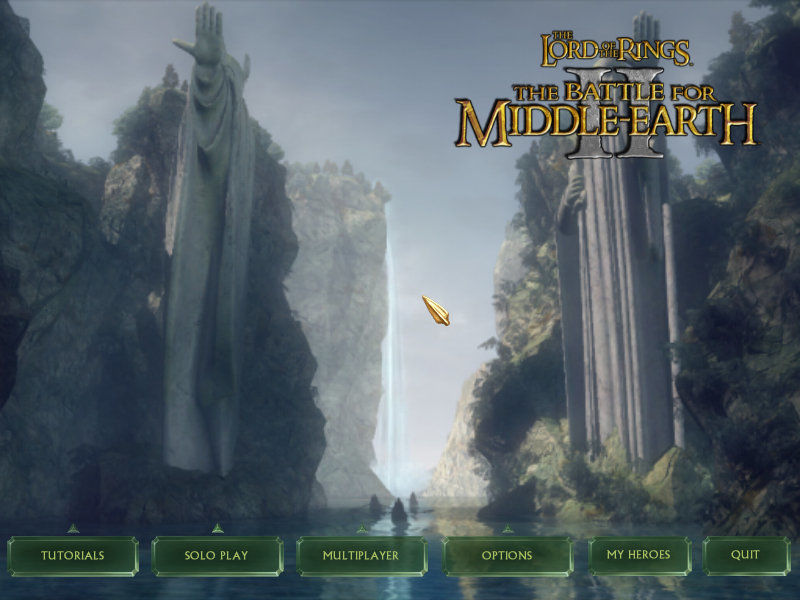
The Battle for Middle-earth II Screenshots
Windows
Hey,
can anyone explain me why in step 4 of normal version, I can’t find the folder “My Battle for Middle-earth ™ II Files” in Roaming??
I don’t have any error during install process :/
hello, im french and would like to have the game in french have u got an idea to help me ??
moi aussi mdr; au pire un peux d’anglais ça fait pas mal
I DOWNLOAD AND MOUNT BUT IT SAID CD ROM SHOULD ENTER.
PLEASE HELP ME
Was the game installed successfully?
Can someone help me out? It keeps asking me to i sert CD/DVD into drive and it wont let me install the game.
It keeps asking me to insert CD/DVD 1 in drive C: . Would someone be so kind as to tell me how to fix this?
I keep double clicking auto run and the moment i agree to the terms it asks to insert CD/DVD 1 in drive C:<
you need to emulate an image disc with daemon tools.. the witch king file, 5kb
… same issue here. I did that so my virtual SCSI E: drive is ready.
The game is extracted from the .rar file to C: drive here: C:Program FilesBFME 2 + Rise of the Witch KingGame FilesBFME2BFME2 Installer
What am I missing? Executing AutoRun.exe also leaves me with the message to insert CD/DVD 1 in drive C:
Thanks!
wanting to play online vs some friends however when i click to go ‘online’ the whole game just freezes!
any idea’s why ?
Hi Josh. Have you download gameranger??
I don’t know if you’ll see this but yes I tried it, even ran a game on both bfme 2 and ROTWK kept giving me mismatch errors.
Please insert the correct DVD-ROM, select OK and restart application
Hi, could someone please help me with the file in step 5? I can’t find it in appdata- thanks
Hi Jeff. Try and run the game from the shortcut on your desktop. The game will not open, it will crash, but logically it will create the game folder in the appdata.
could someone please help as to why I can’t find the file in appdatathabks
Getting an error after starting auto run. “A problem occured when trying to transfer the file blah blah blah from the media”. Key code worked but cannot get further.
Not great with computers, help?
For issue of insert cd error, download game.dat file – from
https://forums.revora.net/topic/105190-bfme1bfme2rotwk-games-download-installation-guide/
and copy to installation folder
For issue of loading screen showing up but not opening game, check if options.ini file is in correct folder in roaming
game shows loading screen for about a minute and then just closes, no error or anything it just doesn’t load… any ideas?
You need to copy the options.ini file to the “My Battle for Middle-earth(tm) II Files” folder (Step 5).
That folder doesn’t exist for me. I’ve followed every step correctly and it has never generated that folder.
I have the excact same problem
Hi Stavros. Try and run the game from the shortcut on your desktop. The game will not open, it will crash, but logically it will create the game folder in the appdata.
The folder never generated. This is not a logical thing that happens. I searched every spot for it. I even created the folder myself and nothing happened
hello when i run the game it says the code execution cannot proceed because D3DX9_27.DLL was not found why? how can i solve it please
This error shows that a DirectX file is missing or damaged. To fix this, go to https://www.microsoft.com/en-US/download/details.aspx?id=35 and download the DirectX End-User Runtime Web Installer.
!!Watch out not to install the Bing Searchbar during installation!!
After installation, the game should start normally.
hello, when i download it and ran it it says the code execution cannor proceed because D3DX9_27.DLL was not found why is this happening?