| Publishers | EA Games |
| Developers | EA Los Angeles |
| Release date | 2006 |
| Genre | Strategy |
| Game rating |
Game Description
The Lord of the Rings: The Battle for Middle-earth II is a real-time strategy video game developed and published by Electronic Arts. It is based on the fantasy novels The Lord of the Rings and The Hobbit by J. R. R. Tolkien and its live-action film trilogy adaptation. It is the sequel to Electronic Arts’ 2004 title The Lord of the Rings: The Battle for Middle-earth.
Download The Battle for Middle-earth II
We might have the game available for more than one platform. The Battle for Middle-earth II is currently available on these platforms:
Windows (2006)
BFME 2 + Rise of the Witch King.rar (3.75 GB)
How to play on Windows
- Click on the download button. It should redirect you to your download. Make sure you download the file properly and that your internet does not disconnect while downloading.
- While waiting for your download, make sure that you have a software called Daemon Tools installed on your computer.
- Extract the “BFME 2 + Rise of the Witch King” folder to your desktop.
- Drag the folder to your C:// disc on your computer.
- Open the “BFME 2 + Rise of the Witch King” folder and then open the “Game Files” folder.
Instructions for The Battle for Middle Earth 2
- Open the folder called BFME2 and then the folder called BFME2 Installer. Inside the BFME Installer folder, you want to double click on the file called AutoRun.exe and the installer for The Battle for Middle Earth 2 should launch. Go through the game setup – at some point they will ask you to insert a CD-key. Use any one of these and finish the installation:
- HNB3-GRYM-GLUS-HKTU-Y9V8
- XLWW-55XX-5MB8-Q6QJ-5JAP
- 42FP-FQES-GW72-MT37-MCGQ
- QJXX-3TVM-EE2V-NUYU-SWDW
- 3QWW-QZQ7-USET-Z8NQ-WUYB
- HZKB-QJTS-W5E3-83PJ-K9AA
- ATK3-5TTF-9HJH-3TRW-2F8F
- M9NN-6NWW-5VRB-5KLN-EVV3
- If you run the game now, they will ask you to insert a CD so it will not work. What you have to do, is open up the software called Daemon Tools and then select add a new drive. You want the virtual drive to be “SCSI” and then select “Add drive”. If this part is a bit complicated, watch the video below and you can see how I did it for clearer instructions. You then want to drag the “MI-BFME2.mds” file (it will be 9KB) into the empty drive on Daemon tools. Note: If Daemon Tools doesn’t work, then use WinCDEmu.
- The next step, is that you want to go back into the folder called “Game Files”. In here, you want to open the “Options.ini” file (double click it). You will see a line of code which says “Resolution = 1920 1080”. You want to change these numbers to the resolution of your computer, and then save the document.
- Next, you want to click on your start menu and then search for %appdata% and you want to click on the %appdata% folder. This is usually C:\Users\(your username)\AppData\Roaming. Inside this folder, you want to find the folder called “My Battle for Middle-earth ™ II Files”. You want to open that folder, and then you want to copy, and then paste, the “Options.ini” file from step 3 into the “My Battle for Middle-earth ™ II Files” folder.
- You can now run the game from the desktop shortcut, and the insert a CD message should go away.
- Enjoy the game!
Instructions for The Battle for Middle-earth 2: The Rise of the Witch-king (you need to download the base game first)
- You will need to have The Battle for Middle-earth 2 base game installed before you can install this, so do the previous steps first!
- Open the folder called Rise of the Witch King and then the folder called RoTWK Installer. Inside the
- RoTWK Installer folder, you want to double click on the file called AutoRun.exe and the installer for The Rise of the Witch-king should launch. Go through the game setup – at some point they will ask you to insert a CD-key. Use any one of these:
- HE55-26J3-XSSL-A58B-BZ96
- YQFX-M2HH-LM62-NJ9T-KMZG
- TJLC-V87P-E5CY-ELRS-VLYP
- DJ7F-LB8A-NZDE-BJXN-8X8M
- 3WH9-CR7P-4UPH-PPQE-DT39
- GG22-XGJA-GQ96-YJJS-NKVG
- HR55-MLNM-WFJN-UNWR-4X6T
- JW9R-97QL-NRFW-QAFL-UDEX
- If you run the game now, they will ask you to insert a CD so it will not work. What you have to do, is open up the software called Daemon Tools and then select add a new drive. You want the virtual drive to be “SCSI” and then select “Add drive”. You then want to drag the “RotWk_Maxi-TheSmokingMan.mds” file (it will be 5KB) into the empty drive on Daemon tools.
- Next, you want to click on your start menu and then search for %appdata% and you want to click on the %appdata% folder. This is usually C:\Users\(your username)\AppData\Roaming. Inside this folder, you want to find the folder called “My The Lord of the Rings, The Rise of the Witch-king Files”. You want to open that folder, and then you want to copy, and then paste, the “Options.ini” file from before into the “My The Lord of the Rings, The Rise of the Witch-king Files” folder.
- You can now run the game from the desktop shortcut.
- Enjoy the game!
Additional files, patches and fixes
The Battle for Middle-earth II Screenshots
Windows
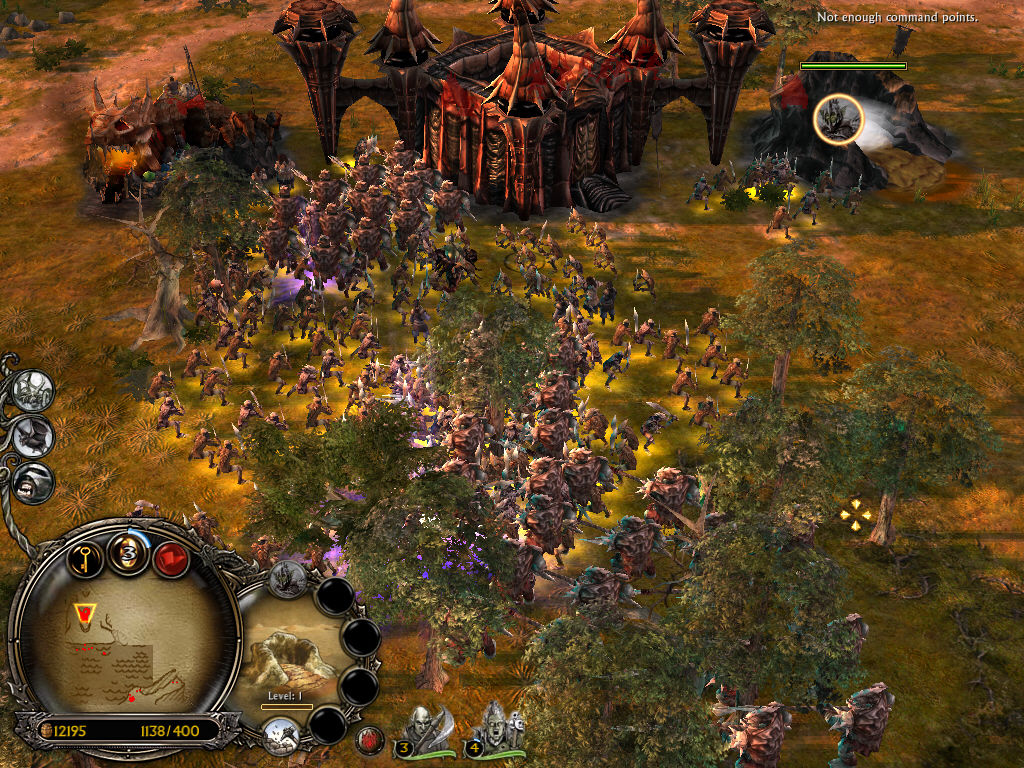
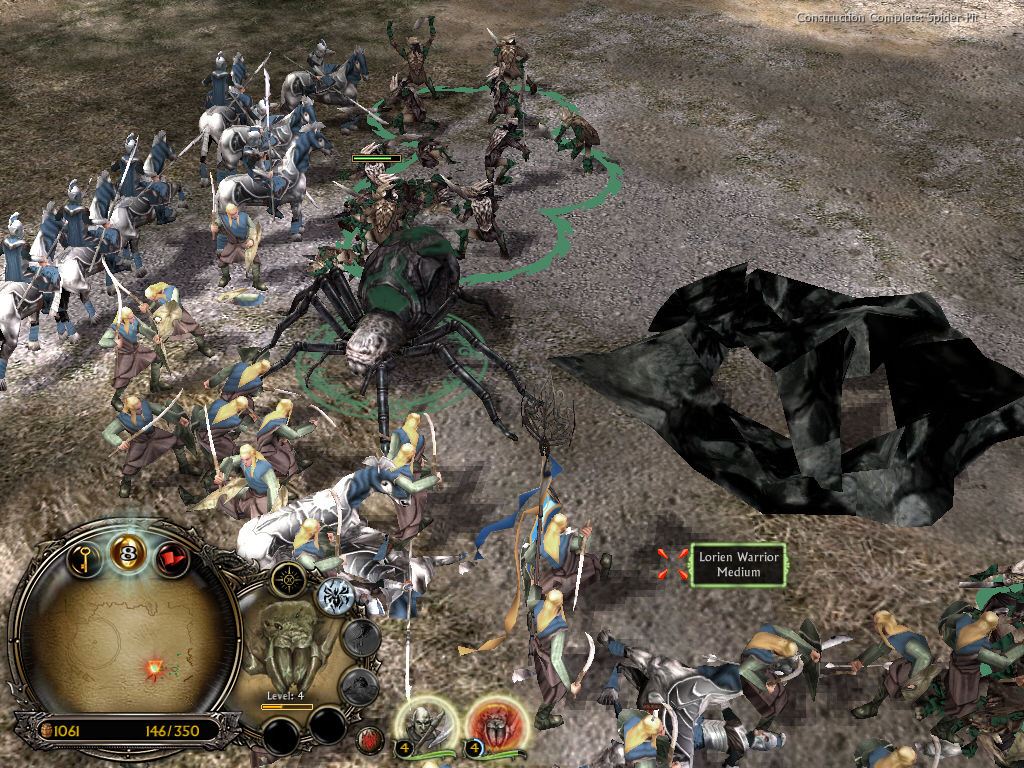
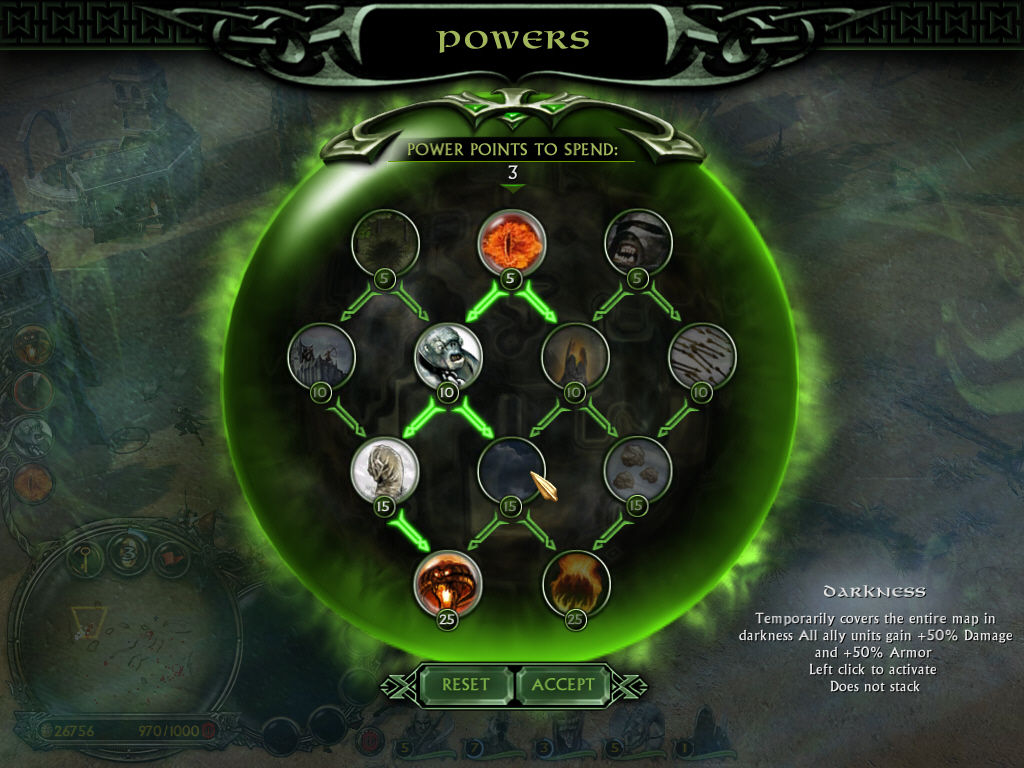
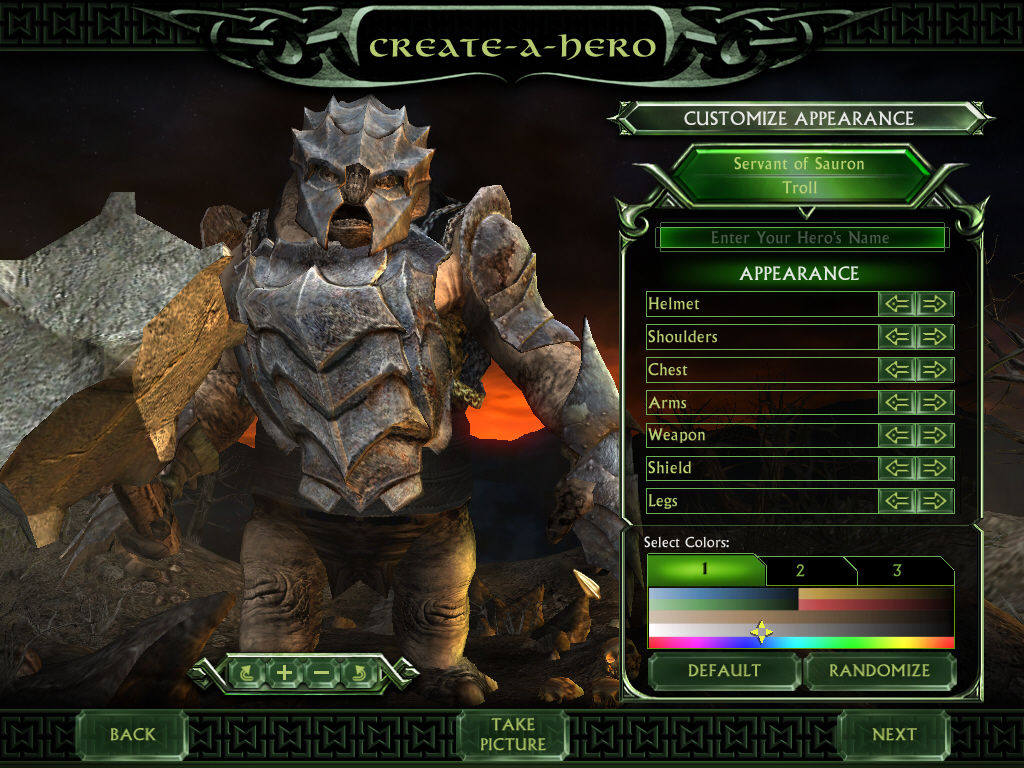
where can we see the daemon tools?
If this doesn’t work for you, use this tutorial instead.
https://forums.revora.net/topic/105190-bfme1bfme2rotwk-games-download-installation-guide/
It worked perfectly for me
Hello I might need a walk-through couldn’t follow the guide linked in your post.
If this doesn’t work for you, use this tutorial instead:
https://forums.revora.net/topic/105190-bfme1bfme2rotwk-games-download-installation-guide/
It works perfectly.
i seem to be having an issue, the autorun file wants me to insert the disk into my C: drive and this is my main hard drive not a virtual one that i can set up with DAEMON or WinCD has anyone else had this issue? if so any pointers on how to solve it. also side note in the instructions you mention a video and there is no video on the site.
The video would be a big help!
With the “Drag the folder to your C:// disc on your computer” part of this.
Can this be deleted after the installation process of this game, or does this process require a massive folder to lie on my C: forever now ?
okay that works … my apologies . thanks . just one thing : how can i change language ? like french ? thanks
DONT WORK ! i followed EACH STEP ! thanks for waste of time !
================================================================================
EXCEPTION_ACCESS_VIOLATION:
The thread tried to read from or write to a virtual
address for which it does not have the appropriate access.
Access address 0x000778fb was read from.
Exception occured at
772b262f ntdll.dll+0x4262f, RtlFreeHeap+0x43f.
Version: 1.06.2429.30210 internal 59304E6A-868F-4bb8-B389-30AA83ACADE8 release build 2006-09-25 16:06:41
EAX:0x000778fb EBX:0x036d0040 ECX:0x0005721b
EDX:0x036ede90 ESI:0x036ede88 EDI:0x030d0000
EIP:0x772b262f ESP:0x0018e290 EBP:0x0018e390
Flags:%00000000001000010000001001000110
CS:0x0023 DS:0x002b SS:0x002b
ES:0x002b FS:0x0053 GS:0x002b
CW:%0000000001111111
SW:%0000000100100000
TW:%1111111111111111
ErrOfs: 0x00ab88e2 ErrSel: 0x00000000
DataOfs: 0x0018e460 DataSel: 0x00000000
Cr0NpxState: 0x0000ffff
ST(0) 9b0c7f0200000000ffff -1.#IND00
ST(1) 9b0c7f0200000000ffff -1.#IND00
ST(2) 0000000000000000ffff -1.#IND00
ST(3) 0000000000000000ffff -1.#IND00
ST(4) 00000000007ea4d10f40 107336.984375
ST(5) 0000000000feecd40f40 109017.984375
ST(6) 0000000000bd1b8f0040 2.236068
ST(7) 00000000000000d00240 13.000000
4 addresses:
(unknown)(0): ntdll.dll+271919 RtlFreeHeap+1087
(unknown)(0): ntdll.dll+271274 RtlFreeHeap+442
(unknown)(0): MSVCR71.DLL+8586 free+57
(unknown)(0): game.dat+7048572 ClosestPointOnLineSegment+23676
Bytes around EIP:
772b260f 46 03 0f 85 56 75 04 00 80 7d c0 00 0f 85 5b 75 F..…Vu..€}À..…[u
772b261f 04 00 8d 56 08 8b 0a 89 4d 98 8b 46 0c 89 45 c4 ..V.‹.‰M˜‹F.‰EÄ
772b262f 8b 00 8b 49 04 3b c1 0f 85 1c 75 04 00 3b c2 0f ‹.‹I.;Á.….u..;Â.
772b263f 85 14 75 04 00 0f b7 06 29 47 74 8b 8f b4 00 00 ….u…·.)Gt‹´..
772b264f 00 89 4d d8 85 c9 0f 84 fe 00 00 00 0f b7 06 89 .‰MØ…É.„þ….·.‰
Hi there!
Is it possible to play online or even in local with this version?
I’m trying to install it 🙂 many thanks for the work provide!
cheers!!
hey so i did everything as said and changed the resolution. the game starts and i have the standart loading screen till i should get into the main menu. the main menu is just a black screen with purple pixels. anyone has a solution for that?
It’s not working for me someone help me please
Discord: Flying Jungler#6843
can anyone help me for somewhat reason everything self destructs after 3 mins into the game
Jfc,went through all this for nothing.
I did all the steps,everything worked perfectly until the end.
You say to get to %appdata%/roaming and open the My Battle for Middle-earth ™ II Files,well theres no My Battle for Middle-earth ™ II Files,theres literally nothing relating to BFME…
that folder will show up if you try to start the game after you added it in daemon tools 🙂
Can also just litterally create a map with the exact name and paste the ini in there.
Just got it working here now
Is it possible to have the game in Italian?
NOTHING WORKS. Wasted my time. I got all the way to installing it. But in the end it tells you to restart because on wrong CD-ROM drive. Even after i put in all on C drive. It doesn’t work if you use any of the virtual drives because in the end it needs to be put on C drive but everyone already has a C drive so we cannot make a virtual C drive for the ROM so fuck you. but thanks for trying 🙂
Will all these instructions work on a CD version of the game? I’ve had one for years and tried to run the game but doesn’t run.