| Publishers | EA Games |
| Developers | EA Los Angeles |
| Release date | 2006 |
| Genre | Strategy |
| Game rating |
Game Description
The Lord of the Rings: The Battle for Middle-earth II is a real-time strategy video game developed and published by Electronic Arts. It is based on the fantasy novels The Lord of the Rings and The Hobbit by J. R. R. Tolkien and its live-action film trilogy adaptation. It is the sequel to Electronic Arts’ 2004 title The Lord of the Rings: The Battle for Middle-earth.
Download The Battle for Middle-earth II
We might have the game available for more than one platform. The Battle for Middle-earth II is currently available on these platforms:
Windows (2006)
BFME 2 + Rise of the Witch King.rar (3.75 GB)
How to play on Windows
- Click on the download button. It should redirect you to your download. Make sure you download the file properly and that your internet does not disconnect while downloading.
- While waiting for your download, make sure that you have a software called Daemon Tools installed on your computer.
- Extract the “BFME 2 + Rise of the Witch King” folder to your desktop.
- Drag the folder to your C:// disc on your computer.
- Open the “BFME 2 + Rise of the Witch King” folder and then open the “Game Files” folder.
Instructions for The Battle for Middle Earth 2
- Open the folder called BFME2 and then the folder called BFME2 Installer. Inside the BFME Installer folder, you want to double click on the file called AutoRun.exe and the installer for The Battle for Middle Earth 2 should launch. Go through the game setup – at some point they will ask you to insert a CD-key. Use any one of these and finish the installation:
- HNB3-GRYM-GLUS-HKTU-Y9V8
- XLWW-55XX-5MB8-Q6QJ-5JAP
- 42FP-FQES-GW72-MT37-MCGQ
- QJXX-3TVM-EE2V-NUYU-SWDW
- 3QWW-QZQ7-USET-Z8NQ-WUYB
- HZKB-QJTS-W5E3-83PJ-K9AA
- ATK3-5TTF-9HJH-3TRW-2F8F
- M9NN-6NWW-5VRB-5KLN-EVV3
- If you run the game now, they will ask you to insert a CD so it will not work. What you have to do, is open up the software called Daemon Tools and then select add a new drive. You want the virtual drive to be “SCSI” and then select “Add drive”. If this part is a bit complicated, watch the video below and you can see how I did it for clearer instructions. You then want to drag the “MI-BFME2.mds” file (it will be 9KB) into the empty drive on Daemon tools. Note: If Daemon Tools doesn’t work, then use WinCDEmu.
- The next step, is that you want to go back into the folder called “Game Files”. In here, you want to open the “Options.ini” file (double click it). You will see a line of code which says “Resolution = 1920 1080”. You want to change these numbers to the resolution of your computer, and then save the document.
- Next, you want to click on your start menu and then search for %appdata% and you want to click on the %appdata% folder. This is usually C:\Users\(your username)\AppData\Roaming. Inside this folder, you want to find the folder called “My Battle for Middle-earth ™ II Files”. You want to open that folder, and then you want to copy, and then paste, the “Options.ini” file from step 3 into the “My Battle for Middle-earth ™ II Files” folder.
- You can now run the game from the desktop shortcut, and the insert a CD message should go away.
- Enjoy the game!
Instructions for The Battle for Middle-earth 2: The Rise of the Witch-king (you need to download the base game first)
- You will need to have The Battle for Middle-earth 2 base game installed before you can install this, so do the previous steps first!
- Open the folder called Rise of the Witch King and then the folder called RoTWK Installer. Inside the
- RoTWK Installer folder, you want to double click on the file called AutoRun.exe and the installer for The Rise of the Witch-king should launch. Go through the game setup – at some point they will ask you to insert a CD-key. Use any one of these:
- HE55-26J3-XSSL-A58B-BZ96
- YQFX-M2HH-LM62-NJ9T-KMZG
- TJLC-V87P-E5CY-ELRS-VLYP
- DJ7F-LB8A-NZDE-BJXN-8X8M
- 3WH9-CR7P-4UPH-PPQE-DT39
- GG22-XGJA-GQ96-YJJS-NKVG
- HR55-MLNM-WFJN-UNWR-4X6T
- JW9R-97QL-NRFW-QAFL-UDEX
- If you run the game now, they will ask you to insert a CD so it will not work. What you have to do, is open up the software called Daemon Tools and then select add a new drive. You want the virtual drive to be “SCSI” and then select “Add drive”. You then want to drag the “RotWk_Maxi-TheSmokingMan.mds” file (it will be 5KB) into the empty drive on Daemon tools.
- Next, you want to click on your start menu and then search for %appdata% and you want to click on the %appdata% folder. This is usually C:\Users\(your username)\AppData\Roaming. Inside this folder, you want to find the folder called “My The Lord of the Rings, The Rise of the Witch-king Files”. You want to open that folder, and then you want to copy, and then paste, the “Options.ini” file from before into the “My The Lord of the Rings, The Rise of the Witch-king Files” folder.
- You can now run the game from the desktop shortcut.
- Enjoy the game!
Additional files, patches and fixes
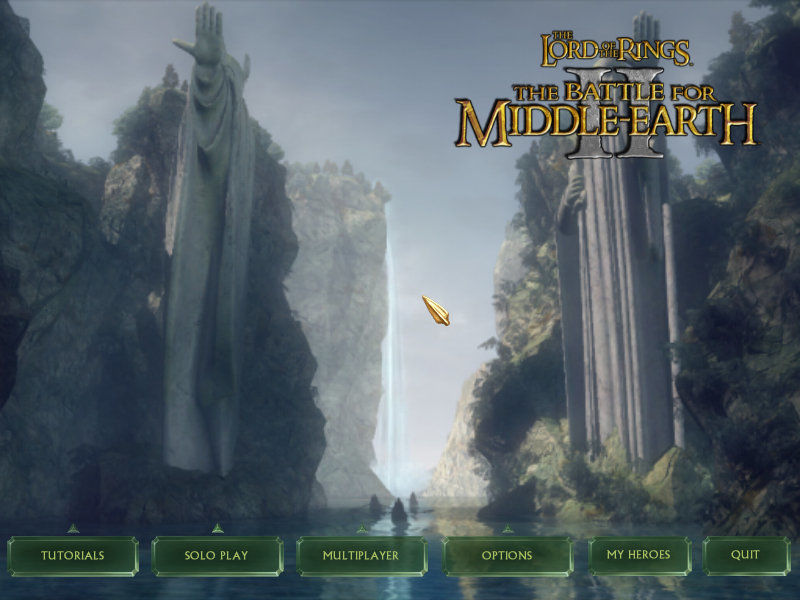
The Battle for Middle-earth II Screenshots
Windows
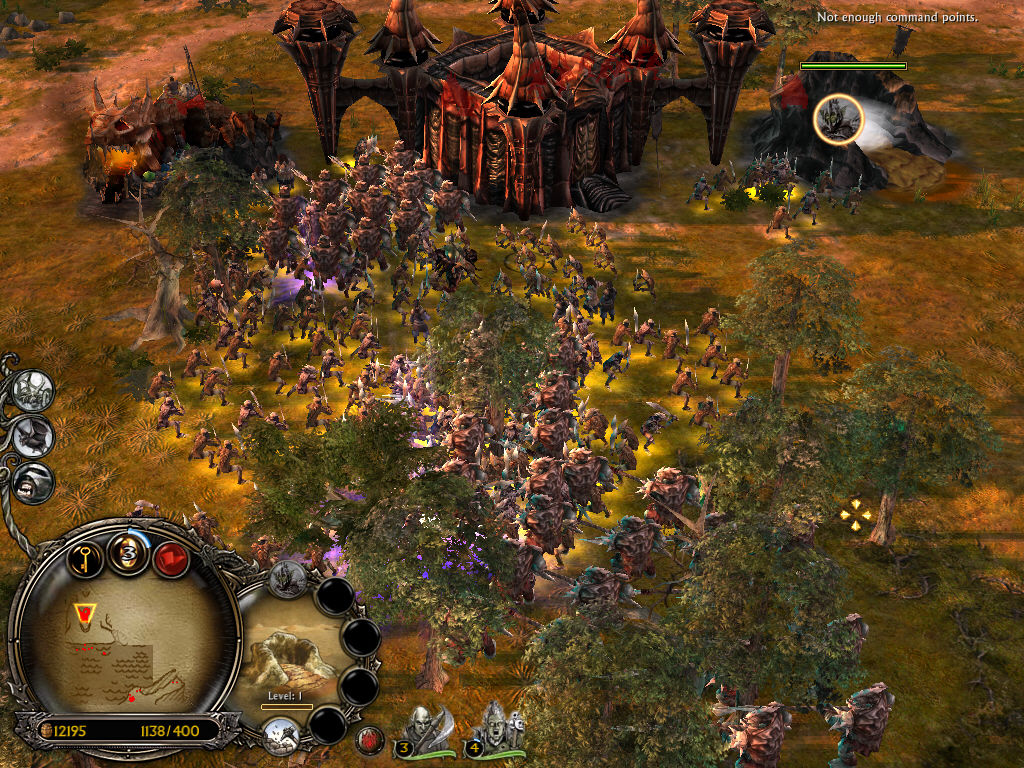
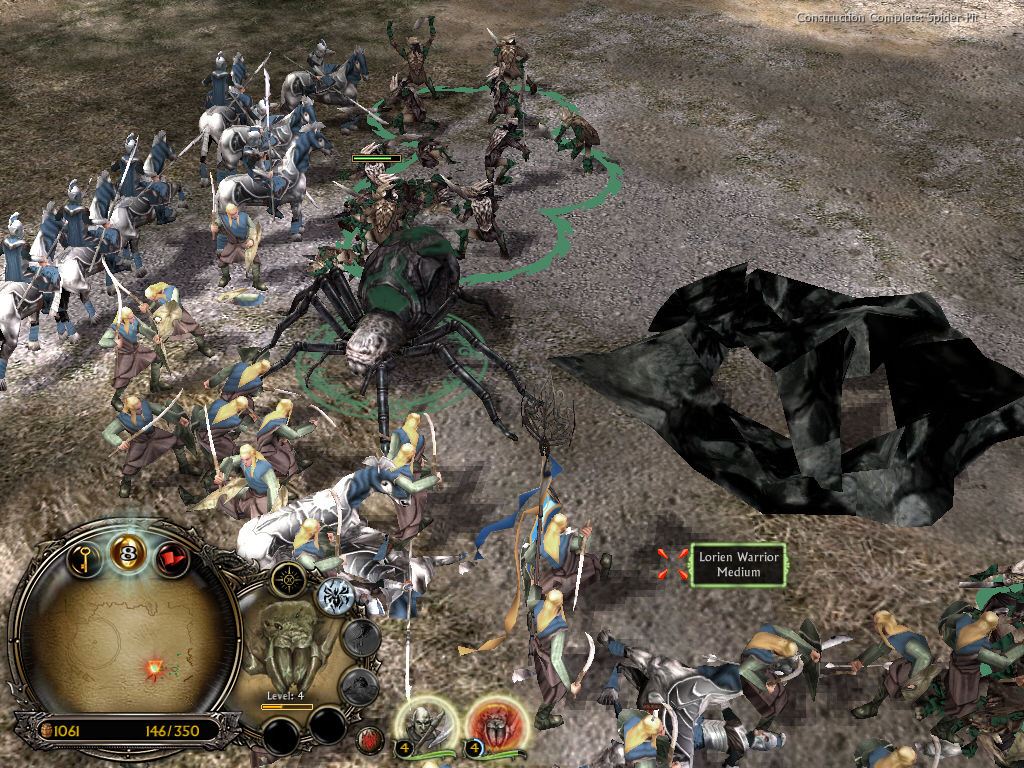
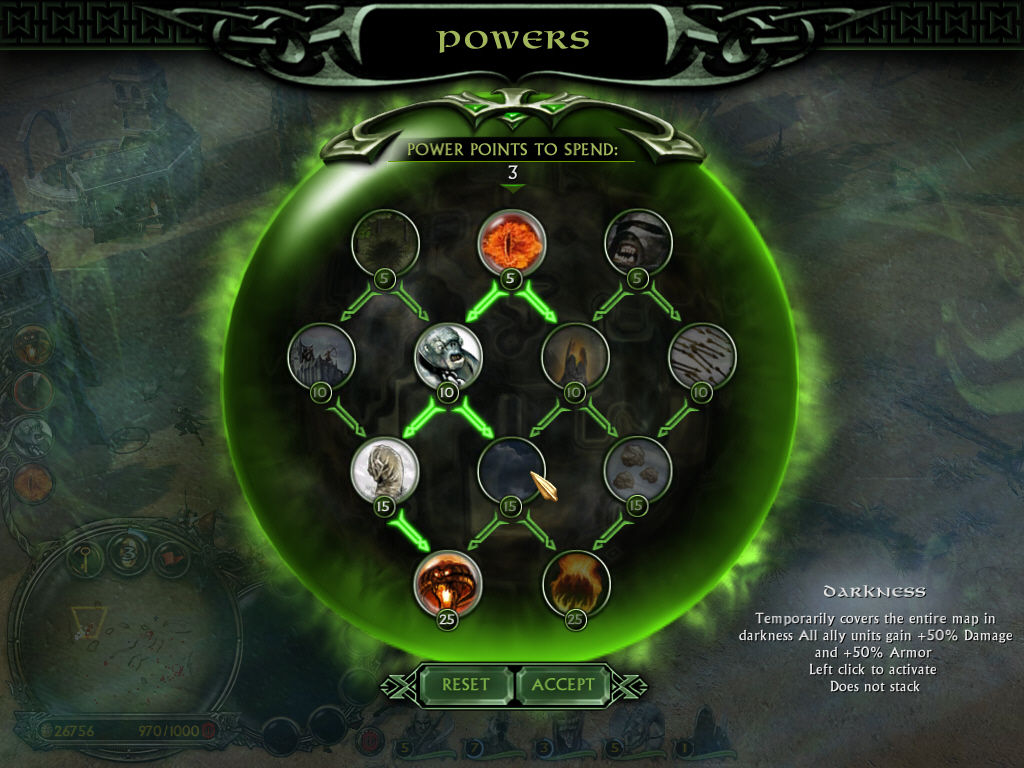
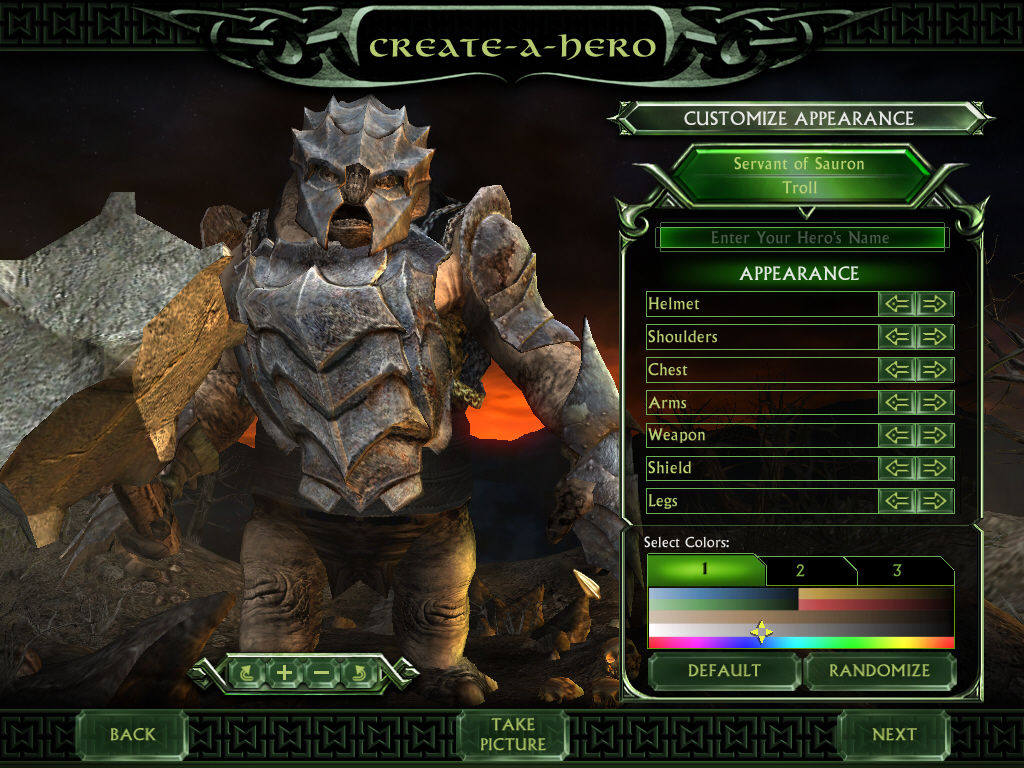
Hi guys, for people having the issue with the folder not showig in Appdata/roaming, I have just solved it on my side browsing through all the comments, but this might help a few.
I did try to launch the game, but the folder still did not appear. Upon launching I had the error message: ‘execution cannot proceed because D3DX9_27.DLL was not found’. Based on someone’s help in the comment section, this needs sorted first.
This error shows that a DirectX file is missing or damaged. To fix this, go to https://www.microsoft.com/en-US/download/details.aspx?id=35 and download the DirectX End-User Runtime Web Installer.
!!Watch out not to install the Bing Searchbar during installation!!
After installation, the game should start normally.
Once I started the game this way, the full interface appeared and the folder appeared in AppData. Just need to replace the Options.ini file.
Hope that helps a few of you!
I think I found the issue with my Daemon Tools Lite problem even though my comment from yesterday got erased…?
“With Windows 10 version 1903, Microsoft has implemented several crucial kernel changes that have significant influence on many apps and driver-based software. After deep investigation of the upcoming features, we came to the conclusion that it is impossible to make STPD driver compatible with the new operating system version and so will stop its support starting from 1903.”
https://daemon-help.com/installation/windows_1903/
cool
I installed everything according to the instructions, used the fixer from the comments, but now when i start the game, I get the special edition loading screen,which stays on for one second, then it minimizes, and when i try to open it again it minimizes repeatedly
This hapens to me too and I do everything according to the instructions
Why can’t I choose which drive to install from? I cannot make a D: drive letter due to system settings.
where is the video bellow?
I saw that for a lot of you after following the steps the game and starting it the screen pops for a few seconds and then crashes without loading the game. it happened to me too then I found this fixer here : https://www.moddb.com/games/battle-for-middle-earth-ii/downloads/bfme-startup-fixxer
and it totally fixed the problem for me! hopes it works for you too
Works great, but you’ll have to put the folder files at the root of your hdd to be able to install it.
downloaded, installed & done every step. double clicked on the desktop icons then the little loading screen comes up and then disappears then nothing. whats going on ? have i done something wrong?
got the same issue, did you find a fix?
Same, allready know what to do?
No data is made when I go to launch the game and the go to replace options.. it simply is not there. Which makes no sense at all. what am I doing wrong?
I’m having the same issue as Adam. any solution to this at all? no data was created after i launched when install was finished.
I’m not finding the files in %appdata% being created. I try to run the game but get the error “Please insert the correct DVD-ROM, select ok and restart application”. I have mounted the proper file in damon tools. please help
make sure its scsi on daemon tools
How? Every time I create a new drive I see no icon in Daemontools lite. When I use quick mount, I don’t see the file in %appdata%. Thank you for your help
I managed to get it to start installing, and then the installer asked for LongRing.vp6, which just refused to copy over. I’m giving up. Sad.
No matter what cd code I put in it says it’s not a valid cd code
I always get an automatic defeat after every 3 minutes I start a skirmish. Does anyone here know how to fix this? Thank you very much