| Publishers | EA Games |
| Developers | EA Los Angeles |
| Release date | 2006 |
| Genre | Strategy |
| Game rating |
Game Description
The Lord of the Rings: The Battle for Middle-earth II is a real-time strategy video game developed and published by Electronic Arts. It is based on the fantasy novels The Lord of the Rings and The Hobbit by J. R. R. Tolkien and its live-action film trilogy adaptation. It is the sequel to Electronic Arts’ 2004 title The Lord of the Rings: The Battle for Middle-earth.
Download The Battle for Middle-earth II
We might have the game available for more than one platform. The Battle for Middle-earth II is currently available on these platforms:
Windows (2006)
BFME 2 + Rise of the Witch King.rar (3.75 GB)
How to play on Windows
- Click on the download button. It should redirect you to your download. Make sure you download the file properly and that your internet does not disconnect while downloading.
- While waiting for your download, make sure that you have a software called Daemon Tools installed on your computer.
- Extract the “BFME 2 + Rise of the Witch King” folder to your desktop.
- Drag the folder to your C:// disc on your computer.
- Open the “BFME 2 + Rise of the Witch King” folder and then open the “Game Files” folder.
Instructions for The Battle for Middle Earth 2
- Open the folder called BFME2 and then the folder called BFME2 Installer. Inside the BFME Installer folder, you want to double click on the file called AutoRun.exe and the installer for The Battle for Middle Earth 2 should launch. Go through the game setup – at some point they will ask you to insert a CD-key. Use any one of these and finish the installation:
- HNB3-GRYM-GLUS-HKTU-Y9V8
- XLWW-55XX-5MB8-Q6QJ-5JAP
- 42FP-FQES-GW72-MT37-MCGQ
- QJXX-3TVM-EE2V-NUYU-SWDW
- 3QWW-QZQ7-USET-Z8NQ-WUYB
- HZKB-QJTS-W5E3-83PJ-K9AA
- ATK3-5TTF-9HJH-3TRW-2F8F
- M9NN-6NWW-5VRB-5KLN-EVV3
- If you run the game now, they will ask you to insert a CD so it will not work. What you have to do, is open up the software called Daemon Tools and then select add a new drive. You want the virtual drive to be “SCSI” and then select “Add drive”. If this part is a bit complicated, watch the video below and you can see how I did it for clearer instructions. You then want to drag the “MI-BFME2.mds” file (it will be 9KB) into the empty drive on Daemon tools. Note: If Daemon Tools doesn’t work, then use WinCDEmu.
- The next step, is that you want to go back into the folder called “Game Files”. In here, you want to open the “Options.ini” file (double click it). You will see a line of code which says “Resolution = 1920 1080”. You want to change these numbers to the resolution of your computer, and then save the document.
- Next, you want to click on your start menu and then search for %appdata% and you want to click on the %appdata% folder. This is usually C:\Users\(your username)\AppData\Roaming. Inside this folder, you want to find the folder called “My Battle for Middle-earth ™ II Files”. You want to open that folder, and then you want to copy, and then paste, the “Options.ini” file from step 3 into the “My Battle for Middle-earth ™ II Files” folder.
- You can now run the game from the desktop shortcut, and the insert a CD message should go away.
- Enjoy the game!
Instructions for The Battle for Middle-earth 2: The Rise of the Witch-king (you need to download the base game first)
- You will need to have The Battle for Middle-earth 2 base game installed before you can install this, so do the previous steps first!
- Open the folder called Rise of the Witch King and then the folder called RoTWK Installer. Inside the
- RoTWK Installer folder, you want to double click on the file called AutoRun.exe and the installer for The Rise of the Witch-king should launch. Go through the game setup – at some point they will ask you to insert a CD-key. Use any one of these:
- HE55-26J3-XSSL-A58B-BZ96
- YQFX-M2HH-LM62-NJ9T-KMZG
- TJLC-V87P-E5CY-ELRS-VLYP
- DJ7F-LB8A-NZDE-BJXN-8X8M
- 3WH9-CR7P-4UPH-PPQE-DT39
- GG22-XGJA-GQ96-YJJS-NKVG
- HR55-MLNM-WFJN-UNWR-4X6T
- JW9R-97QL-NRFW-QAFL-UDEX
- If you run the game now, they will ask you to insert a CD so it will not work. What you have to do, is open up the software called Daemon Tools and then select add a new drive. You want the virtual drive to be “SCSI” and then select “Add drive”. You then want to drag the “RotWk_Maxi-TheSmokingMan.mds” file (it will be 5KB) into the empty drive on Daemon tools.
- Next, you want to click on your start menu and then search for %appdata% and you want to click on the %appdata% folder. This is usually C:\Users\(your username)\AppData\Roaming. Inside this folder, you want to find the folder called “My The Lord of the Rings, The Rise of the Witch-king Files”. You want to open that folder, and then you want to copy, and then paste, the “Options.ini” file from before into the “My The Lord of the Rings, The Rise of the Witch-king Files” folder.
- You can now run the game from the desktop shortcut.
- Enjoy the game!
Additional files, patches and fixes
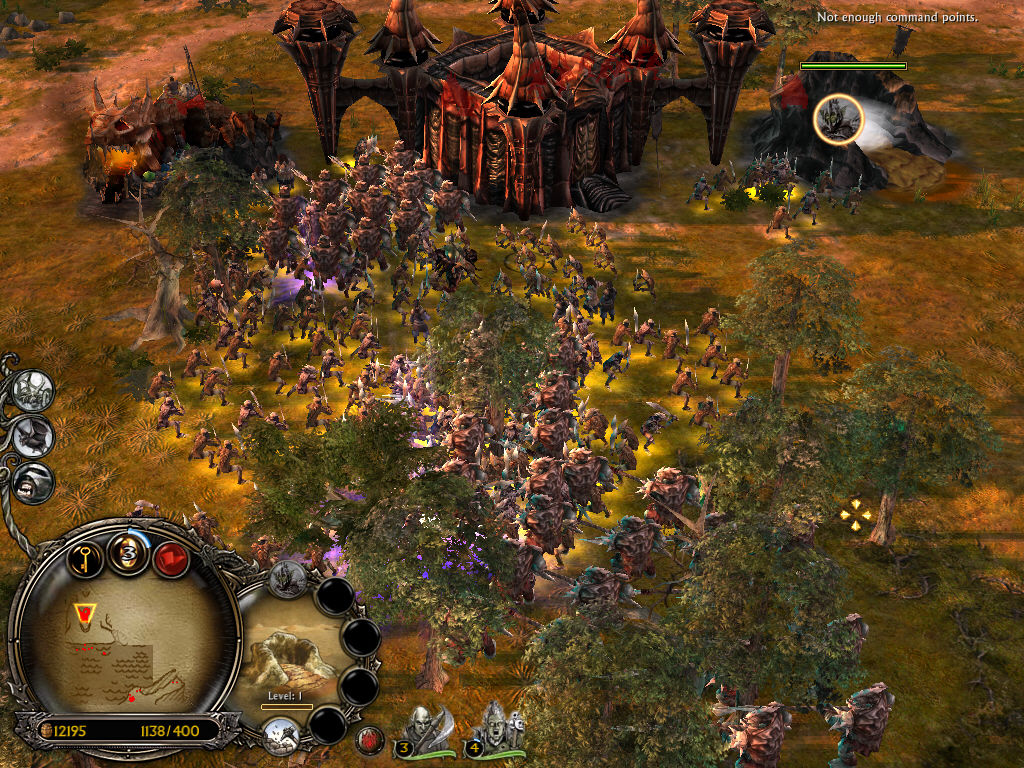
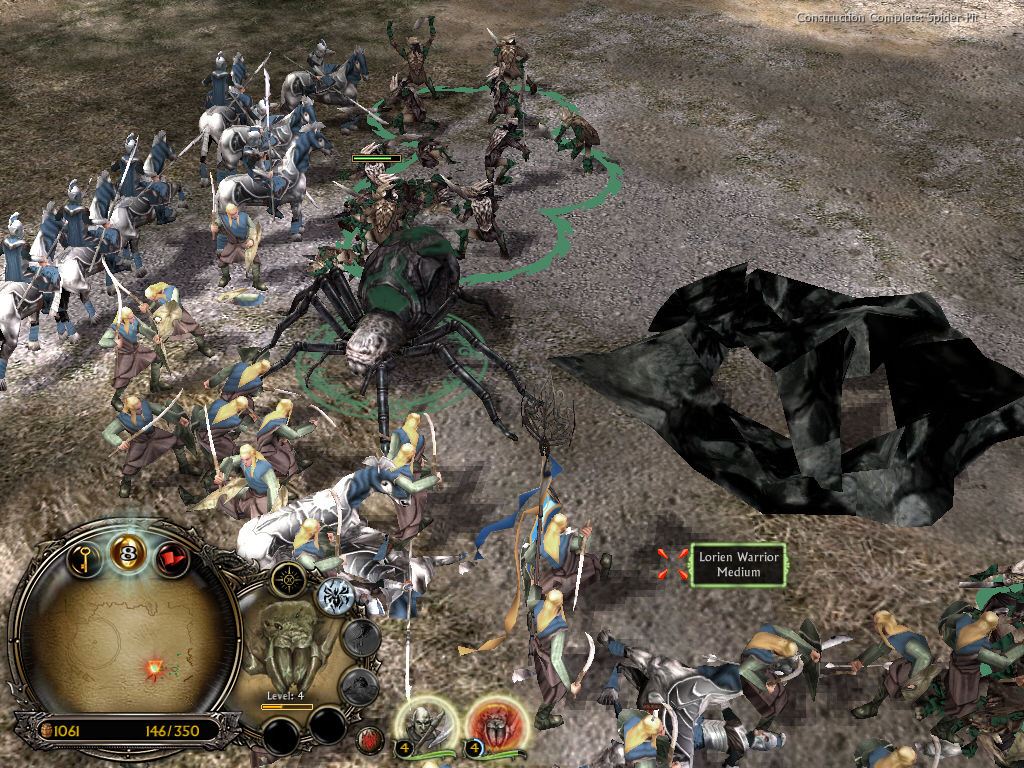
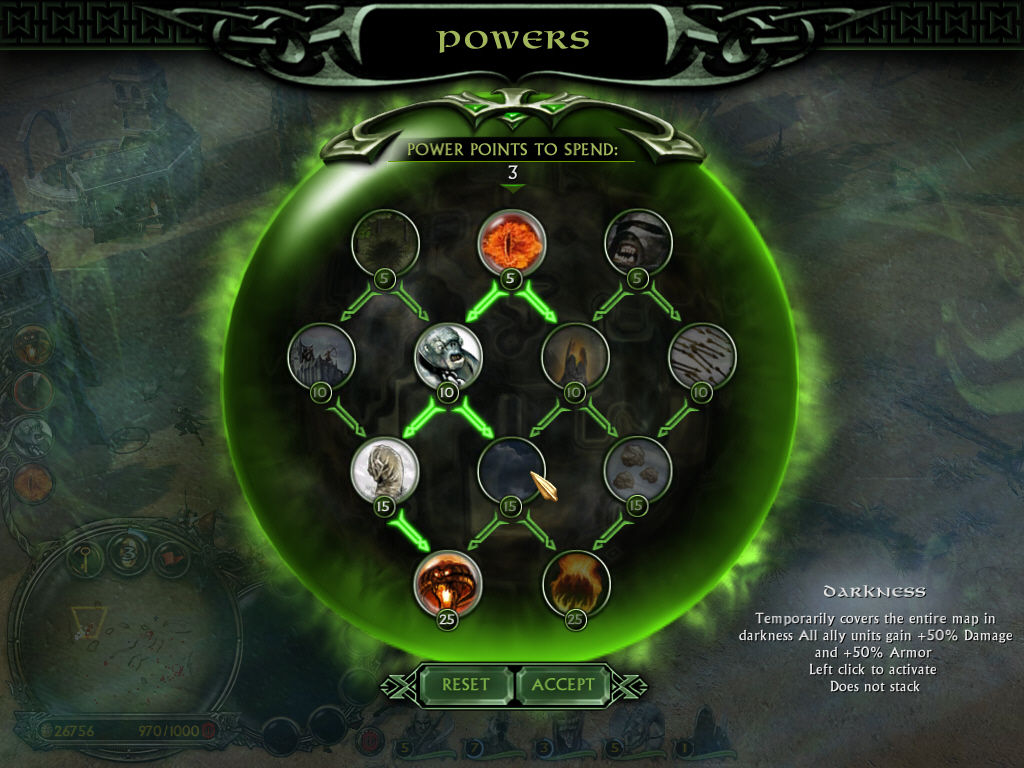
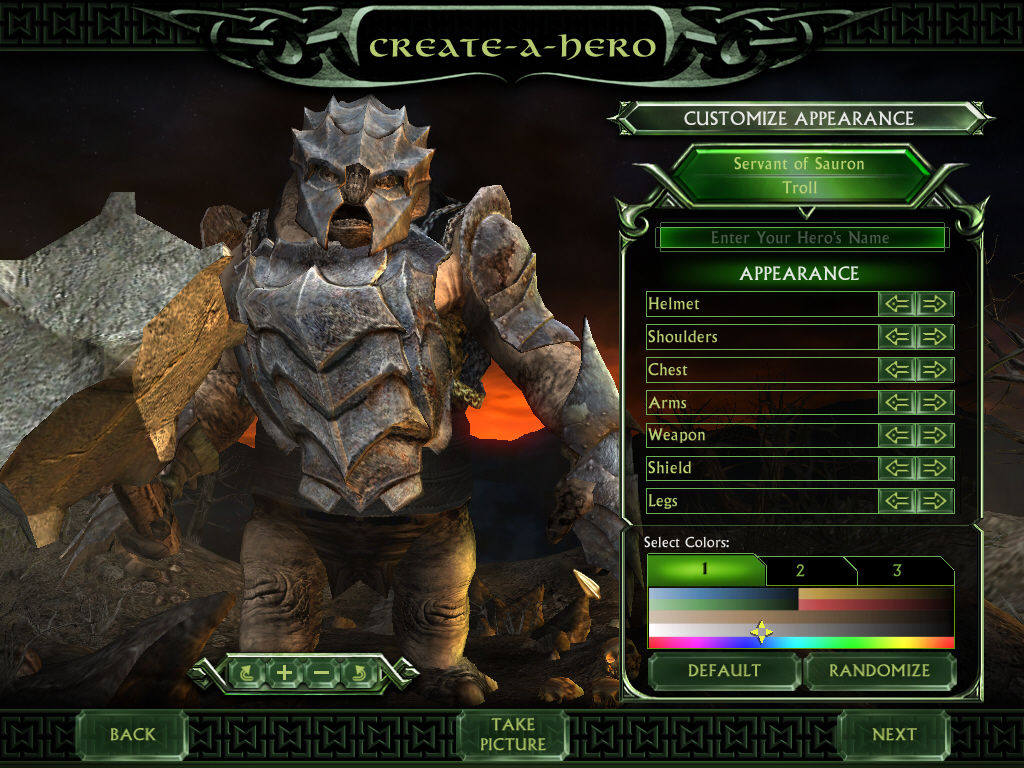
The Battle for Middle-earth II Screenshots
Windows
For those of you you are getting insert the cd before the step to punch in a key, make sure that:
1. The folder titled BFME 2 + Rise of the Witch King is in your C drive
2. Make sure that you take the folder out of the folder you extracted the file into. Basically for me, the folder BFME 2 + Rise of the Witch King was inside another folder called BFME 2 + Rise of the Witch King.
thank you this got it working for me.
Done everything. But when I try to load the game the initial special edition screen comes up but the game never actually runs. Any idea what could be wrong?
same thing happen to me, it just crash when loading
How does it work using WinCDEmu instead of Daemon Tools?
I keep getting the insert cd prompt and I’ve done everything. Im using daemon tools pro. Is that gonna make a difference?
Hello,Sorry if my answer is late
Check if the files still attached to daemon tools,I had the same error and i needed to readd them
where is the video?
Where do I find the video I am bit dumb and can’t find it
nvm I found it
Where?
Where?
So i installed the free BFME2 and everything seemed to go good and i started the good campaign. The first 3 minutes everything was normal all the objectives went normal and dialogue’s aswell, but then after 3 minutes i get an instant defeat. Is there something wrong with my files or do i miss something?
I also got the same problem. Have you already fixed yours? Please share me the trouble shoot. Thank you very much!
The game always ends when 3 minutes pass… it always end the stage
i dont get it. it does not ask for a sereal key but rather for me to insert CD1
I have followed the directions but it says ‘Please insert the correct DVD-ROM”
I need some help please.
I have followed everything and am getting the D3DX9_27.DIL not found error.
i have followed everything up until the point of fininding the files in %APPDATA% which i cant find.
I need some help/assistance please.
hi when i start the game it shows loading an the titel screen than just stops
https://uploads.disquscdn.com/images/6ef5c22f67c486de445671c3b47a7506ce000687e02473751d3407671c76560d.png
how to fix this?
same
Hey everybody! I noticed within the comments a few people were havin’ some issues so I thought I’d write-up a little troubleshooting guide:
Drag the folder to your C:// disc on your computer. – If you’re installing the game away from your SSD or you have a desired SSD/HDD, place the folder there, at the surface level. For example, I placed mine on my D:// as that’s where I was installing the game.
You want the virtual drive to be “SCSI” and then select “Add drive”. https://ibb.co/SPZZF80 – Ensure the virtual drive you make has the “SCSI” icon situated in the upper right. I went through this process once and to my knowledge, I did it right but the icon did not appear on the drive – I deleted it and started again and it popped up.
search for %appdata% and you want to click on the %appdata% folder – Initially, you may not see this but follow the instructions prior to this and open the game, the App Data will only be generated upon the game being opened, you can then replace the “Options.ini”. As it’s based on the User, regardless where you install the game, it should be found within you C:// Drive/User folder by the “search” tab at the bottom.
I haven’t addressed all known issues here but please leave a comment if you have a question so I get notified. 🙂
https://uploads.disquscdn.com/images/6ef5c22f67c486de445671c3b47a7506ce000687e02473751d3407671c76560d.png
how to fix this ?/
Mine is still requesting “Please insert CD/DVD 1 in Drive D”
I already created a SCSI on my Daemon Tools Lite.
And follow the step 3 and 4. what’s wrong ?
Hi! I always get an instant defeat right after every 3 minutes I start a skirmish game. What’s wrong with mine? Thank you very much!
Stuck IN CD drive F. Can’t change the CD drive. i use CD drive G
Delete the virtual drive via the Daemon tools interface and recreate the drive again, ensuring SCSI is activated. X