| Publishers | EA Games |
| Developers | EA Los Angeles |
| Release date | 2006 |
| Genre | Strategy |
| Game rating |
Game Description
The Lord of the Rings: The Battle for Middle-earth II is a real-time strategy video game developed and published by Electronic Arts. It is based on the fantasy novels The Lord of the Rings and The Hobbit by J. R. R. Tolkien and its live-action film trilogy adaptation. It is the sequel to Electronic Arts’ 2004 title The Lord of the Rings: The Battle for Middle-earth.
Download The Battle for Middle-earth II
We might have the game available for more than one platform. The Battle for Middle-earth II is currently available on these platforms:
Windows (2006)
BFME 2 + Rise of the Witch King.rar (3.75 GB)
How to play on Windows
- Click on the download button. It should redirect you to your download. Make sure you download the file properly and that your internet does not disconnect while downloading.
- While waiting for your download, make sure that you have a software called Daemon Tools installed on your computer.
- Extract the “BFME 2 + Rise of the Witch King” folder to your desktop.
- Drag the folder to your C:// disc on your computer.
- Open the “BFME 2 + Rise of the Witch King” folder and then open the “Game Files” folder.
Instructions for The Battle for Middle Earth 2
- Open the folder called BFME2 and then the folder called BFME2 Installer. Inside the BFME Installer folder, you want to double click on the file called AutoRun.exe and the installer for The Battle for Middle Earth 2 should launch. Go through the game setup – at some point they will ask you to insert a CD-key. Use any one of these and finish the installation:
- HNB3-GRYM-GLUS-HKTU-Y9V8
- XLWW-55XX-5MB8-Q6QJ-5JAP
- 42FP-FQES-GW72-MT37-MCGQ
- QJXX-3TVM-EE2V-NUYU-SWDW
- 3QWW-QZQ7-USET-Z8NQ-WUYB
- HZKB-QJTS-W5E3-83PJ-K9AA
- ATK3-5TTF-9HJH-3TRW-2F8F
- M9NN-6NWW-5VRB-5KLN-EVV3
- If you run the game now, they will ask you to insert a CD so it will not work. What you have to do, is open up the software called Daemon Tools and then select add a new drive. You want the virtual drive to be “SCSI” and then select “Add drive”. If this part is a bit complicated, watch the video below and you can see how I did it for clearer instructions. You then want to drag the “MI-BFME2.mds” file (it will be 9KB) into the empty drive on Daemon tools. Note: If Daemon Tools doesn’t work, then use WinCDEmu.
- The next step, is that you want to go back into the folder called “Game Files”. In here, you want to open the “Options.ini” file (double click it). You will see a line of code which says “Resolution = 1920 1080”. You want to change these numbers to the resolution of your computer, and then save the document.
- Next, you want to click on your start menu and then search for %appdata% and you want to click on the %appdata% folder. This is usually C:\Users\(your username)\AppData\Roaming. Inside this folder, you want to find the folder called “My Battle for Middle-earth ™ II Files”. You want to open that folder, and then you want to copy, and then paste, the “Options.ini” file from step 3 into the “My Battle for Middle-earth ™ II Files” folder.
- You can now run the game from the desktop shortcut, and the insert a CD message should go away.
- Enjoy the game!
Instructions for The Battle for Middle-earth 2: The Rise of the Witch-king (you need to download the base game first)
- You will need to have The Battle for Middle-earth 2 base game installed before you can install this, so do the previous steps first!
- Open the folder called Rise of the Witch King and then the folder called RoTWK Installer. Inside the
- RoTWK Installer folder, you want to double click on the file called AutoRun.exe and the installer for The Rise of the Witch-king should launch. Go through the game setup – at some point they will ask you to insert a CD-key. Use any one of these:
- HE55-26J3-XSSL-A58B-BZ96
- YQFX-M2HH-LM62-NJ9T-KMZG
- TJLC-V87P-E5CY-ELRS-VLYP
- DJ7F-LB8A-NZDE-BJXN-8X8M
- 3WH9-CR7P-4UPH-PPQE-DT39
- GG22-XGJA-GQ96-YJJS-NKVG
- HR55-MLNM-WFJN-UNWR-4X6T
- JW9R-97QL-NRFW-QAFL-UDEX
- If you run the game now, they will ask you to insert a CD so it will not work. What you have to do, is open up the software called Daemon Tools and then select add a new drive. You want the virtual drive to be “SCSI” and then select “Add drive”. You then want to drag the “RotWk_Maxi-TheSmokingMan.mds” file (it will be 5KB) into the empty drive on Daemon tools.
- Next, you want to click on your start menu and then search for %appdata% and you want to click on the %appdata% folder. This is usually C:\Users\(your username)\AppData\Roaming. Inside this folder, you want to find the folder called “My The Lord of the Rings, The Rise of the Witch-king Files”. You want to open that folder, and then you want to copy, and then paste, the “Options.ini” file from before into the “My The Lord of the Rings, The Rise of the Witch-king Files” folder.
- You can now run the game from the desktop shortcut.
- Enjoy the game!
Additional files, patches and fixes
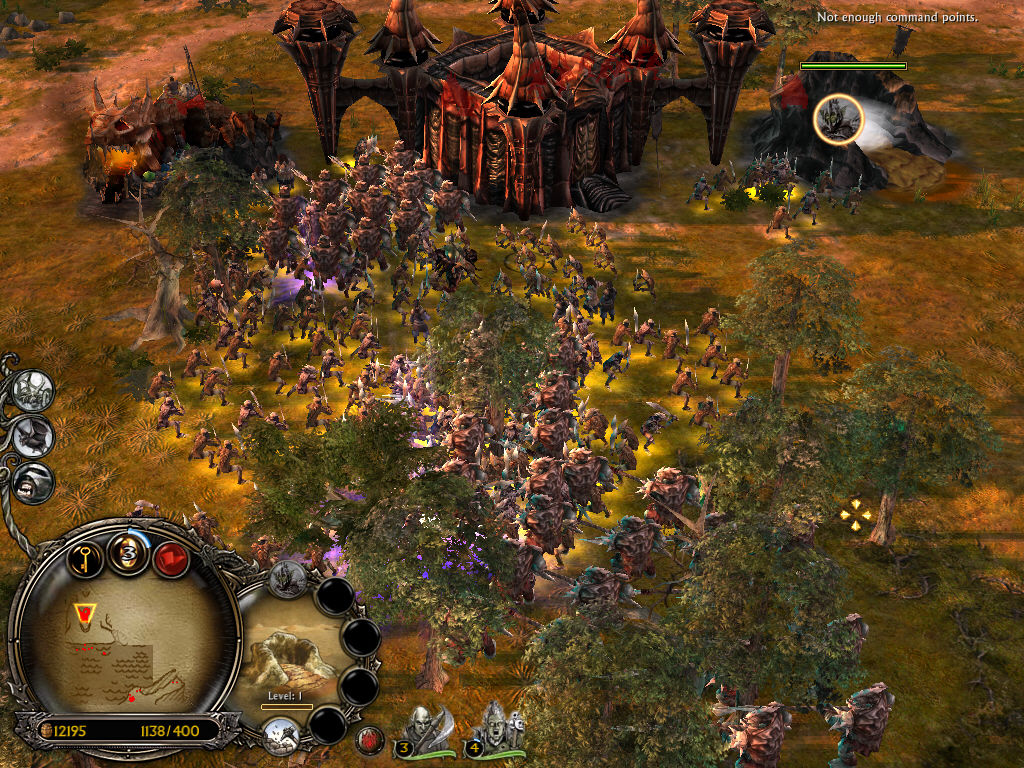
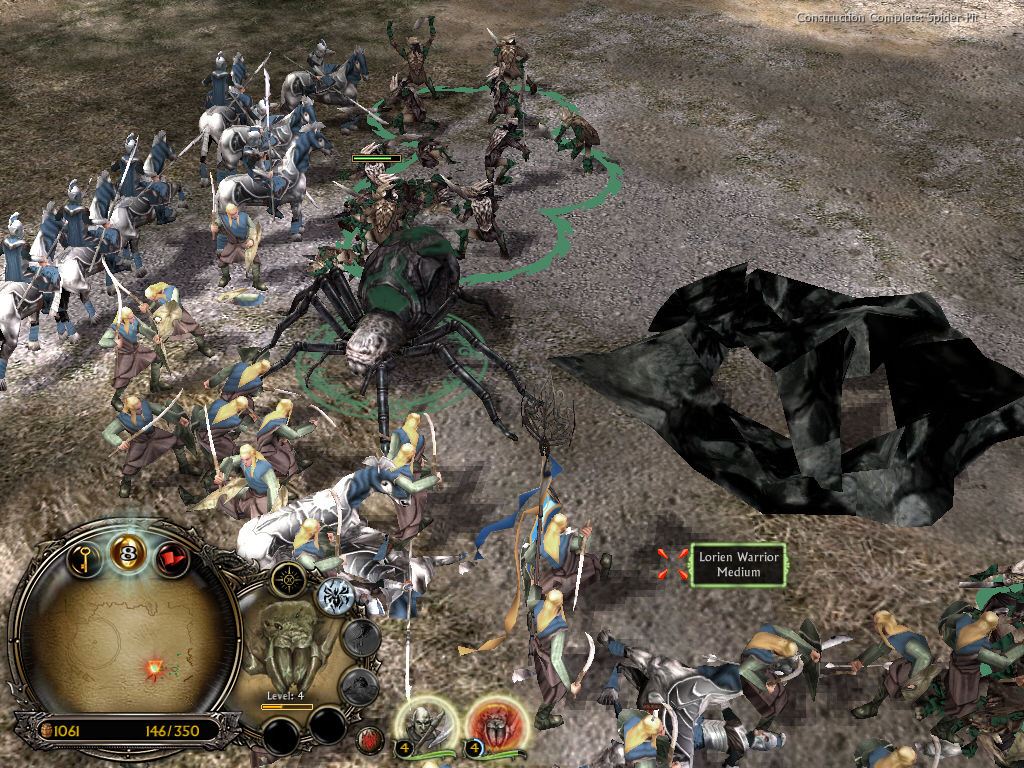
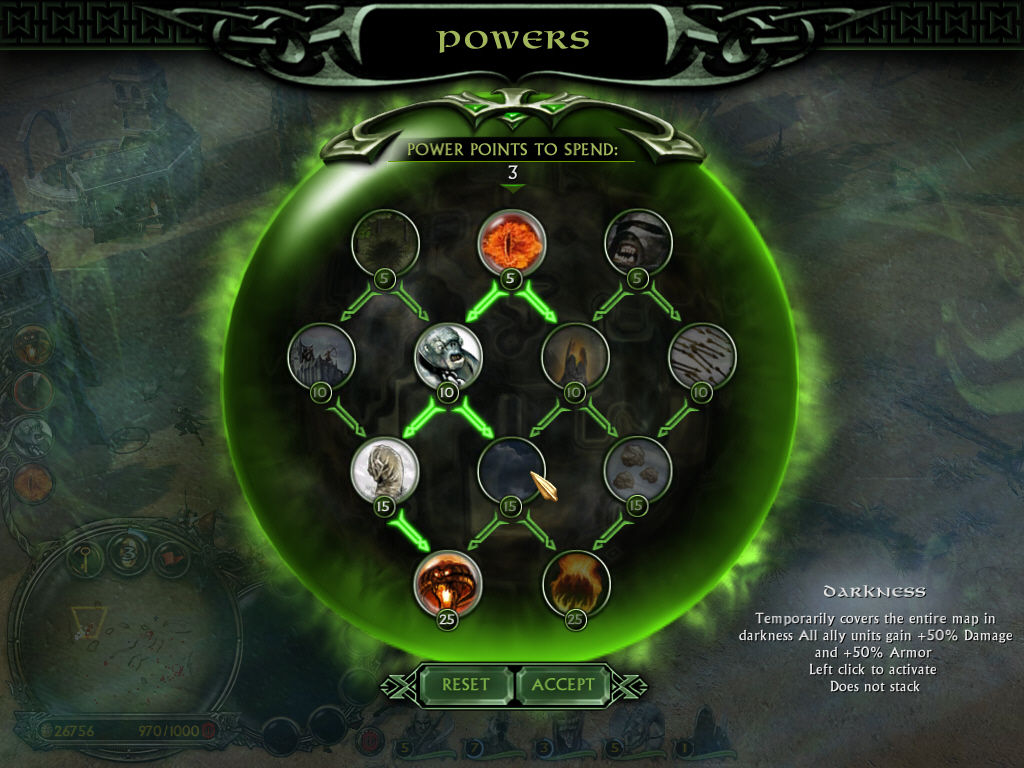
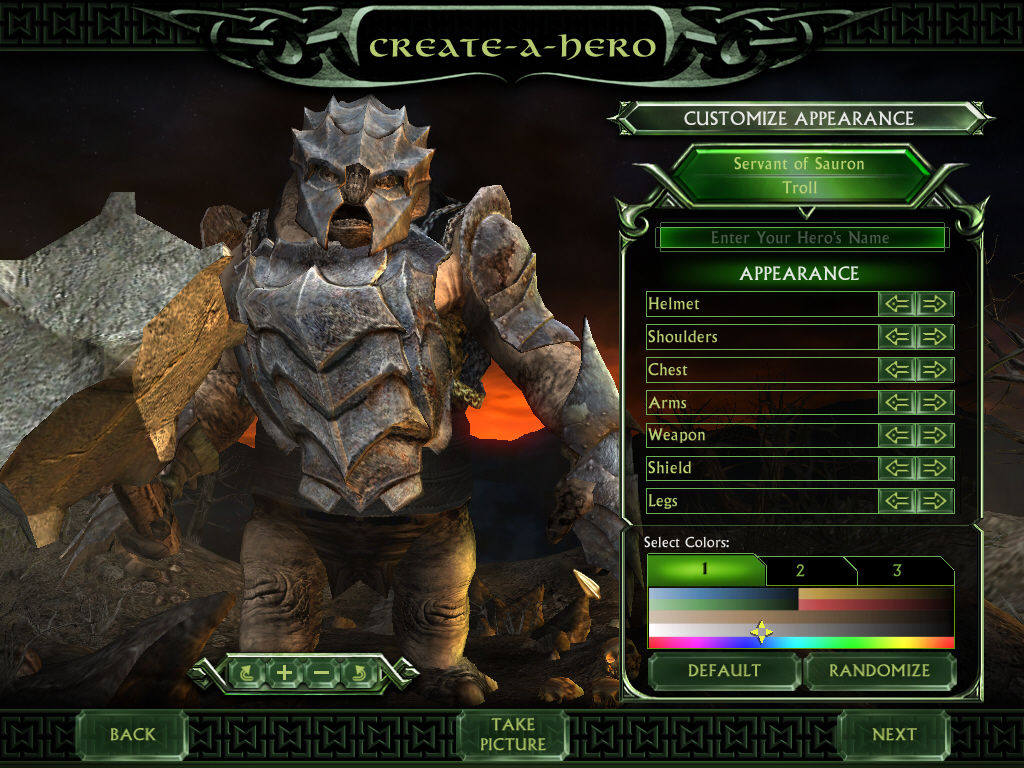
The Battle for Middle-earth II Screenshots
Windows
would anyone know where i could get a copy of RotWk_Maxi-TheSmokingMan.mds file just the file i accidentally deleted the image from daimon tools and cant find the file on my pc anymore 🙁
does anyone know if i will be able to have a LAN party with this, my mates and I used to play this all the time together and was hoping to do the same again, i know the servers were taken down in 2010 but if we use different installation keys can we LAN ?
Problem is you using same cd key as they do. Reinstall with different cd key and it should work.
hey i have downloaded and installed the game and everything seems to work, except that when i try to open the game it just closes before i get to any menus or anything anybody now what to do?
Did you put the OPTION file where it should ? ( I forget this me to
Anyone have any idea why everyone dies on the first good mission when i reach Elrond?
Edit: It’s the same with the evil campaing. Let’s me play for a little while then just kills everything. Anyone know why? It happens at 3 minutes 30 every time
Got the same :/ 3min and autoKill for everything in your team => GAME OVER
“The code execution cannot proceed because D3DX9_27.DLL was not found. Reinstalling the program may fix this problem.”
I reinstalled it from AutoRun and it still didn’t work. How do I fix this?
update needed https://disq.us/url?url=https%3A%2F%2Fwww.microsoft.com%2Fen-US%2Fdownload%2Fconfirmation.aspx%3Fid%3D35%3AjWxfhiKTeB0_3F65A0lDzdEN05o&cuid=5574651
“The code execution cannot proceed because D3DX9_27.DLL was not found. Reinstalling the program may fix this problem.”
I reinstalled it and it did not work. How do I solve this issue?
when I launch the game it says that i must insert the appropriated DVD-ROM and reboot the game please help thanks in advance 🙂
when i launch the game it says that I need to insert rhe appropriated DVD-ROM and reboot the application please help thanks in advance
fixed the “please insert a disk in drive C” issue, extract directly to C, so you end up with the filepath “C:BFME 2 + Rise of the Witch KingGame Files” not “C:BFME 2 + Rise of the Witch KingBFME 2 + Rise of the Witch KingGame Files”
this helped me thank you. also you can just cut/paste the BFME2 folder from the BFME 2 + Rise of the Witch King folder into the C: drive, worked for me.
how do i extract directly to C?
How for mac?
when I tried to download the folder file from MEGA it saved as a rar file, preventing me from opening it. If anyone knows how to solve this I would to love to hear
when I tried to download the file from MEGA it saved as a rar file instead of a folder preventing me from opening it. If anyone knows how to solve this it would be great to hear please
How can i play this online? is it possible?
When I try to install it, It says that I need to intall disk 1, I’ve done all what the video says and it doesn’t work tho…. What can I do?
I have encountered almost every problem listed below, these are all the fixes i did. Not sure which one fixed it exactly or if all this is necessary but it works now for me so give it a try.
– run the game in compatibility mode for windows xp service pack 3
– do not put the options file in %appdata but instead go to %appdata% then the file should actually be there and you wont have to create it yourself (this is where it is actually meant to go)
– go to this link and download the updated patches
https://forums.revora.net/topic/105190-bfme1bfme2rotwk-games-download-installation-guide/
Hope this helps
ps I am by no means a computer nerd and only figured this out by hours of trial and error so if you ask me very specific questions on whats posted above I will probably not be able to help.