| Publishers | EA Games |
| Developers | EA Los Angeles |
| Release date | 2006 |
| Genre | Strategy |
| Game rating |
Game Description
The Lord of the Rings: The Battle for Middle-earth II is a real-time strategy video game developed and published by Electronic Arts. It is based on the fantasy novels The Lord of the Rings and The Hobbit by J. R. R. Tolkien and its live-action film trilogy adaptation. It is the sequel to Electronic Arts’ 2004 title The Lord of the Rings: The Battle for Middle-earth.
Download The Battle for Middle-earth II
We might have the game available for more than one platform. The Battle for Middle-earth II is currently available on these platforms:
Windows (2006)
BFME 2 + Rise of the Witch King.rar (3.75 GB)
How to play on Windows
- Click on the download button. It should redirect you to your download. Make sure you download the file properly and that your internet does not disconnect while downloading.
- While waiting for your download, make sure that you have a software called Daemon Tools installed on your computer.
- Extract the “BFME 2 + Rise of the Witch King” folder to your desktop.
- Drag the folder to your C:// disc on your computer.
- Open the “BFME 2 + Rise of the Witch King” folder and then open the “Game Files” folder.
Instructions for The Battle for Middle Earth 2
- Open the folder called BFME2 and then the folder called BFME2 Installer. Inside the BFME Installer folder, you want to double click on the file called AutoRun.exe and the installer for The Battle for Middle Earth 2 should launch. Go through the game setup – at some point they will ask you to insert a CD-key. Use any one of these and finish the installation:
- HNB3-GRYM-GLUS-HKTU-Y9V8
- XLWW-55XX-5MB8-Q6QJ-5JAP
- 42FP-FQES-GW72-MT37-MCGQ
- QJXX-3TVM-EE2V-NUYU-SWDW
- 3QWW-QZQ7-USET-Z8NQ-WUYB
- HZKB-QJTS-W5E3-83PJ-K9AA
- ATK3-5TTF-9HJH-3TRW-2F8F
- M9NN-6NWW-5VRB-5KLN-EVV3
- If you run the game now, they will ask you to insert a CD so it will not work. What you have to do, is open up the software called Daemon Tools and then select add a new drive. You want the virtual drive to be “SCSI” and then select “Add drive”. If this part is a bit complicated, watch the video below and you can see how I did it for clearer instructions. You then want to drag the “MI-BFME2.mds” file (it will be 9KB) into the empty drive on Daemon tools. Note: If Daemon Tools doesn’t work, then use WinCDEmu.
- The next step, is that you want to go back into the folder called “Game Files”. In here, you want to open the “Options.ini” file (double click it). You will see a line of code which says “Resolution = 1920 1080”. You want to change these numbers to the resolution of your computer, and then save the document.
- Next, you want to click on your start menu and then search for %appdata% and you want to click on the %appdata% folder. This is usually C:\Users\(your username)\AppData\Roaming. Inside this folder, you want to find the folder called “My Battle for Middle-earth ™ II Files”. You want to open that folder, and then you want to copy, and then paste, the “Options.ini” file from step 3 into the “My Battle for Middle-earth ™ II Files” folder.
- You can now run the game from the desktop shortcut, and the insert a CD message should go away.
- Enjoy the game!
Instructions for The Battle for Middle-earth 2: The Rise of the Witch-king (you need to download the base game first)
- You will need to have The Battle for Middle-earth 2 base game installed before you can install this, so do the previous steps first!
- Open the folder called Rise of the Witch King and then the folder called RoTWK Installer. Inside the
- RoTWK Installer folder, you want to double click on the file called AutoRun.exe and the installer for The Rise of the Witch-king should launch. Go through the game setup – at some point they will ask you to insert a CD-key. Use any one of these:
- HE55-26J3-XSSL-A58B-BZ96
- YQFX-M2HH-LM62-NJ9T-KMZG
- TJLC-V87P-E5CY-ELRS-VLYP
- DJ7F-LB8A-NZDE-BJXN-8X8M
- 3WH9-CR7P-4UPH-PPQE-DT39
- GG22-XGJA-GQ96-YJJS-NKVG
- HR55-MLNM-WFJN-UNWR-4X6T
- JW9R-97QL-NRFW-QAFL-UDEX
- If you run the game now, they will ask you to insert a CD so it will not work. What you have to do, is open up the software called Daemon Tools and then select add a new drive. You want the virtual drive to be “SCSI” and then select “Add drive”. You then want to drag the “RotWk_Maxi-TheSmokingMan.mds” file (it will be 5KB) into the empty drive on Daemon tools.
- Next, you want to click on your start menu and then search for %appdata% and you want to click on the %appdata% folder. This is usually C:\Users\(your username)\AppData\Roaming. Inside this folder, you want to find the folder called “My The Lord of the Rings, The Rise of the Witch-king Files”. You want to open that folder, and then you want to copy, and then paste, the “Options.ini” file from before into the “My The Lord of the Rings, The Rise of the Witch-king Files” folder.
- You can now run the game from the desktop shortcut.
- Enjoy the game!
Additional files, patches and fixes
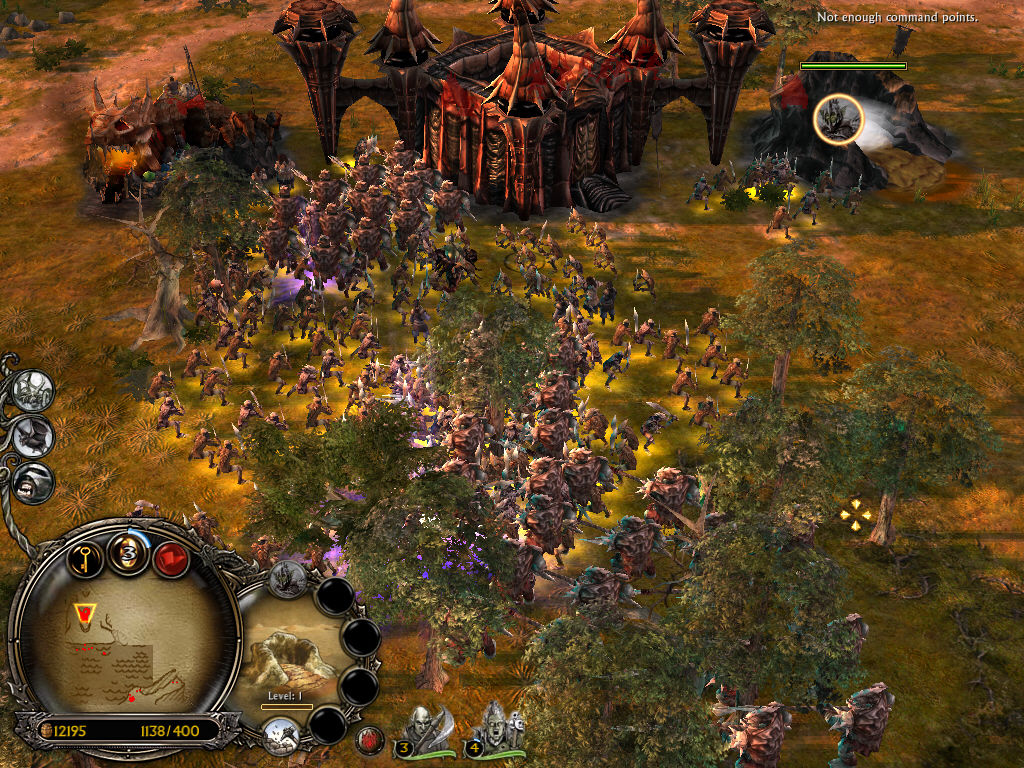
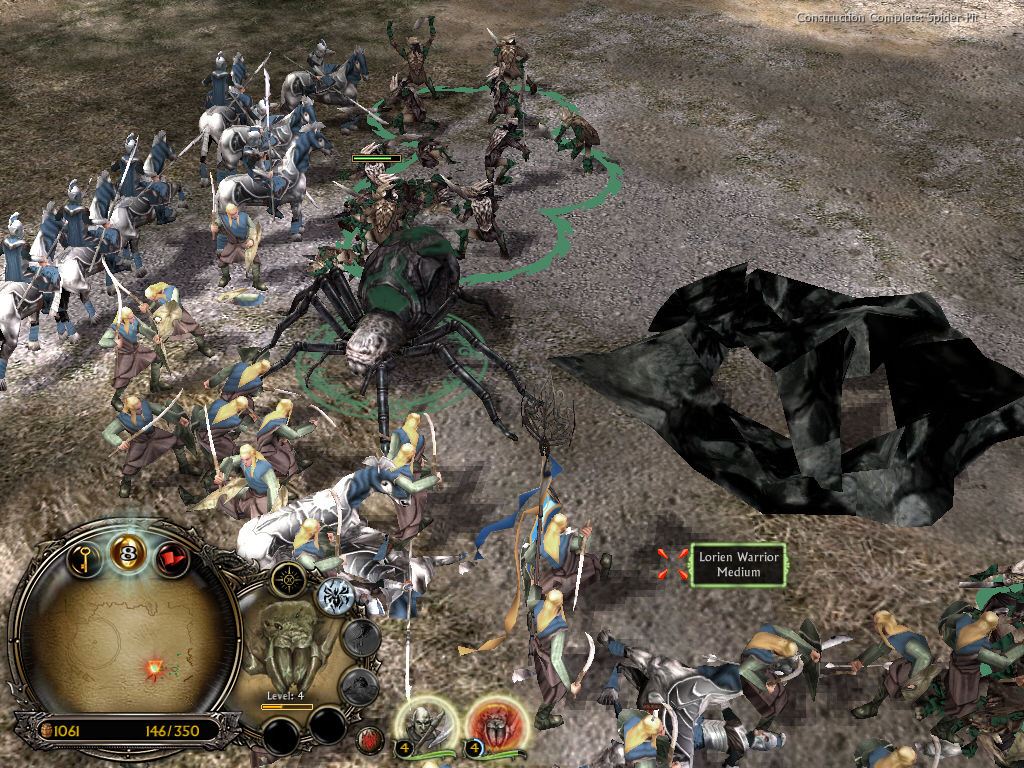
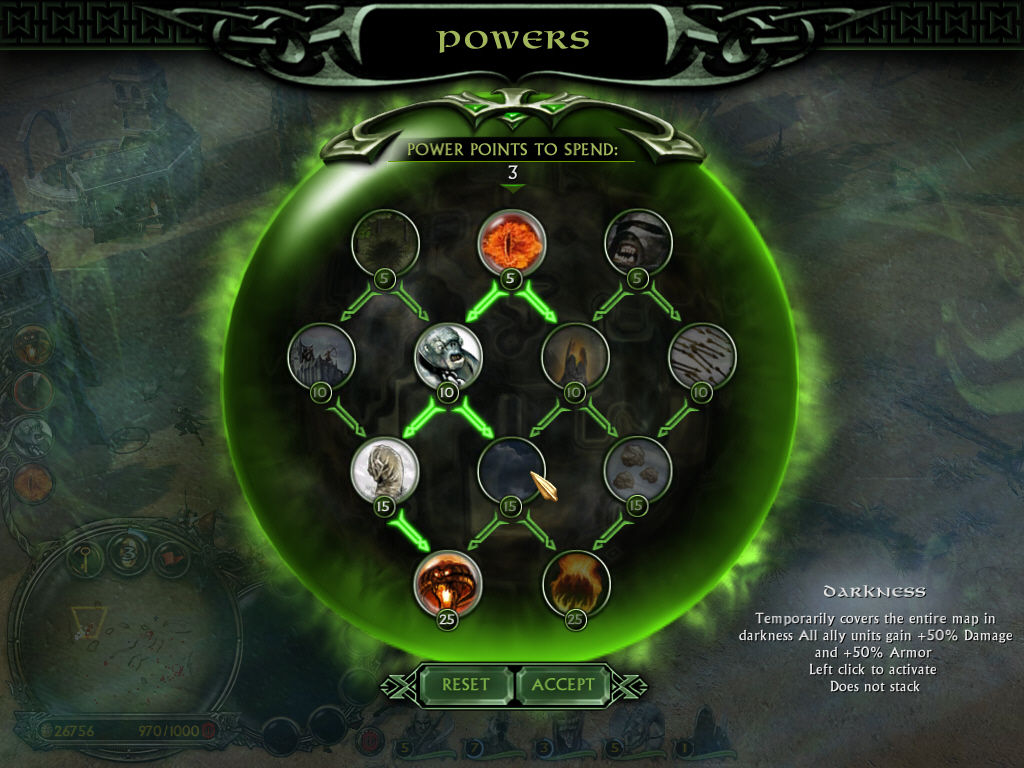
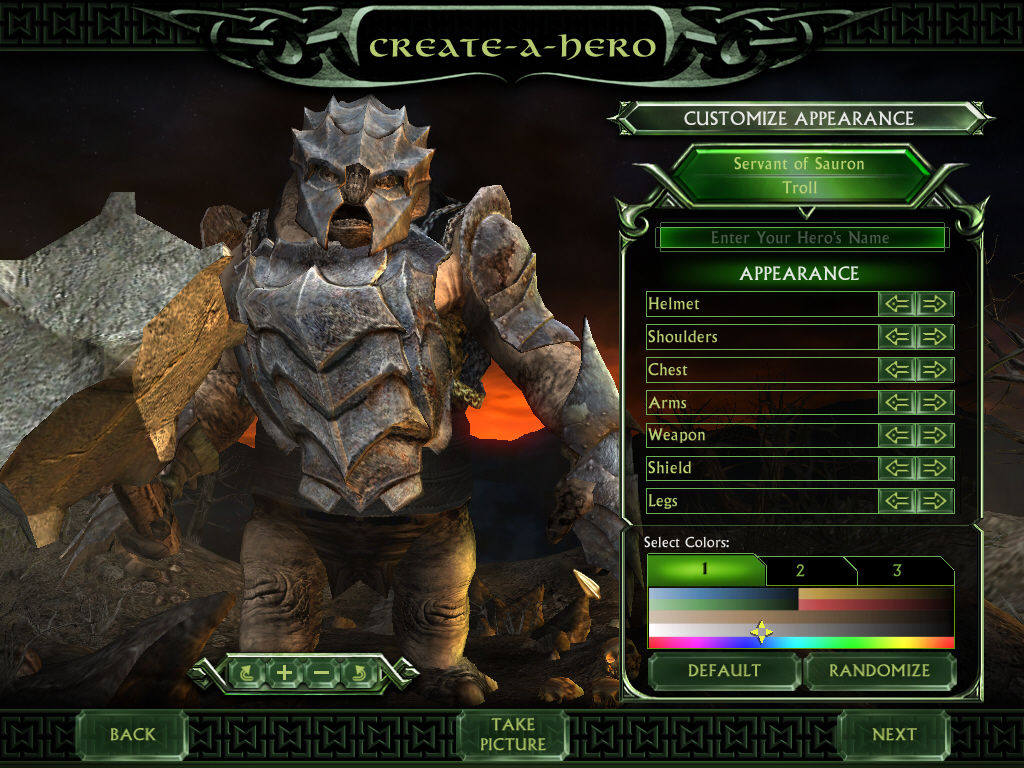
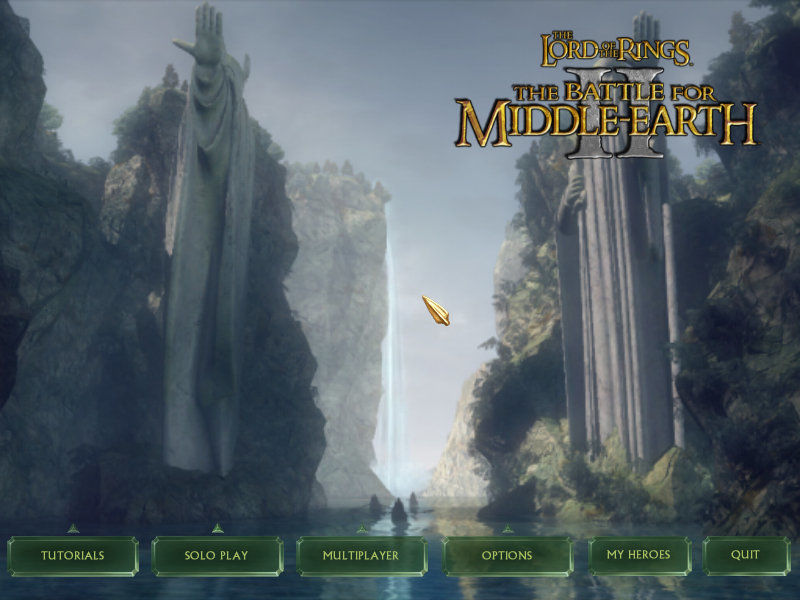
The Battle for Middle-earth II Screenshots
Windows
Both BFME2 and ROTWK stopped working (crashes at loading screen) after a windows update. I couldn’t figure out the issue so I uninstalled and tried reinstalling–now having the same issue as Thunder below; installer prompts for disc 1 before even asking for a product key. Anyone have solutions to either this disc one prompt and/or the loading screen crash?
I’m not familiar with such a problem, but i would recommend trying to lower processor performance to be 99% it worked for constant crashing to desktop problem, but hey if it’s crashing from the beginning I’d also recommend turning off ALL windows security measures because they’re interfering a lot with these old games’ algorithms , try it I’m not an expert but could work
Tried installing bfmeII, but during the installation the installer told me to insert cd/dvd1 into drive c: that is occupied by the computer ssd any help?
I had this problem. I made sure any BFME2/ROTWK files were deleted from my computer that were left over from the uninstall, even data files, then it worked when I went to reinstall. Still having the crashing issue at the loading screen though.
you should make a virtual cd card , downloaded Wincdemu and try again after the virtual cd slot with a 9kb mds file or so ( they’re at the original file ), then go back to original file and install
I cant install the gamel because when i click on autorun and after few windows when i click yes, it allways sends me the message “insert cd in drive E” and I cant continue the setup.
On your desktop, go to the Rise of the Witchking shortcut. Right mouse button, properties, compatibility tab, select Compatibility mode Windows (Service Pack 3) !!!. Click apply. OK. Then restart your game using the shortcut!
I get about 45 mins into a skirmish game (Both BFME 2 and RoTW) and it crashes….anyone seeing the same?
Cinematics not working/showing and it just skips between missions and in-game cutscenes.
Wonder if anyone has a fix for this? 🙂
Same as comments below. I played recently yet since a couple of weeks both BMFE and RotWK do not work anymore, they crash as soon as I start them. Is is a problem of NVIDIA driver? Does anybody have any idea?
Same for the witcher king. I have installed one year ago this game and played but since last 2 weeks both game stop working. I try to delete and install again but same problem. Then I check comments here and I am not only one with this issue. I think it cause because of updating the windows system or some kind of actualization. Till now games are not working because of crashing and I have no idea how to solve it. Pray for us.
Same issue, after installation I cannot run the game, It just crash after 3 seconds loading the game without any message.
it keeps crashing in loading screen !
when i try to lunch it it keeps loading and then i shuts down what to do ?
Am I being silly, or missing something? When I download it is coming as a .rar file and not as a .zip? When i extract it from my downloads it’s asking how I want to open the .rar file?
I spent like 3 hours on this game already, if only any of that time was spent playing the game. :'(
MINE IS ASKIG FOR A CD OT A CODE
BFME asks me to put a cd after running a desktop shortcut right after installation. I have mds file already mounted. Do you know what is happening?
For those having trouble following the above instructions from start to finish, try to follow this one instead.
1.) Don’t follow any of the above instructions (at least some of them). They’re not that fleshed out, you’ll just end up missing out on some minor steps/details and eventually end up getting confused. But take note of the CD keys for later.
2.) You’ve now downloaded the zip package, which is most likely sitting in your downloads folder. Extract it over to your desktop.
3.) Check the folder first and make sure there are no duplicates, meaning if the parent folder is named “BFME 2 + Rise of the Witch King” when you open it there shouldn’t be another folder of the same name. What you want to see is “BFME 2 + Rise of the Witch King” and then immediately see the “Game Files” folder and some others.
4.) Once No.3 is all checked out, copy the entire folder into your main drive which is the C: Drive.
5.) Now, in the “Game Files” folder, you first need to install the base game from which all installer files are inside the folder named “BFME2”. But before that, “mount” the .mds file.
The easiest tool is to use WinCDEmu, you just download and install it from GitHub, then without changing any configuration settings afterward and it will automatically mount the .mds to a virtual drive like say D: Drive, since upon having WinCDEmu installed it will automatically detect the .mds files and will mount it to a virtual drive as mentioned.
6.) Now, you’re set to proceed with actually running the autorun.exe to begin installation. Just go through all the message prompts and when reaching the CD-Key part just enter in the keys.
BUT MAKE SURE YOU’RE ENTERING THE CORRECT KEYS. Some of you having trouble with this are mostly typing in the wrong keys, meaning you’re putting an expansion key for the base game or vice versa. That’s all there is to it. The keys are 1:1, it does not expire unless they manually remove a key in their registry and then release a new patch.
7.) After successfully entering the CD-Key it should now start with the actual installation of game files and it will create the game folder in your C: Drive (assuming nothing goes wrong between the 0-100% progress bar). After that, a game shortcut will be created on your desktop.
8.) The next step is important, DO NOT eject the .mds file from the virtual drive yet. You need to run the game at least ONCE via the desktop shortcut first while the file is STILL mounted SO it can create the application data folder under C:\Users\AppData\Roaming\…
This is where the above instructions have missed that crucial detail. Once done, you should be able to see that My Middle Earth… folder, and then you can proceed with editing the .ini file and paste it there.
9.) Now… to finally play the game, just click on the shortcut to launch it and it should work fine, BUT, make sure the .mds is STILL mounted since it will ask you to insert a CD.
Why though you all ask? Since this IS NOT A CRACKED VERSION. This is a genuine copy of the game that is re-packed that’s why you’re entering official CD-Keys since you’re installing it legitimately using the official game installer. If you want a Non-CD Key version, then that is the cracked version.
By mounting the .mds to a virtual drive it’s simply emulating as if you have a physical CD inserted. Like you’re doing it on reverse.
.mds is just a digitized version of the CD contents, if you want you can burn the .mds into a CD if you have a CD player on your computer.
10.) Hence, every time you play the base game or the expansion you have to first mount their respective .mds files as if you’re inserting the physical CD so you can launch the game itself.
TE AMO
i still dont get the my battle…file