| Publishers | EA Games |
| Developers | EA Los Angeles |
| Release date | 2006 |
| Genre | Strategy |
| Game rating |
Game Description
The Lord of the Rings: The Battle for Middle-earth II is a real-time strategy video game developed and published by Electronic Arts. It is based on the fantasy novels The Lord of the Rings and The Hobbit by J. R. R. Tolkien and its live-action film trilogy adaptation. It is the sequel to Electronic Arts’ 2004 title The Lord of the Rings: The Battle for Middle-earth.
Download The Battle for Middle-earth II
We might have the game available for more than one platform. The Battle for Middle-earth II is currently available on these platforms:
Windows (2006)
BFME 2 + Rise of the Witch King.rar (3.75 GB)
How to play on Windows
- Click on the download button. It should redirect you to your download. Make sure you download the file properly and that your internet does not disconnect while downloading.
- While waiting for your download, make sure that you have a software called Daemon Tools installed on your computer.
- Extract the “BFME 2 + Rise of the Witch King” folder to your desktop.
- Drag the folder to your C:// disc on your computer.
- Open the “BFME 2 + Rise of the Witch King” folder and then open the “Game Files” folder.
Instructions for The Battle for Middle Earth 2
- Open the folder called BFME2 and then the folder called BFME2 Installer. Inside the BFME Installer folder, you want to double click on the file called AutoRun.exe and the installer for The Battle for Middle Earth 2 should launch. Go through the game setup – at some point they will ask you to insert a CD-key. Use any one of these and finish the installation:
- HNB3-GRYM-GLUS-HKTU-Y9V8
- XLWW-55XX-5MB8-Q6QJ-5JAP
- 42FP-FQES-GW72-MT37-MCGQ
- QJXX-3TVM-EE2V-NUYU-SWDW
- 3QWW-QZQ7-USET-Z8NQ-WUYB
- HZKB-QJTS-W5E3-83PJ-K9AA
- ATK3-5TTF-9HJH-3TRW-2F8F
- M9NN-6NWW-5VRB-5KLN-EVV3
- If you run the game now, they will ask you to insert a CD so it will not work. What you have to do, is open up the software called Daemon Tools and then select add a new drive. You want the virtual drive to be “SCSI” and then select “Add drive”. If this part is a bit complicated, watch the video below and you can see how I did it for clearer instructions. You then want to drag the “MI-BFME2.mds” file (it will be 9KB) into the empty drive on Daemon tools. Note: If Daemon Tools doesn’t work, then use WinCDEmu.
- The next step, is that you want to go back into the folder called “Game Files”. In here, you want to open the “Options.ini” file (double click it). You will see a line of code which says “Resolution = 1920 1080”. You want to change these numbers to the resolution of your computer, and then save the document.
- Next, you want to click on your start menu and then search for %appdata% and you want to click on the %appdata% folder. This is usually C:\Users\(your username)\AppData\Roaming. Inside this folder, you want to find the folder called “My Battle for Middle-earth ™ II Files”. You want to open that folder, and then you want to copy, and then paste, the “Options.ini” file from step 3 into the “My Battle for Middle-earth ™ II Files” folder.
- You can now run the game from the desktop shortcut, and the insert a CD message should go away.
- Enjoy the game!
Instructions for The Battle for Middle-earth 2: The Rise of the Witch-king (you need to download the base game first)
- You will need to have The Battle for Middle-earth 2 base game installed before you can install this, so do the previous steps first!
- Open the folder called Rise of the Witch King and then the folder called RoTWK Installer. Inside the
- RoTWK Installer folder, you want to double click on the file called AutoRun.exe and the installer for The Rise of the Witch-king should launch. Go through the game setup – at some point they will ask you to insert a CD-key. Use any one of these:
- HE55-26J3-XSSL-A58B-BZ96
- YQFX-M2HH-LM62-NJ9T-KMZG
- TJLC-V87P-E5CY-ELRS-VLYP
- DJ7F-LB8A-NZDE-BJXN-8X8M
- 3WH9-CR7P-4UPH-PPQE-DT39
- GG22-XGJA-GQ96-YJJS-NKVG
- HR55-MLNM-WFJN-UNWR-4X6T
- JW9R-97QL-NRFW-QAFL-UDEX
- If you run the game now, they will ask you to insert a CD so it will not work. What you have to do, is open up the software called Daemon Tools and then select add a new drive. You want the virtual drive to be “SCSI” and then select “Add drive”. You then want to drag the “RotWk_Maxi-TheSmokingMan.mds” file (it will be 5KB) into the empty drive on Daemon tools.
- Next, you want to click on your start menu and then search for %appdata% and you want to click on the %appdata% folder. This is usually C:\Users\(your username)\AppData\Roaming. Inside this folder, you want to find the folder called “My The Lord of the Rings, The Rise of the Witch-king Files”. You want to open that folder, and then you want to copy, and then paste, the “Options.ini” file from before into the “My The Lord of the Rings, The Rise of the Witch-king Files” folder.
- You can now run the game from the desktop shortcut.
- Enjoy the game!
Additional files, patches and fixes
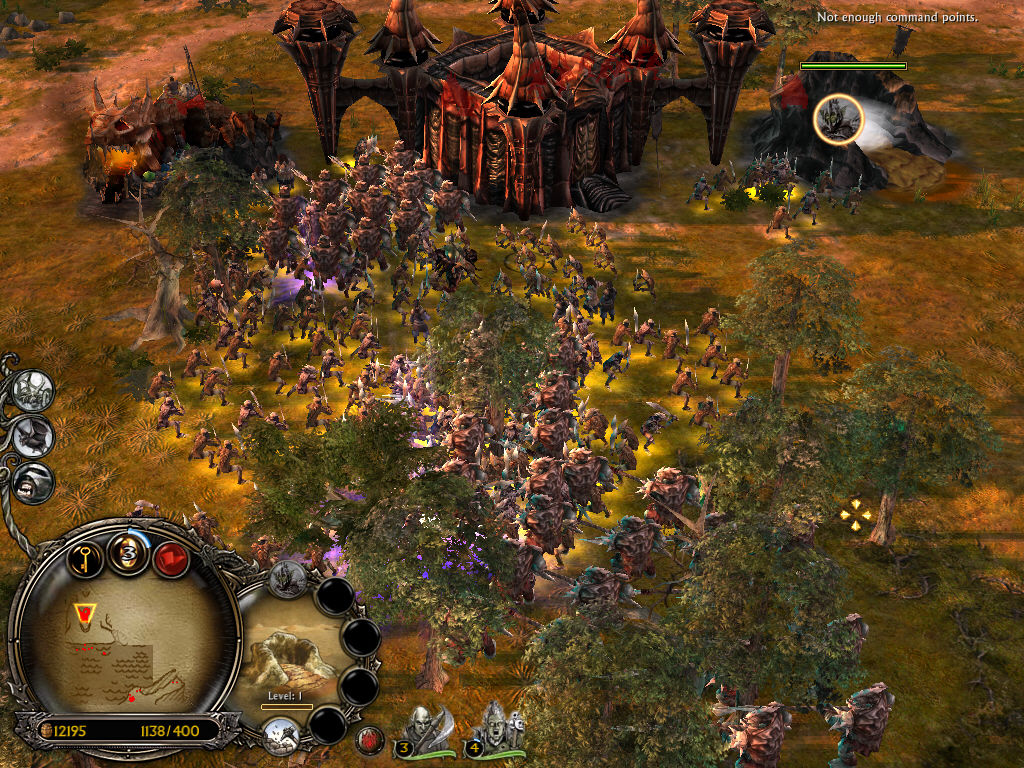
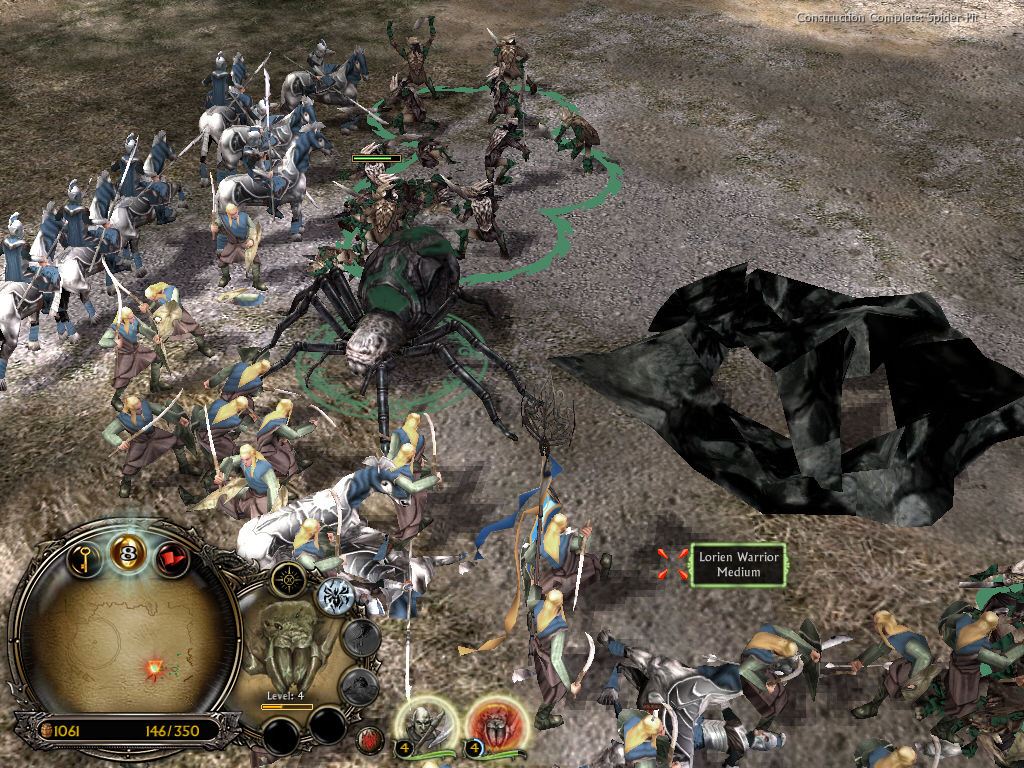
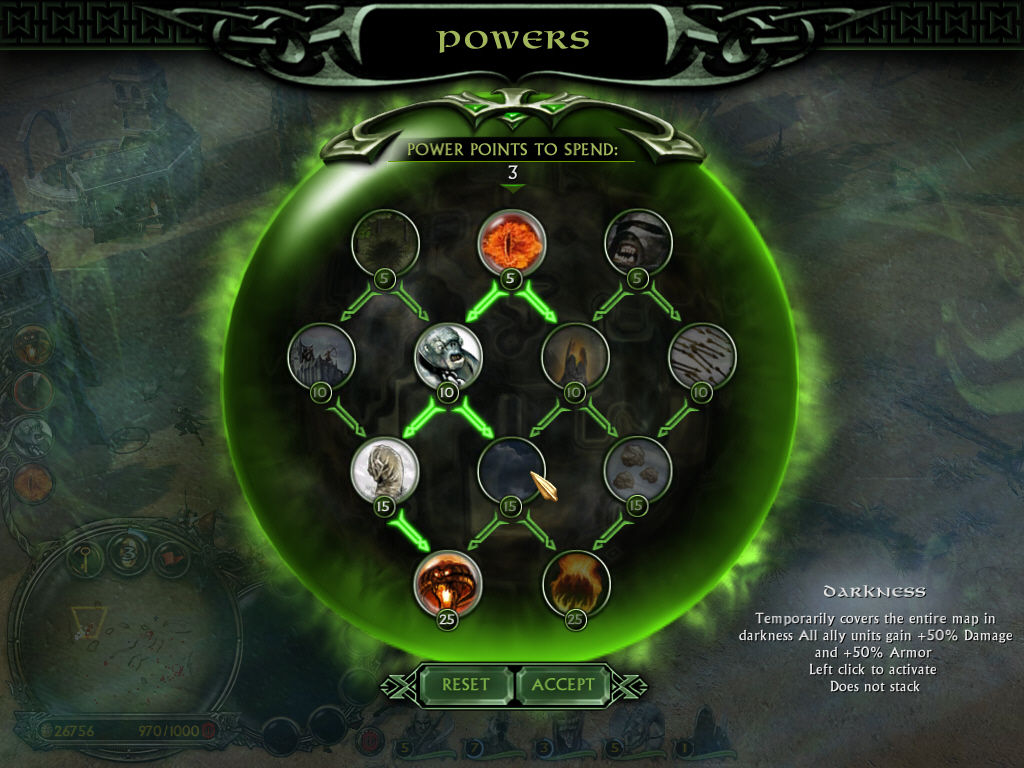
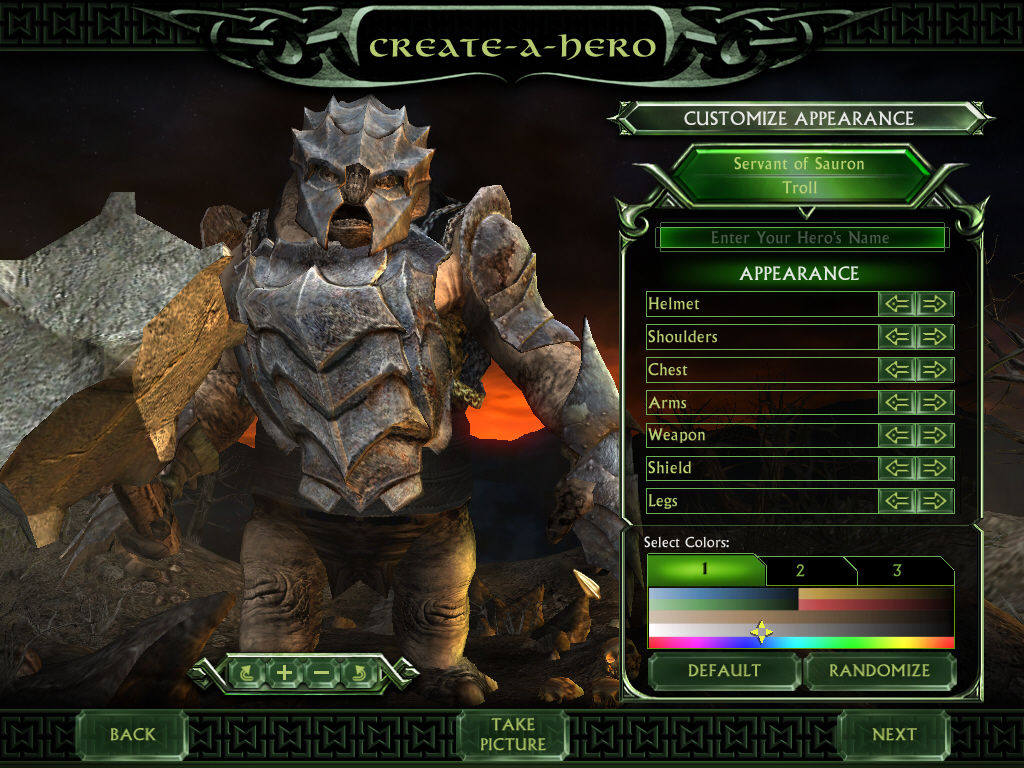
The Battle for Middle-earth II Screenshots
Windows
Follow everything on the instruction AND THEN you need to download a patch updater and update it to 1.9 for it to work, otherwise you’ll keep getting error messages.
dont see mentioned updater, and additional files/patches link doesnt work
Does anyone know how to modify the zoom factor once the game is installed? I installed the game and it works like a charm, no issues, but the game is slightly more zoomed in than I’d prefer.
I can’t find the” My battle for middle-earth II files” folder to do the options.ini step. Thats as far as I made it.
Hey I got the game to work but there aren’t any cinimatics. Anyone know how to fix this?
Don’t waste your time. Daemon Tools has malware and windows won’t let you install. No clear instructions with wincdemu, wtf is SCSI when using wincdemu. If you’re in the same boat as me, you’re gonna suffer. Find a different pathway to play this game.
Hello! I appreciate author’s generous contribution!
Did the author make any changes to musics of main menu and musics of gaming in skirmish in The Battle for Middle-earth 2?
As you soon as you run the autorun it asks for CD 1
Try reading the intructions under Instructions for The Battle for Middle Earth 2, they are there for a reason 🙂
He’s got the same issue I have. It’s not asking for a CD-KEY, it’s asking for the actual, physical disk. If you don’t have that then it won’t progress any further.
did you find a solution for this? im having the same issue
After extracting your files, make sure that there is no folder duplication. I had a folder named “BFME 2 +…” and a folder inside it with a same name. After resolving this, it worked for me.
This did it for me! I had the same issue with it wanting the cd in the drive despite mounting one as instructed using WinCDEmu.
Deleting the folder that had the folder with the files fixed the issue and now it’s working great
i can’t mount the said file in Daemon Tools. and there is no video like he said there is
worked for me brother. thank you. windows 11. ryzen 5. downloaded 2024
Hello guys, just like you i love this game. I have done everything here by the book, i have installed it just fine and done everything else necessary, but as soon as i click to open the game the loading screen comes up i wait but then it just stops and shows me nothing whatsoever. Any suggestion, ( on windows 11). I have tried as an administrator and other configurations such as vista or xp, still the same, starts but then finishes with nothing as a response.
Cannot find My Battle for Middle Earth 2 Files. Any suggestion? Already tried “run as administrator”
Thank you
hello, suddenly popped up after looking around. try restarting the pc
potrebujem pomoct s instalaciou som laik.dakujem
ahoj, včera sa mi to podarilo spusť, skus mi napísať ak ešte potrebuješ pomoc
autorun doesnt start, windows 10
did all the steps but still needs cd
the game works but for some reason the cut-scene doesn’t want to work and it just jump in to the game play