| Publishers | EA Games |
| Developers | EA Los Angeles |
| Release date | 2006 |
| Genre | Strategy |
| Game rating |
Game Description
The Lord of the Rings: The Battle for Middle-earth II is a real-time strategy video game developed and published by Electronic Arts. It is based on the fantasy novels The Lord of the Rings and The Hobbit by J. R. R. Tolkien and its live-action film trilogy adaptation. It is the sequel to Electronic Arts’ 2004 title The Lord of the Rings: The Battle for Middle-earth.
Download The Battle for Middle-earth II
We might have the game available for more than one platform. The Battle for Middle-earth II is currently available on these platforms:
Windows (2006)
BFME 2 + Rise of the Witch King.rar (3.75 GB)
How to play on Windows
- Click on the download button. It should redirect you to your download. Make sure you download the file properly and that your internet does not disconnect while downloading.
- While waiting for your download, make sure that you have a software called Daemon Tools installed on your computer.
- Extract the “BFME 2 + Rise of the Witch King” folder to your desktop.
- Drag the folder to your C:// disc on your computer.
- Open the “BFME 2 + Rise of the Witch King” folder and then open the “Game Files” folder.
Instructions for The Battle for Middle Earth 2
- Open the folder called BFME2 and then the folder called BFME2 Installer. Inside the BFME Installer folder, you want to double click on the file called AutoRun.exe and the installer for The Battle for Middle Earth 2 should launch. Go through the game setup – at some point they will ask you to insert a CD-key. Use any one of these and finish the installation:
- HNB3-GRYM-GLUS-HKTU-Y9V8
- XLWW-55XX-5MB8-Q6QJ-5JAP
- 42FP-FQES-GW72-MT37-MCGQ
- QJXX-3TVM-EE2V-NUYU-SWDW
- 3QWW-QZQ7-USET-Z8NQ-WUYB
- HZKB-QJTS-W5E3-83PJ-K9AA
- ATK3-5TTF-9HJH-3TRW-2F8F
- M9NN-6NWW-5VRB-5KLN-EVV3
- If you run the game now, they will ask you to insert a CD so it will not work. What you have to do, is open up the software called Daemon Tools and then select add a new drive. You want the virtual drive to be “SCSI” and then select “Add drive”. If this part is a bit complicated, watch the video below and you can see how I did it for clearer instructions. You then want to drag the “MI-BFME2.mds” file (it will be 9KB) into the empty drive on Daemon tools. Note: If Daemon Tools doesn’t work, then use WinCDEmu.
- The next step, is that you want to go back into the folder called “Game Files”. In here, you want to open the “Options.ini” file (double click it). You will see a line of code which says “Resolution = 1920 1080”. You want to change these numbers to the resolution of your computer, and then save the document.
- Next, you want to click on your start menu and then search for %appdata% and you want to click on the %appdata% folder. This is usually C:\Users\(your username)\AppData\Roaming. Inside this folder, you want to find the folder called “My Battle for Middle-earth ™ II Files”. You want to open that folder, and then you want to copy, and then paste, the “Options.ini” file from step 3 into the “My Battle for Middle-earth ™ II Files” folder.
- You can now run the game from the desktop shortcut, and the insert a CD message should go away.
- Enjoy the game!
Instructions for The Battle for Middle-earth 2: The Rise of the Witch-king (you need to download the base game first)
- You will need to have The Battle for Middle-earth 2 base game installed before you can install this, so do the previous steps first!
- Open the folder called Rise of the Witch King and then the folder called RoTWK Installer. Inside the
- RoTWK Installer folder, you want to double click on the file called AutoRun.exe and the installer for The Rise of the Witch-king should launch. Go through the game setup – at some point they will ask you to insert a CD-key. Use any one of these:
- HE55-26J3-XSSL-A58B-BZ96
- YQFX-M2HH-LM62-NJ9T-KMZG
- TJLC-V87P-E5CY-ELRS-VLYP
- DJ7F-LB8A-NZDE-BJXN-8X8M
- 3WH9-CR7P-4UPH-PPQE-DT39
- GG22-XGJA-GQ96-YJJS-NKVG
- HR55-MLNM-WFJN-UNWR-4X6T
- JW9R-97QL-NRFW-QAFL-UDEX
- If you run the game now, they will ask you to insert a CD so it will not work. What you have to do, is open up the software called Daemon Tools and then select add a new drive. You want the virtual drive to be “SCSI” and then select “Add drive”. You then want to drag the “RotWk_Maxi-TheSmokingMan.mds” file (it will be 5KB) into the empty drive on Daemon tools.
- Next, you want to click on your start menu and then search for %appdata% and you want to click on the %appdata% folder. This is usually C:\Users\(your username)\AppData\Roaming. Inside this folder, you want to find the folder called “My The Lord of the Rings, The Rise of the Witch-king Files”. You want to open that folder, and then you want to copy, and then paste, the “Options.ini” file from before into the “My The Lord of the Rings, The Rise of the Witch-king Files” folder.
- You can now run the game from the desktop shortcut.
- Enjoy the game!
Additional files, patches and fixes
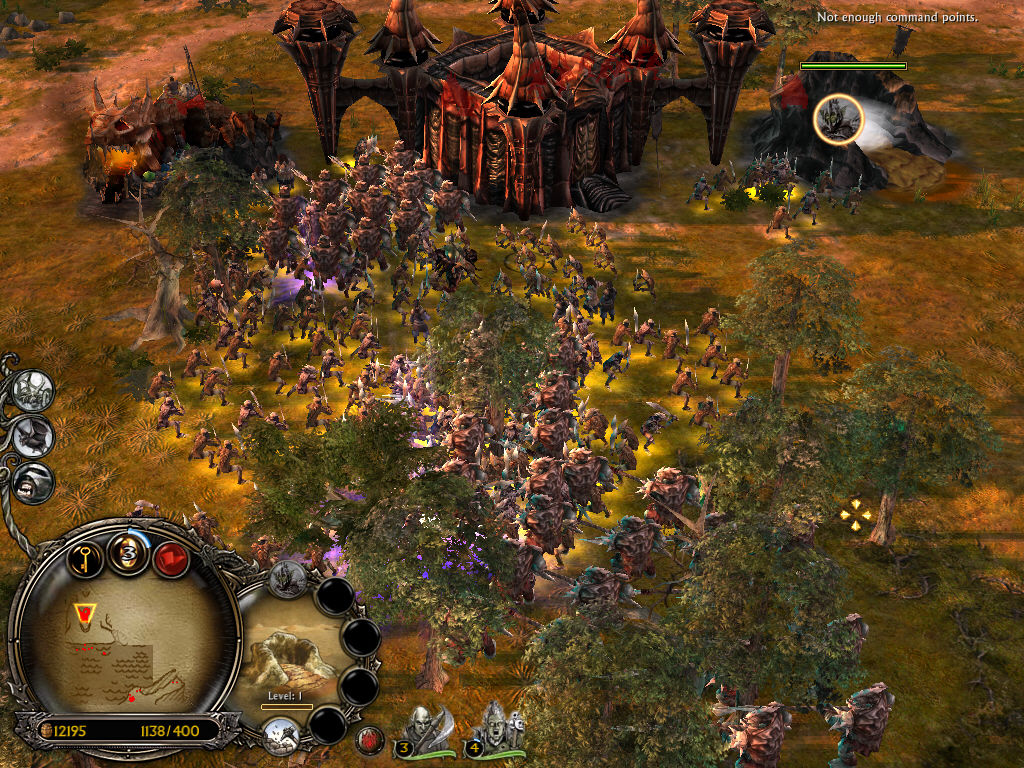
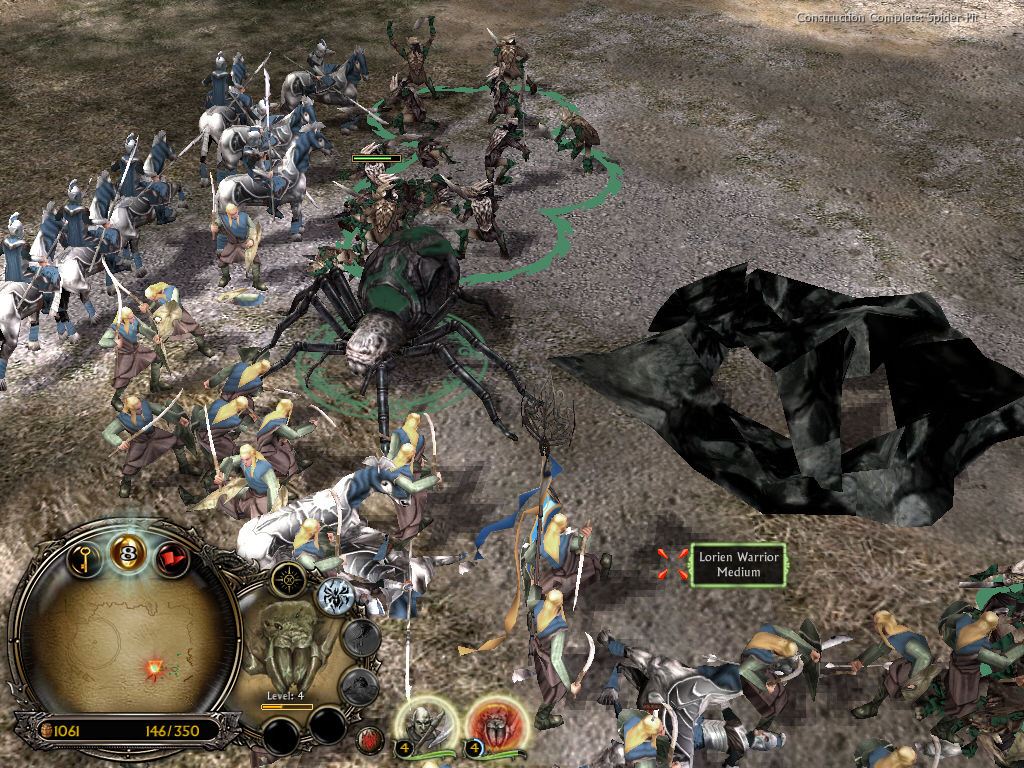
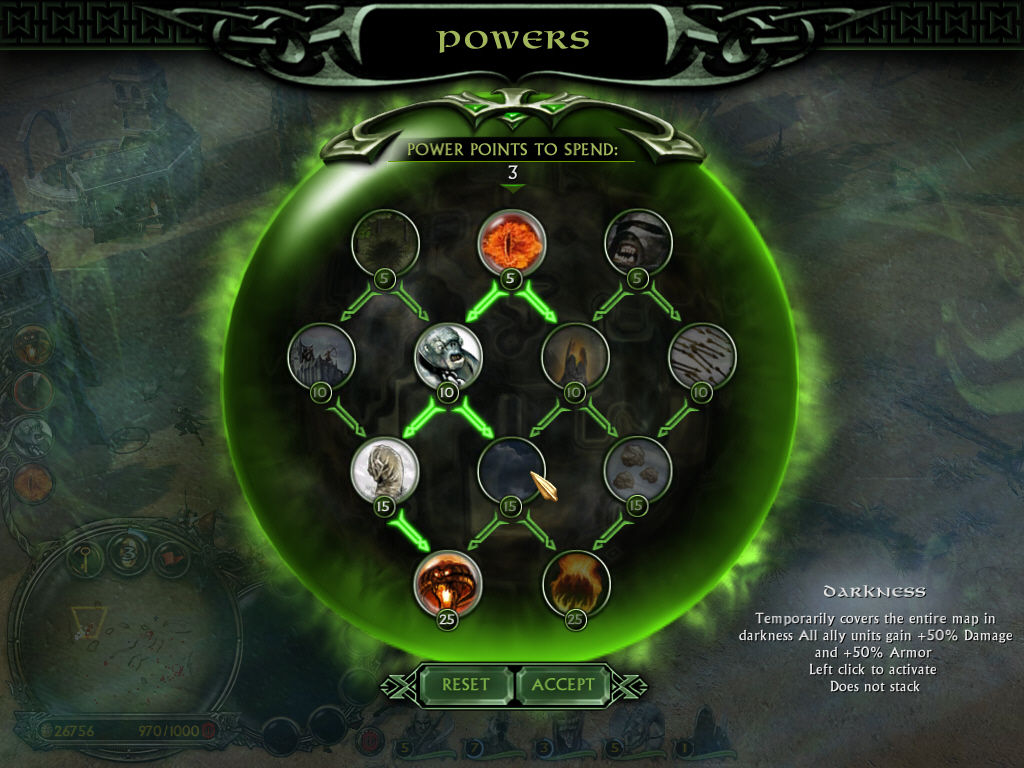
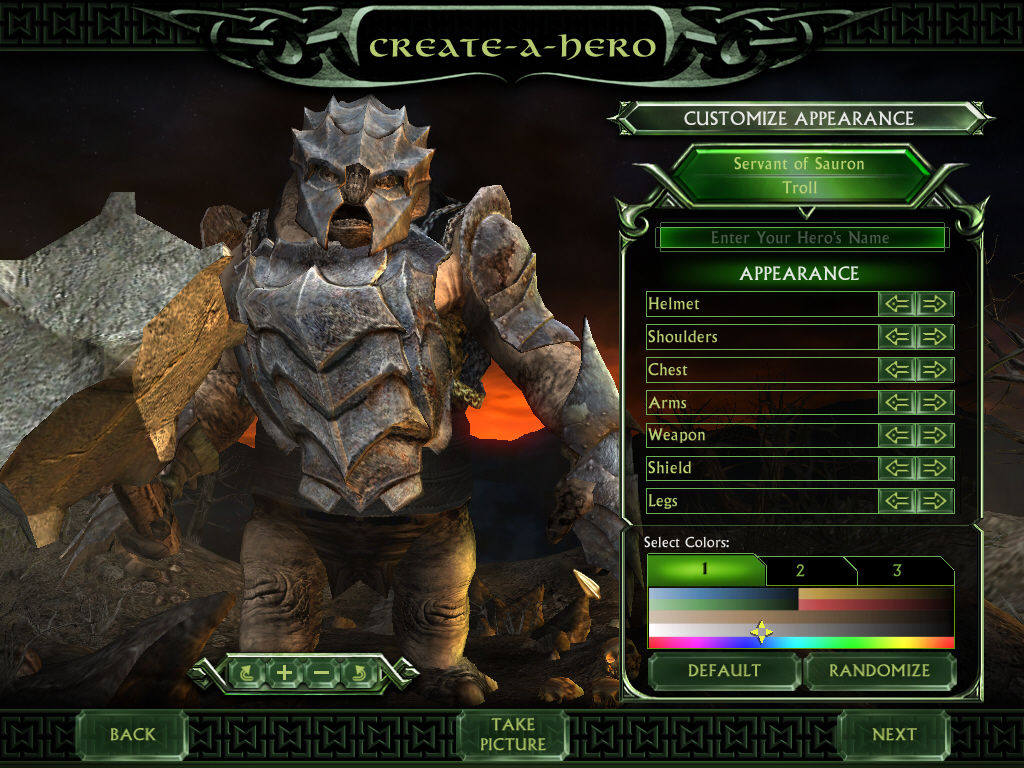
The Battle for Middle-earth II Screenshots
Windows
WAS working last year. I installed from here several times already as I went switching pcs… but now there is this bug where demmands to insert the cd in the system drive, where is impossible to mount the image as far as I know.
Did you figure this out?
I have the same issue!
So I downloaded everything and it is working all right, but like I double click the shortcut and it does not start. Like the loading screen pops up but then sits for a while and then disappears and the game does not start.
Would this also work if I put the folder into my D: drive
Tried almost everything and cant get it to work. I dont get a “insert CD key” it just goes straight to install. Once I click yes to the agreement it asks me for the disk
Do I actually need Daemon Tools? if so which parts, surely not the whole package. Too expensive
Free Lite version is enough
Hey the CD-keys don’t seem to work for me?
there is no folder or file called ‘game files’
Installation worked well, but did not create a file in apdata.roaming …
so can´t play the game… any soulutions?
i have same problem.
Sometimes Windows hides those folders, try searching “%appdata%” in your windows bar and see if it doesn’t populate any results
I have followed the extraction process as instructed, but when I run the installer, it asks for a CD 1 to proceed with the installation even though it is mounted in deamontools or WinCDEmu I just cant seem to get pass that to install the game . OS Win10
Hi bud, did you manage to find a solution there. Regards
Extract the file to where ever your want. You need to go into the Game Files, BFME2, and take the BFME2 installer file and drag it directly onto your desktop. Run the “AutoRun” file from there. This is how I got it to work.
WOW. YOU ARE THE GOAT. I gave up on this until I saw your reply and it worked. You need to drag it onto your desktop, then to the C drive, and also the step with Daemon Tools actually needs to be “IDE” instead of “SCSI”
This worked, thanks!
Installed fine. I get to the launcher and press play and it tells me to insert disk. tried launching from desktop and get the same thing.
Remember step 4 is VERY important. Make sure you put the downloaded folder DIRECTLY into your C: drive 😉
If anyone is struggling to get the CD key problem to go away. listen to this guy.
yeah ive treyed everything and it simply will not let get past the incert CD
When i try download Daemon tools, i need to pay to use it. And i dont know utilize the other software.. How do you did this steps? Do you use the software WinCDEmu, and how..
it ask me to insert the cd 1 at the beggining , after accept “terms”
am unable to extract it, it gives error as 8096002A: No error description available
I had to use 7-zip to extract. I was getting the same error message but 7-zip was able to extract
what does that mean 7-zip i get the same error